Community

 es
es  ua
ua 










Files
3D model format
Stereolithography (.stl)
Total files

Slicer settings
Mesh error check
Netfabb
Support
Lifetime support from Gambody team
Update requests
Available to verified buyers
Model complexity
Standard: balanced printing difficulty and moderate part count with assembly steps.
Advanced: may require tuning print settings or support placement, plus precise fitting, gluing, or sanding.
Model versions
FFF/FDM
Assembly method
not specified
Features
FFF/FDM
Assembly method
not specified
Features
DLP/SLA
Assembly method
not specified
Features
SLS
Assembly method
not specified
Features
DLP/SLA
Assembly method
not specified
Features
Additional details
Part of diorama
No
Add-on pack available
No
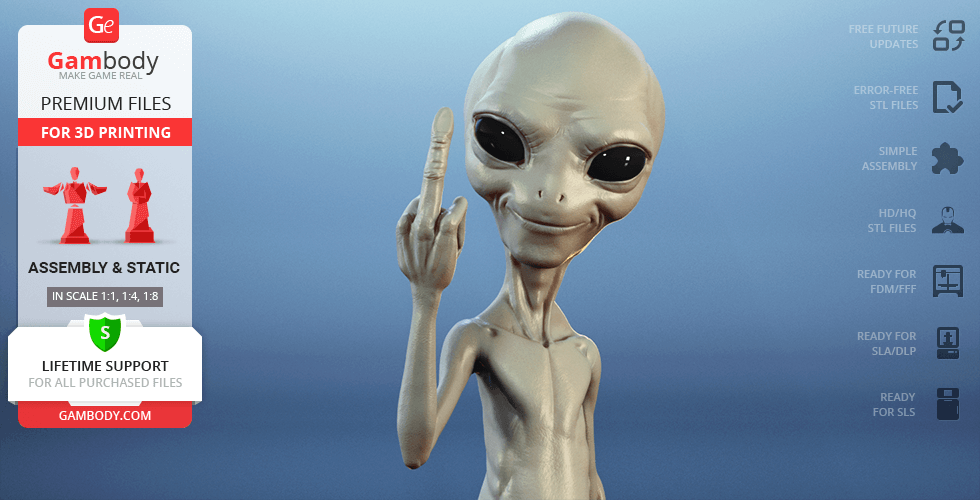
You will get instant access to the STL files of Paul the Alien 3D Printing Model | Assembly after completing your purchase. Simply add the model to your cart and check out using PayPal, credit or debit card, Apple Pay, Google Pay, Alipay, or other available payment methods.
Watch the assembly video for Paul the Alien 3D Printing Model | Assembly, and explore more tutorials, behind-the-scenes content, 3D printing timelapses, and painting guides on the official Gambody YouTube channel.
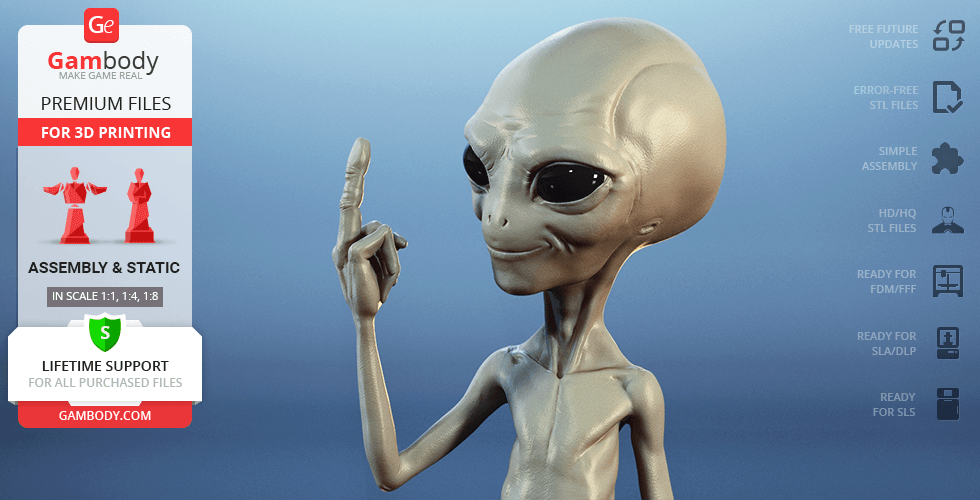
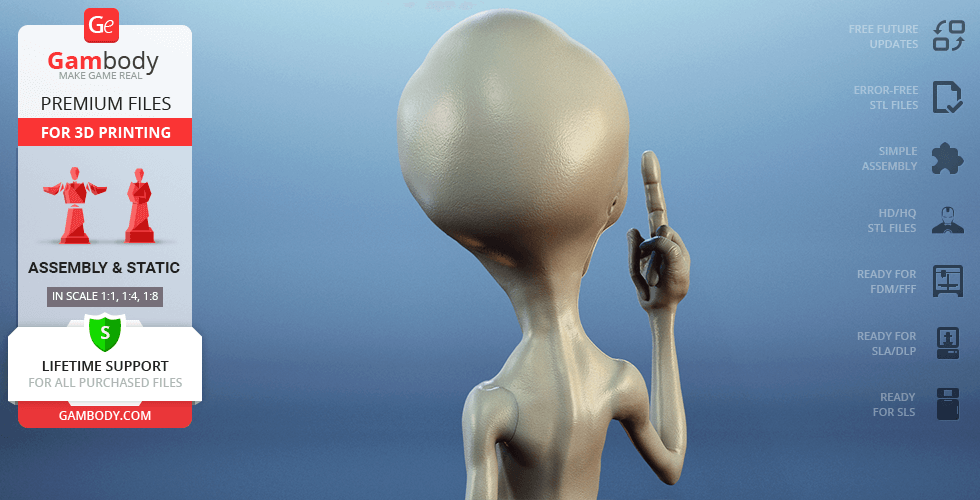
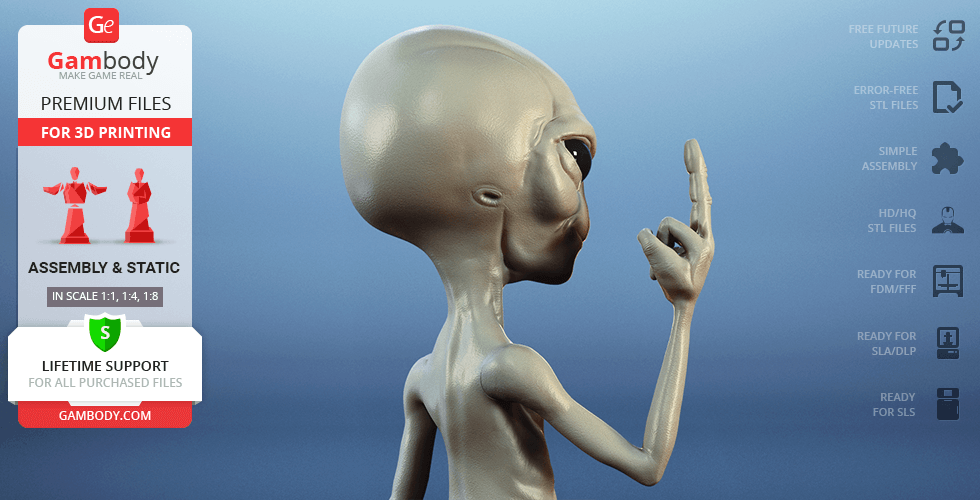
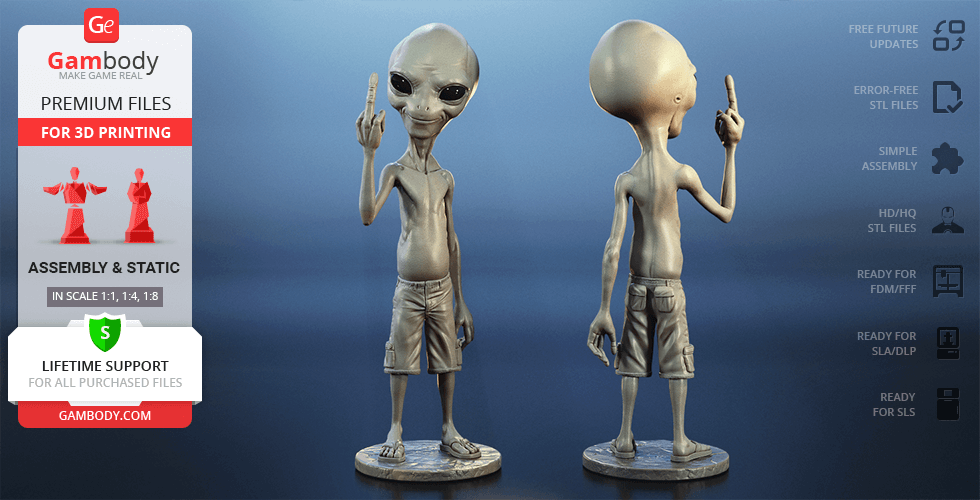
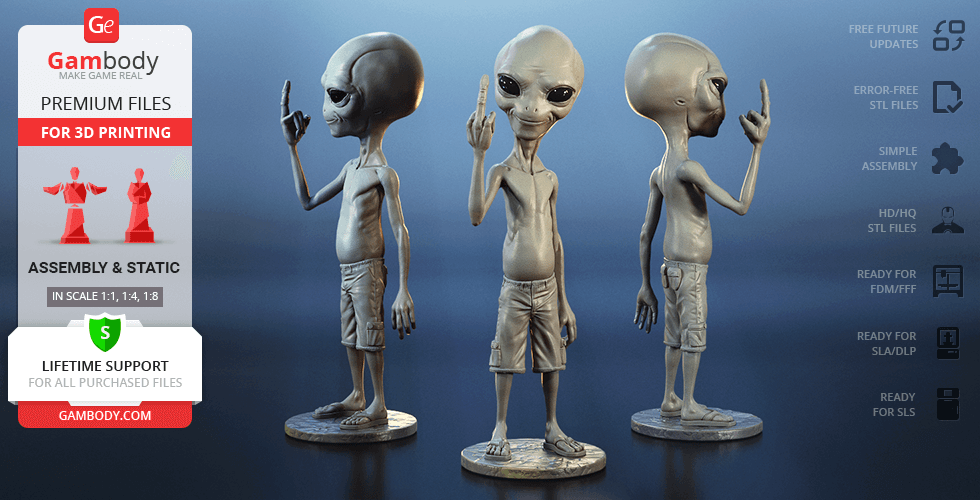
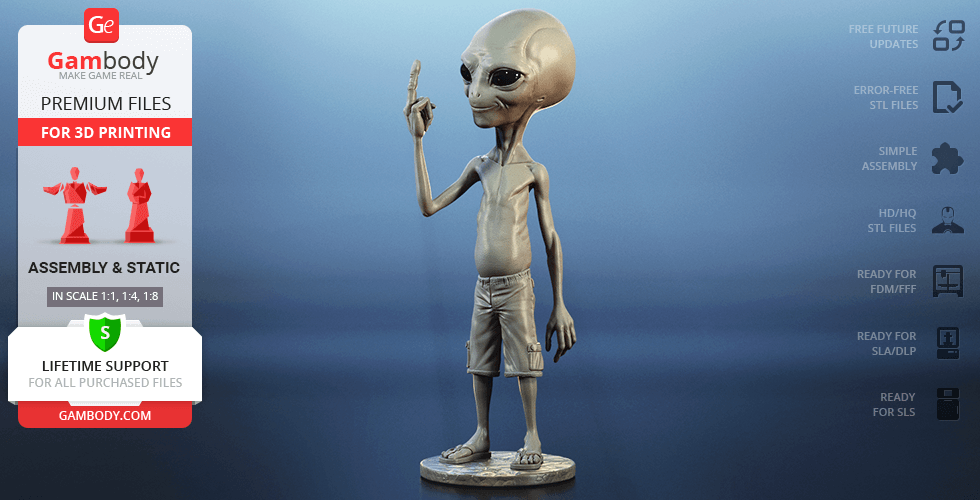
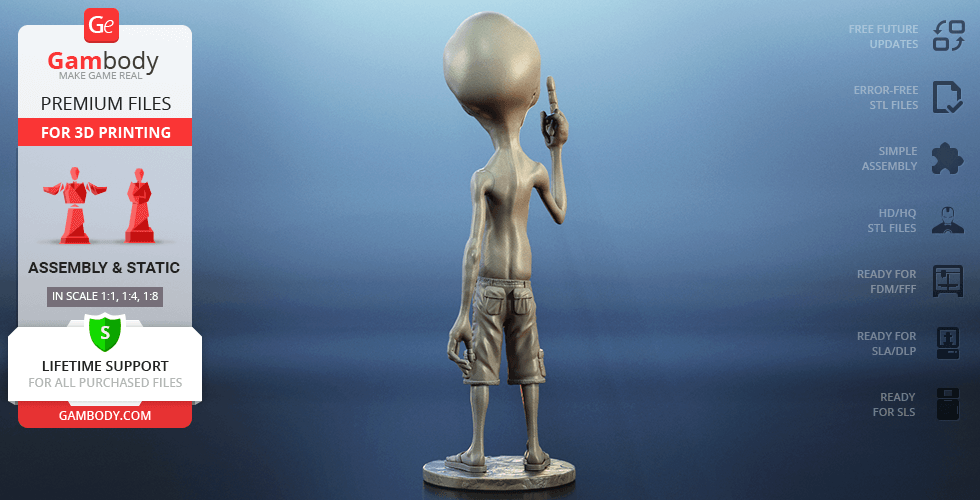
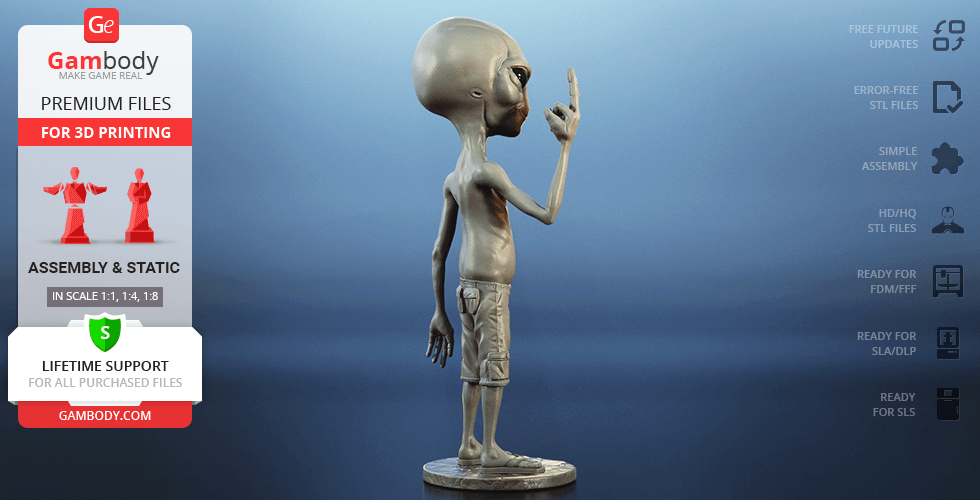
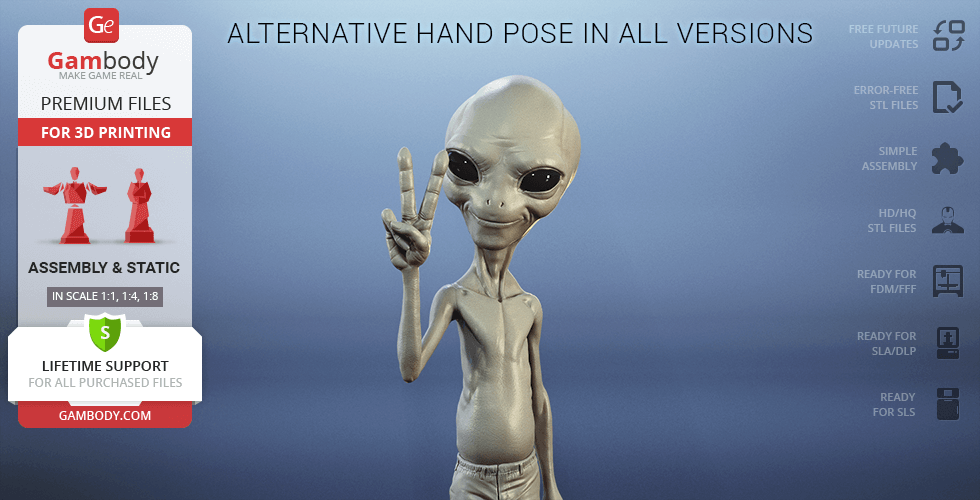
This 3D Figurine of Paul the Extraterrestrial consists of files in StereoLithography (.Stl) format that is optimized for 3D printing.
Before printing the files, we strongly recommend reading the PRINTING DETAILS section.
WHAT WILL YOU GET AFTER PURCHASE?
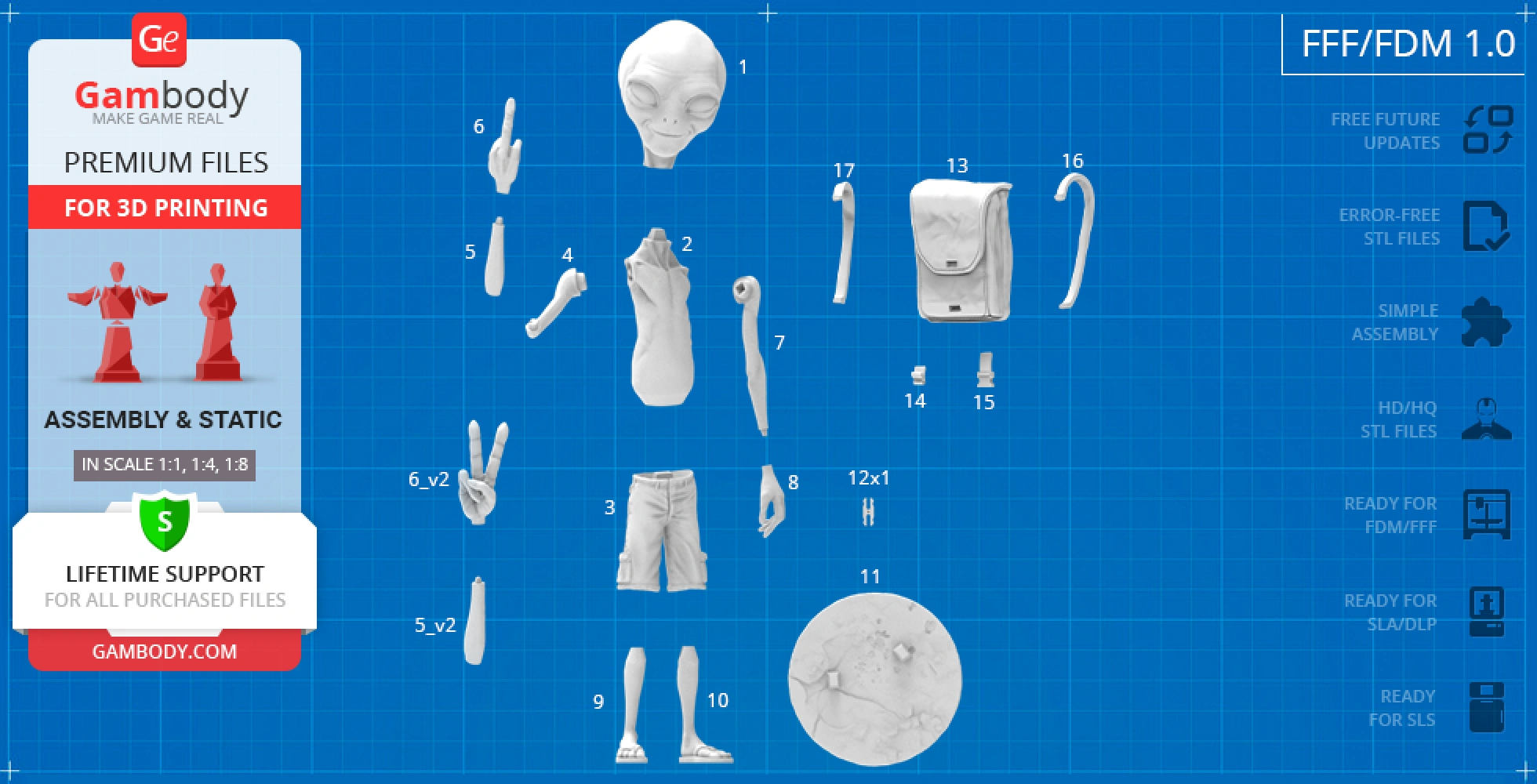
- 5 versions of Paul the Alien STL files for FFF/FDM, DLP/SLA, DLP/SLA Eco, and SLS - files for each version are available for download after the purchase;
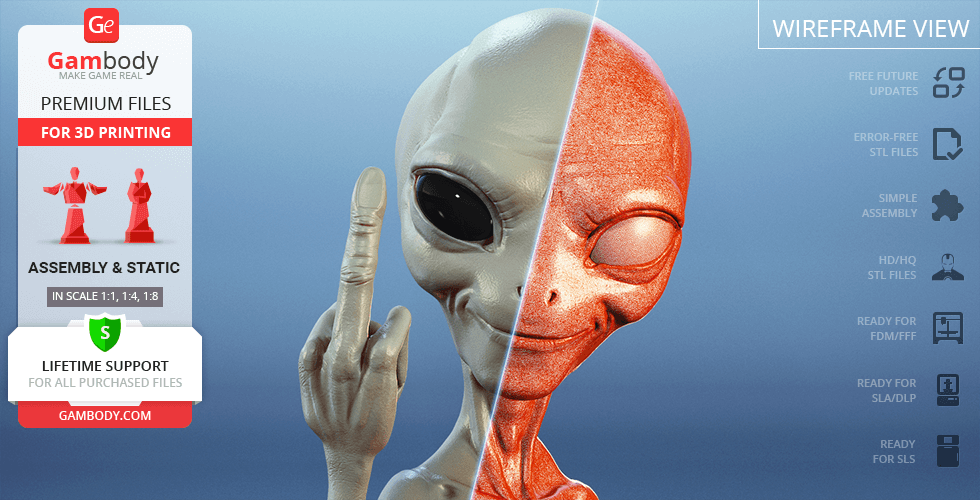
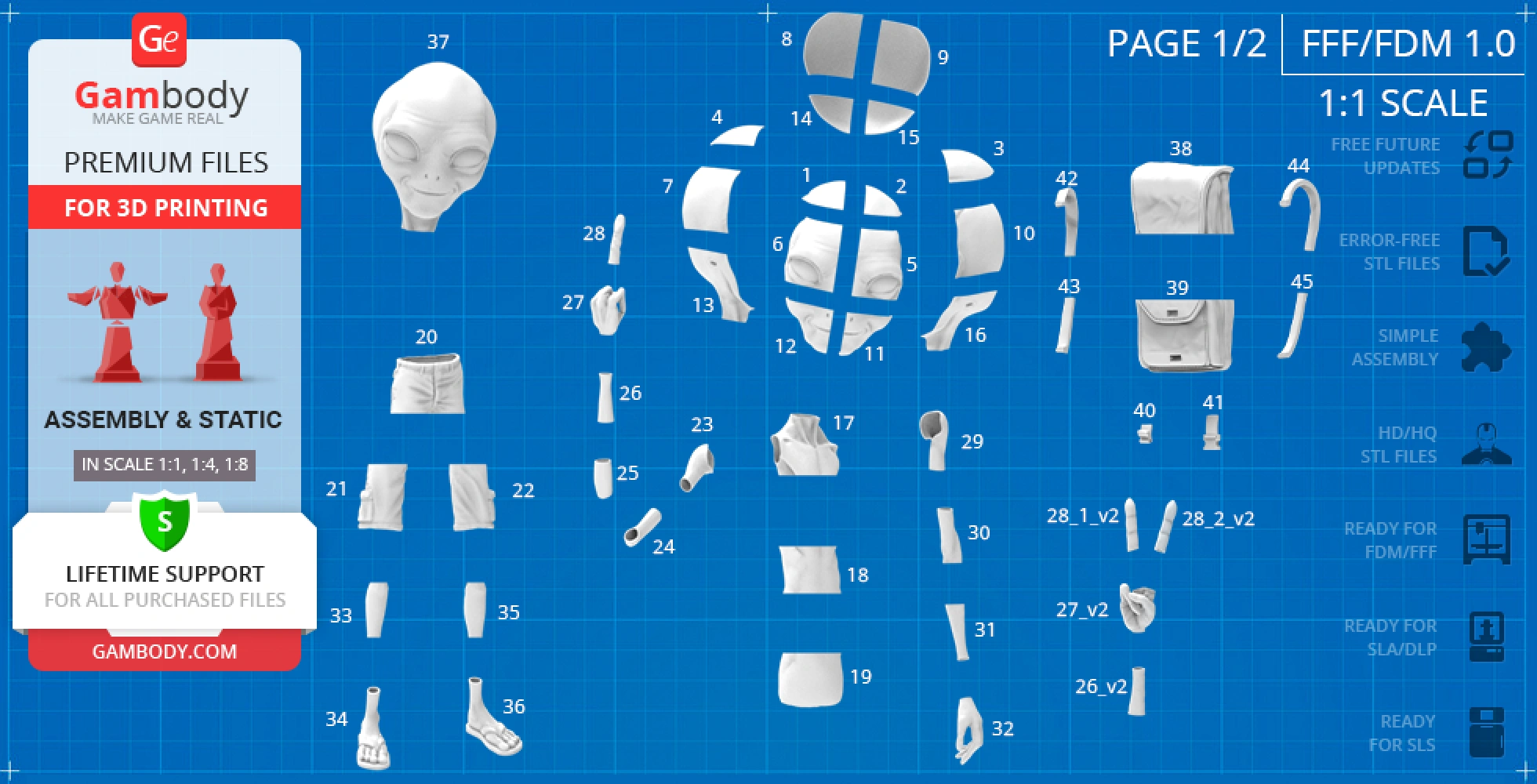
- STL files of high-poly Paul the Alien 3D Figurine for 3D printing consist of 93 parts;
- Sizes:
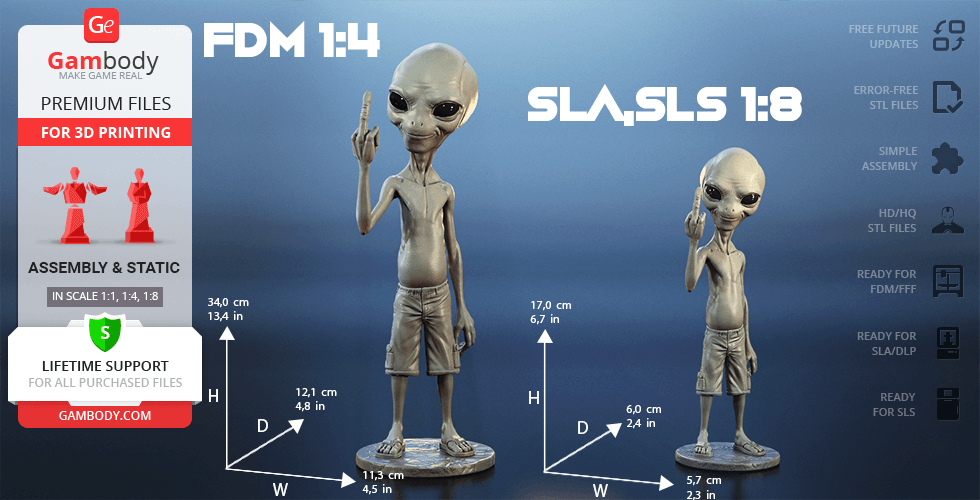
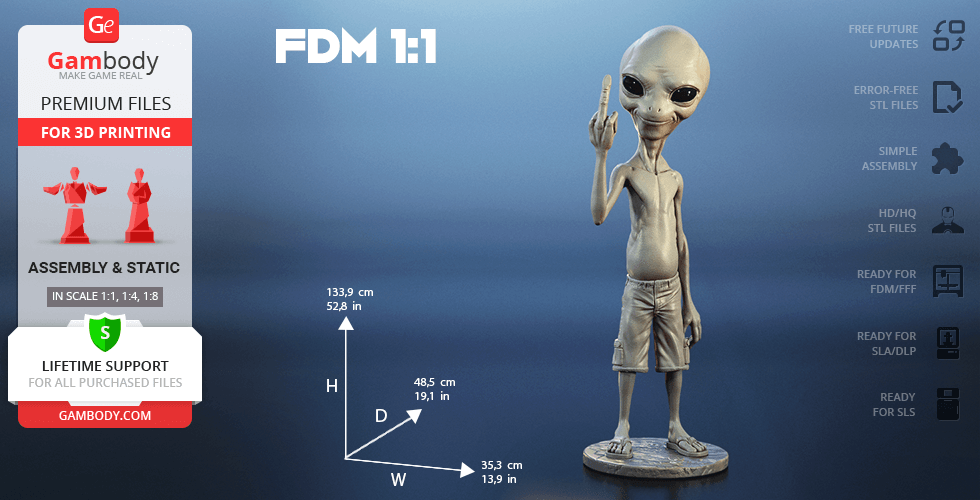
- FFF/FDM: 340 mm tall, 113 mm wide, 121 mm deep;
- FFF/FDM Life-size: 1339 mm tall, 353 mm wide, 485 mm deep;
- DLP/SLA/SLS: 170 mm tall, 57 mm wide, 60 mm deep;
- AssemblyManual for FFF/FDM 1.0, FFF/FDM Life-size 1.0 and DLP/SLA 1.0 versions in PDF format;
- Detailed settings that we provide as a recommendation for Cura, Simplify3D and Slic3r for the best print- Full technical support from the Gambody Support Team.
Detailed information about this 3D printing figurine is available in the DESCRIPTION section.
Before printing, take a look at Printing Details for recommended settings and tips to achieve better results.
| File name | Size (mm | in) | Size(mb) | Printing Time / Filament | |||
|---|---|---|---|---|---|---|
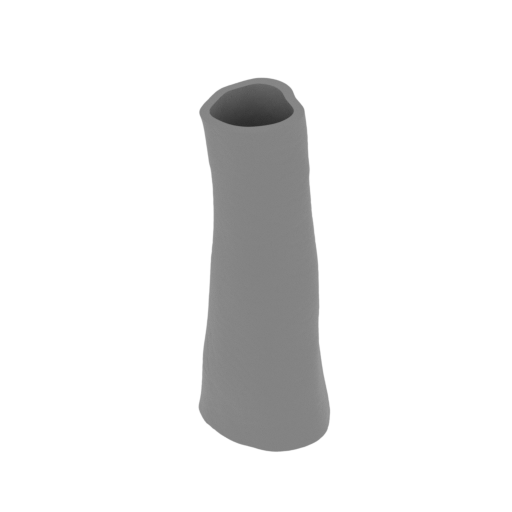 | 26_v2_arm_R_4_FDM(repaired).stl 45.45 x 56.76 x 126.87 mm | 1.79 x 2.23 x 4.99 in | Size: 45.45 x 56.76 x 126.87 mm | 1.79 x 2.23 x 4.99 in | File size: 31.59 mb | Printing Time / Filament: 1 h 60 min / 10 m Slicer: prusa v2.9.2 Printer: prusa_xl Non default settings Layer height: 0.2 Fill density: 20% Support material: 1 Support material buildplate only: 1 | ||
 | 37_Paul_solid_head (repaired).stl 284.68 x 350.84 x 392.02 mm | 11.21 x 13.81 x 15.43 in | Size: 284.68 x 350.84 x 392.02 mm | 11.21 x 13.81 x 15.43 in | File size: 96.63 mb | Printing Time / Filament: 858 h 35 min / 809 m | ||
 | Tag (repaired).stl 150.15 x 18.16 x 4.59 mm | 5.91 x 0.71 x 0.18 in | Size: 150.15 x 18.16 x 4.59 mm | 5.91 x 0.71 x 0.18 in | File size: 1.78 mb | Printing Time / Filament: 18 min / 2 m Slicer: prusa v2.9.2 Printer: prusa_xl Non default settings Layer height: 0.2 Fill density: 20% Support material: 1 Support material buildplate only: 1 | ||
 | Keychain (repaired).stl 29.68 x 29.69 x 2.42 mm | 1.17 x 1.17 x 0.1 in | Size: 29.68 x 29.69 x 2.42 mm | 1.17 x 1.17 x 0.1 in | File size: 0.37 mb | Printing Time / Filament: 6 min / 1 m Slicer: prusa v2.9.2 Printer: prusa_xl Non default settings Layer height: 0.2 Fill density: 20% Support material: 1 Support material buildplate only: 1 | ||
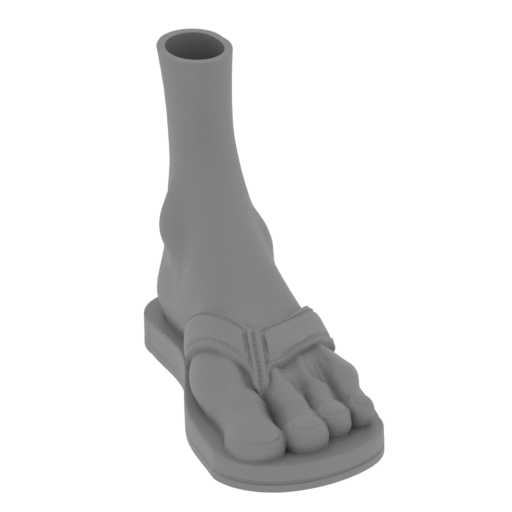 | 36_foot_L(repaired).stl 143.09 x 173.65 x 145.3 mm | 5.63 x 6.84 x 5.72 in | Size: 143.09 x 173.65 x 145.3 mm | 5.63 x 6.84 x 5.72 in | File size: 34.81 mb | Printing Time / Filament: 5 h 21 min / 41 m Slicer: prusa v2.9.2 Printer: prusa_xl Non default settings Layer height: 0.2 Fill density: 20% Support material: 1 Support material buildplate only: 1 | ||
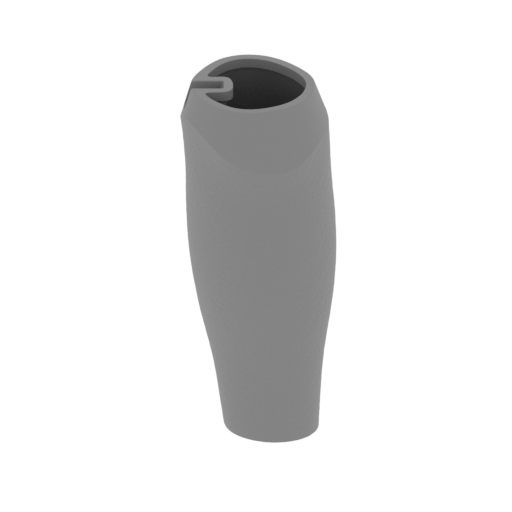 | 35_leg_L(repaired).stl 56.89 x 71.64 x 139.84 mm | 2.24 x 2.82 x 5.51 in | Size: 56.89 x 71.64 x 139.84 mm | 2.24 x 2.82 x 5.51 in | File size: 23.13 mb | Printing Time / Filament: 2 h 35 min / 20 m Slicer: prusa v2.9.2 Printer: prusa_xl Non default settings Layer height: 0.2 Fill density: 20% Support material: 1 Support material buildplate only: 1 | ||
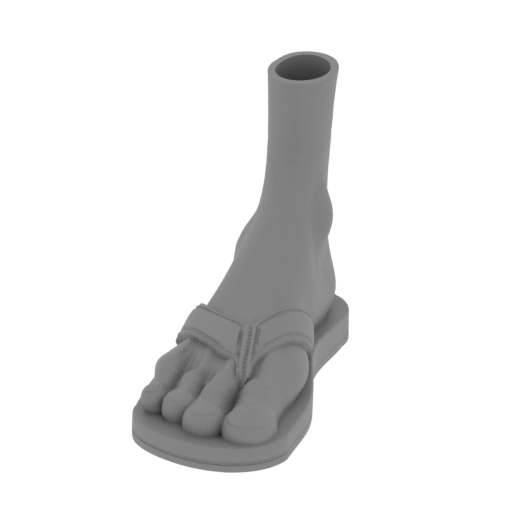 | 34_foot_R(repaired).stl 84.16 x 191.51 x 145.21 mm | 3.31 x 7.54 x 5.72 in | Size: 84.16 x 191.51 x 145.21 mm | 3.31 x 7.54 x 5.72 in | File size: 34.90 mb | Printing Time / Filament: 5 h 29 min / 42 m Slicer: prusa v2.9.2 Printer: prusa_xl Non default settings Layer height: 0.2 Fill density: 20% Support material: 1 Support material buildplate only: 1 | ||
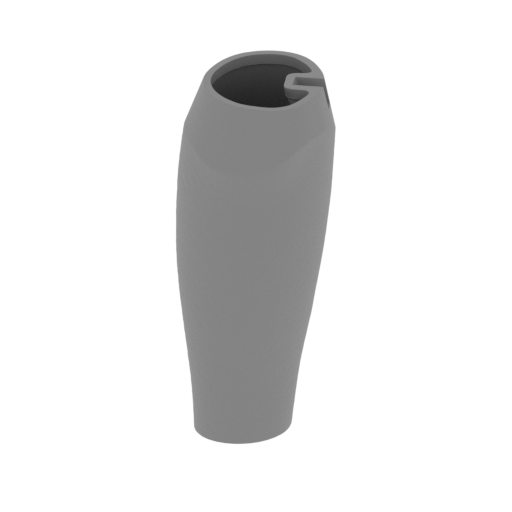 | 33_leg_R(repaired).stl 58.38 x 69.42 x 139.84 mm | 2.3 x 2.73 x 5.51 in | Size: 58.38 x 69.42 x 139.84 mm | 2.3 x 2.73 x 5.51 in | File size: 24.50 mb | Printing Time / Filament: 2 h 35 min / 20 m Slicer: prusa v2.9.2 Printer: prusa_xl Non default settings Layer height: 0.2 Fill density: 20% Support material: 1 Support material buildplate only: 1 | ||
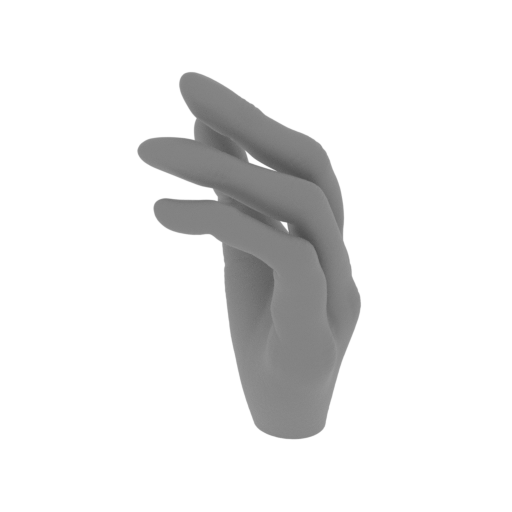 | 32_hand_L(repaired).stl 82.29 x 95.66 x 162.39 mm | 3.24 x 3.77 x 6.39 in | Size: 82.29 x 95.66 x 162.39 mm | 3.24 x 3.77 x 6.39 in | File size: 20.53 mb | Printing Time / Filament: 5 h 56 min / 39 m Slicer: prusa v2.9.2 Printer: prusa_xl Non default settings Layer height: 0.2 Fill density: 20% Support material: 1 Support material buildplate only: 1 | ||
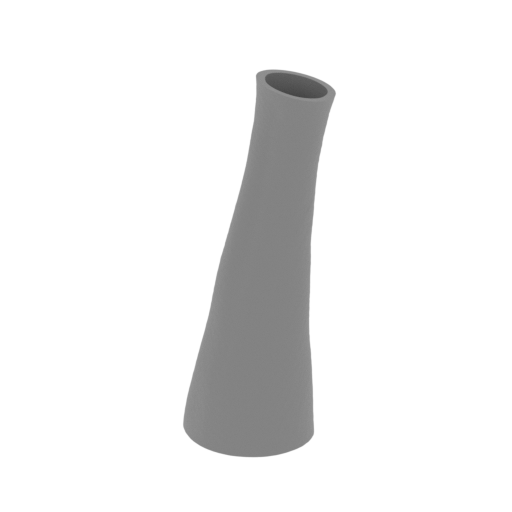 | 31_arm_L_3(repaired).stl 58.34 x 41.43 x 143.88 mm | 2.3 x 1.63 x 5.66 in | Size: 58.34 x 41.43 x 143.88 mm | 2.3 x 1.63 x 5.66 in | File size: 20.06 mb | Printing Time / Filament: 2 h 12 min / 12 m Slicer: prusa v2.9.2 Printer: prusa_xl Non default settings Layer height: 0.2 Fill density: 20% Support material: 1 Support material buildplate only: 1 | ||
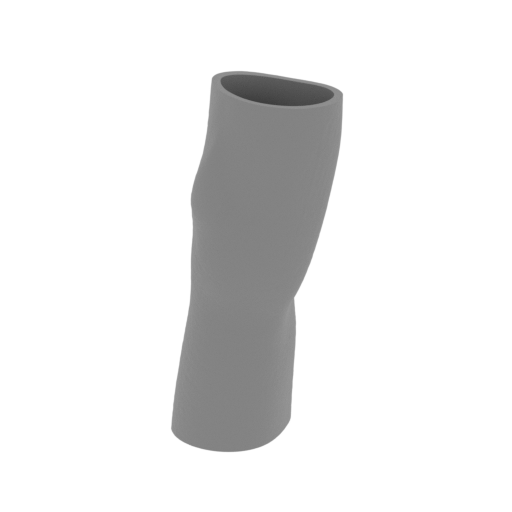 | 30_arm_L_2(repaired).stl 64.78 x 58.11 x 143.09 mm | 2.55 x 2.29 x 5.63 in | Size: 64.78 x 58.11 x 143.09 mm | 2.55 x 2.29 x 5.63 in | File size: 18.27 mb | Printing Time / Filament: 2 h 22 min / 16 m Slicer: prusa v2.9.2 Printer: prusa_xl Non default settings Layer height: 0.2 Fill density: 20% Support material: 1 Support material buildplate only: 1 | ||
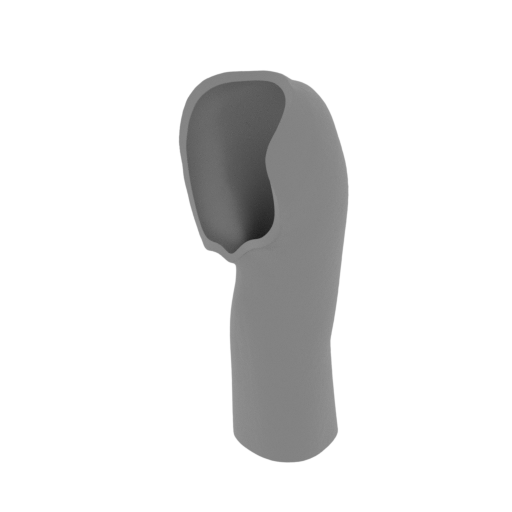 | 29_arm_L_1(repaired).stl 73.46 x 69.73 x 150.96 mm | 2.89 x 2.75 x 5.94 in | Size: 73.46 x 69.73 x 150.96 mm | 2.89 x 2.75 x 5.94 in | File size: 18.38 mb | Printing Time / Filament: 3 h 11 min / 24 m Slicer: prusa v2.9.2 Printer: prusa_xl Non default settings Layer height: 0.2 Fill density: 20% Support material: 1 Support material buildplate only: 1 | ||
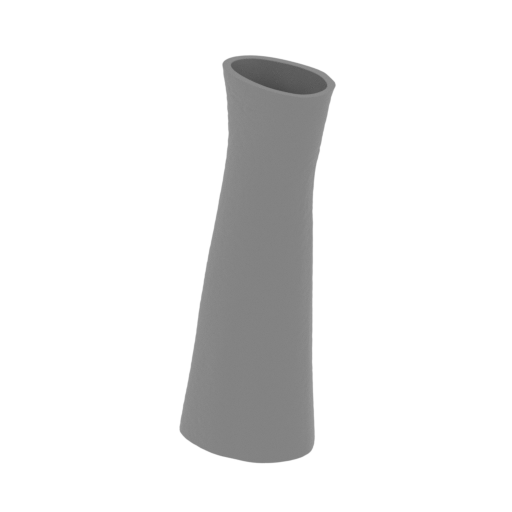 | 26_arm_R_4(repaired).stl 50.56 x 39.67 x 123.74 mm | 1.99 x 1.56 x 4.87 in | Size: 50.56 x 39.67 x 123.74 mm | 1.99 x 1.56 x 4.87 in | File size: 18.91 mb | Printing Time / Filament: 1 h 54 min / 10 m Slicer: prusa v2.9.2 Printer: prusa_xl Non default settings Layer height: 0.2 Fill density: 20% Support material: 1 Support material buildplate only: 1 | ||
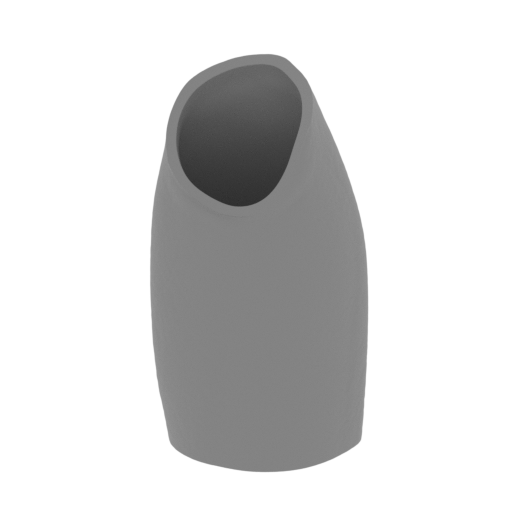 | 25_arm_R_3(repaired).stl 51.67 x 44.33 x 96.46 mm | 2.03 x 1.75 x 3.8 in | Size: 51.67 x 44.33 x 96.46 mm | 2.03 x 1.75 x 3.8 in | File size: 21.11 mb | Printing Time / Filament: 1 h 32 min / 10 m Slicer: prusa v2.9.2 Printer: prusa_xl Non default settings Layer height: 0.2 Fill density: 20% Support material: 1 Support material buildplate only: 1 | ||
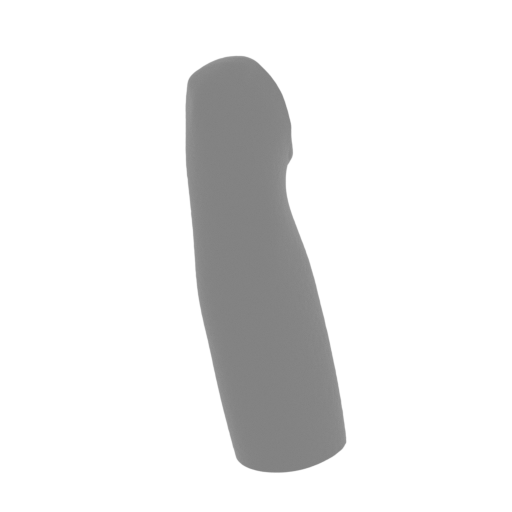 | 24_arm_R_2(repaired).stl 60.56 x 52.89 x 129.08 mm | 2.38 x 2.08 x 5.08 in | Size: 60.56 x 52.89 x 129.08 mm | 2.38 x 2.08 x 5.08 in | File size: 18.16 mb | Printing Time / Filament: 2 h 4 min / 12 m Slicer: prusa v2.9.2 Printer: prusa_xl Non default settings Layer height: 0.2 Fill density: 20% Support material: 1 Support material buildplate only: 1 | ||
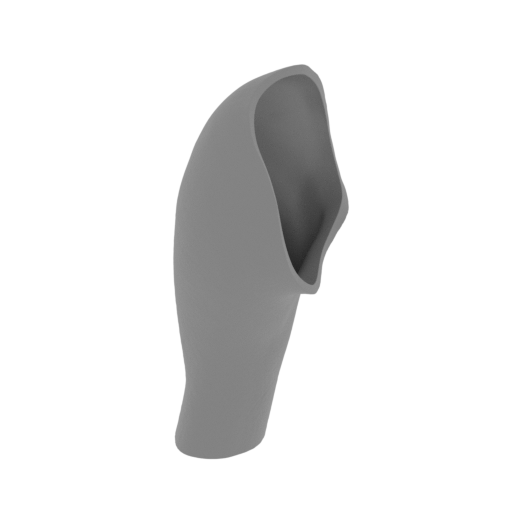 | 23_arm_R_1(repaired).stl 58.64 x 85.26 x 142.49 mm | 2.31 x 3.36 x 5.61 in | Size: 58.64 x 85.26 x 142.49 mm | 2.31 x 3.36 x 5.61 in | File size: 15.91 mb | Printing Time / Filament: 2 h 50 min / 20 m Slicer: prusa v2.9.2 Printer: prusa_xl Non default settings Layer height: 0.2 Fill density: 20% Support material: 1 Support material buildplate only: 1 | ||
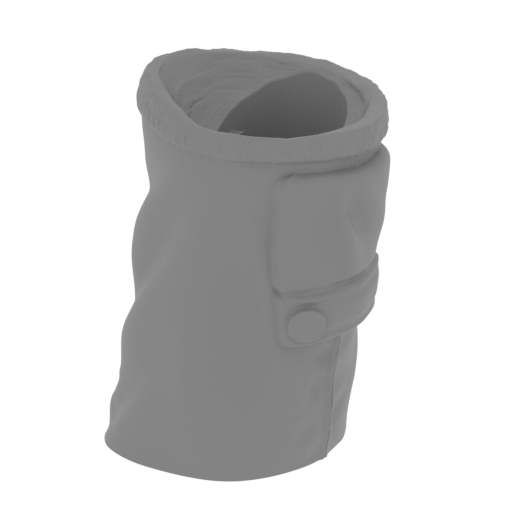 | 21_shorts_2(repaired).stl 126.06 x 107.09 x 169.65 mm | 4.96 x 4.22 x 6.68 in | Size: 126.06 x 107.09 x 169.65 mm | 4.96 x 4.22 x 6.68 in | File size: 27.31 mb | Printing Time / Filament: 9 h 24 min / 75 m Slicer: prusa v2.9.2 Printer: prusa_xl Non default settings Layer height: 0.2 Fill density: 20% Support material: 1 Support material buildplate only: 1 | ||
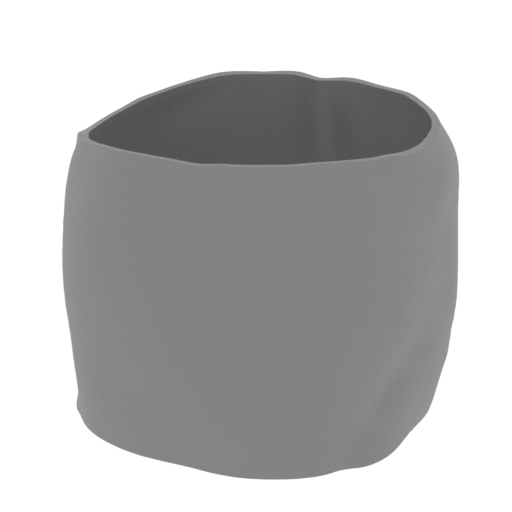 | 19_body_3(repaired).stl 160.97 x 164 x 138.21 mm | 6.34 x 6.46 x 5.44 in | Size: 160.97 x 164 x 138.21 mm | 6.34 x 6.46 x 5.44 in | File size: 54.61 mb | Printing Time / Filament: 5 h 18 min / 56 m Slicer: prusa v2.9.2 Printer: prusa_xl Non default settings Layer height: 0.2 Fill density: 20% Support material: 1 Support material buildplate only: 1 | ||
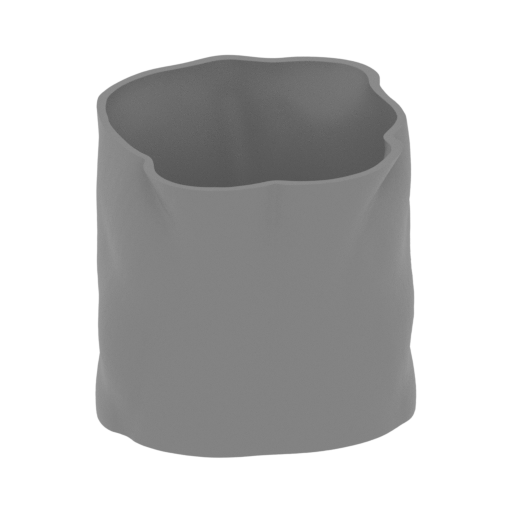 | 18_body_2(repaired).stl 158.04 x 174.91 x 120.49 mm | 6.22 x 6.89 x 4.74 in | Size: 158.04 x 174.91 x 120.49 mm | 6.22 x 6.89 x 4.74 in | File size: 36.10 mb | Printing Time / Filament: 4 h 35 min / 48 m Slicer: prusa v2.9.2 Printer: prusa_xl Non default settings Layer height: 0.2 Fill density: 20% Support material: 1 Support material buildplate only: 1 | ||
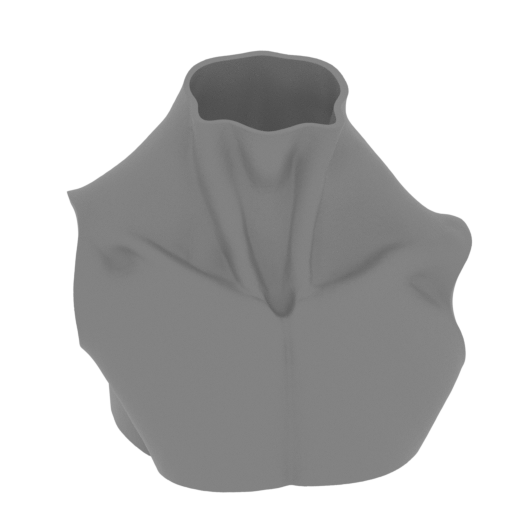 | 17_body_1(repaired).stl 174.24 x 164.27 x 157.02 mm | 6.86 x 6.47 x 6.18 in | Size: 174.24 x 164.27 x 157.02 mm | 6.86 x 6.47 x 6.18 in | File size: 54.50 mb | Printing Time / Filament: 8 h 53 min / 72 m Slicer: prusa v2.9.2 Printer: prusa_xl Non default settings Layer height: 0.2 Fill density: 20% Support material: 1 Support material buildplate only: 1 | ||
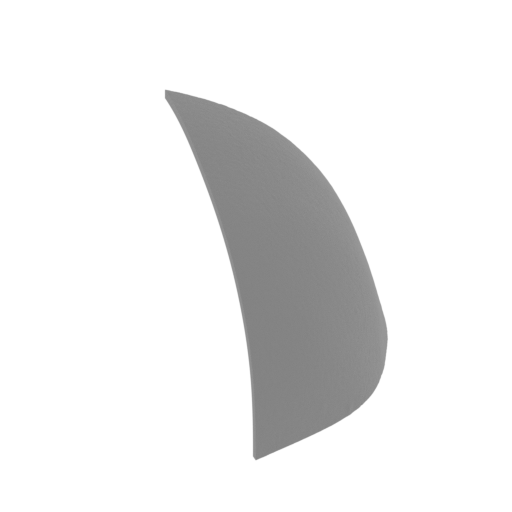 | 15_head(repaired).stl 88.97 x 138.98 x 91.55 mm | 3.5 x 5.47 x 3.6 in | Size: 88.97 x 138.98 x 91.55 mm | 3.5 x 5.47 x 3.6 in | File size: 18.19 mb | Printing Time / Filament: 2 h 47 min / 26 m Slicer: prusa v2.9.2 Printer: prusa_xl Non default settings Layer height: 0.2 Fill density: 20% Support material: 1 Support material buildplate only: 1 | ||
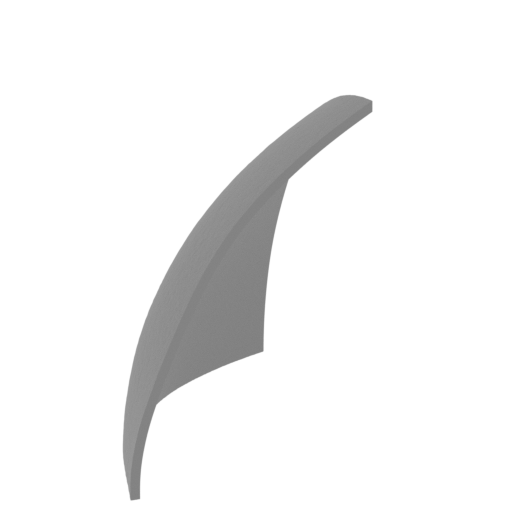 | 14_head(repaired).stl 78.14 x 119.95 x 118.58 mm | 3.08 x 4.72 x 4.67 in | Size: 78.14 x 119.95 x 118.58 mm | 3.08 x 4.72 x 4.67 in | File size: 16.38 mb | Printing Time / Filament: 2 h 8 min / 17 m Slicer: prusa v2.9.2 Printer: prusa_xl Non default settings Layer height: 0.2 Fill density: 20% Support material: 1 Support material buildplate only: 1 | ||
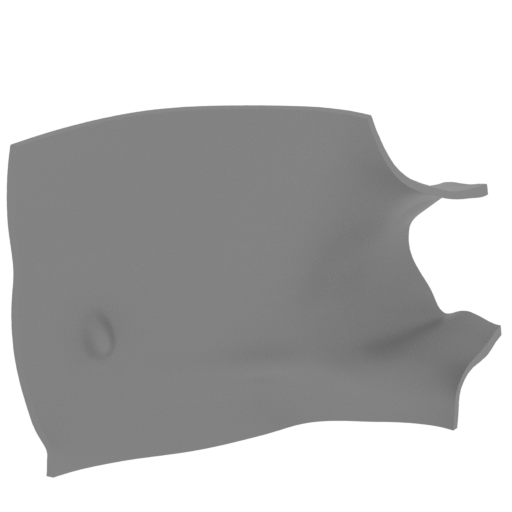 | 13_head(repaired).stl 155.52 x 155.57 x 156.01 mm | 6.12 x 6.12 x 6.14 in | Size: 155.52 x 155.57 x 156.01 mm | 6.12 x 6.12 x 6.14 in | File size: 16.12 mb | Printing Time / Filament: 4 h 10 min / 36 m Slicer: prusa v2.9.2 Printer: prusa_xl Non default settings Layer height: 0.2 Fill density: 20% Support material: 1 Support material buildplate only: 1 | ||
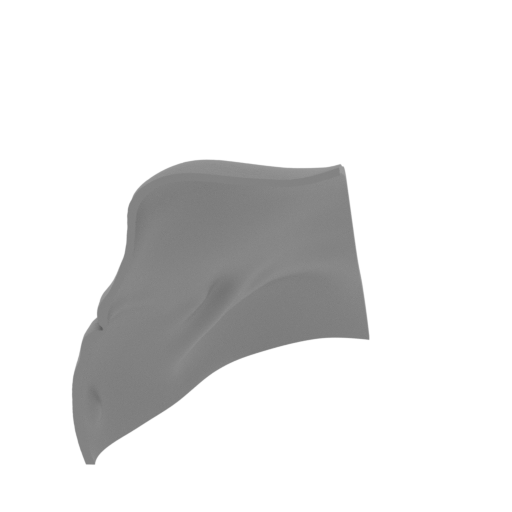 | 11_head(repaired).stl 95.14 x 143.72 x 119.52 mm | 3.75 x 5.66 x 4.71 in | Size: 95.14 x 143.72 x 119.52 mm | 3.75 x 5.66 x 4.71 in | File size: 18.21 mb | Printing Time / Filament: 3 h 51 min / 34 m Slicer: prusa v2.9.2 Printer: prusa_xl Non default settings Layer height: 0.2 Fill density: 20% Support material: 1 Support material buildplate only: 1 | ||
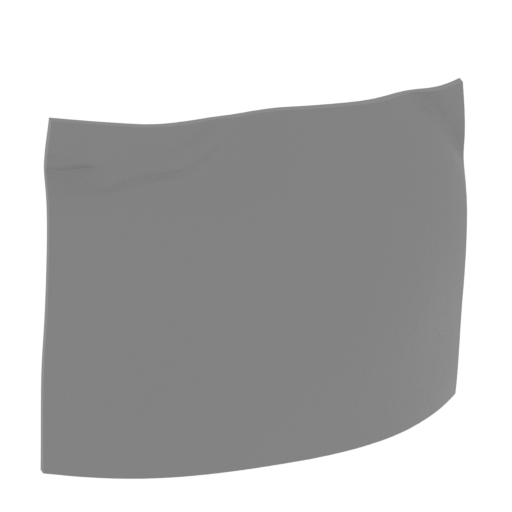 | 10_head(repaired).stl 131.4 x 130.66 x 149.36 mm | 5.17 x 5.14 x 5.88 in | Size: 131.4 x 130.66 x 149.36 mm | 5.17 x 5.14 x 5.88 in | File size: 19.43 mb | Printing Time / Filament: 2 h 40 min / 23 m Slicer: prusa v2.9.2 Printer: prusa_xl Non default settings Layer height: 0.2 Fill density: 20% Support material: 1 Support material buildplate only: 1 | ||
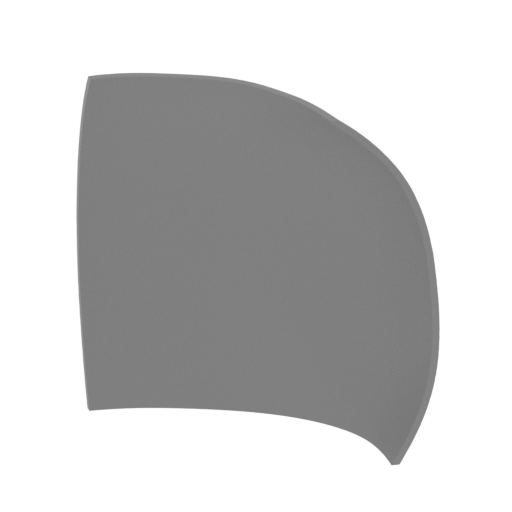 | 9_head(repaired).stl 174.03 x 59.78 x 170.47 mm | 6.85 x 2.35 x 6.71 in | Size: 174.03 x 59.78 x 170.47 mm | 6.85 x 2.35 x 6.71 in | File size: 19.63 mb | Printing Time / Filament: 3 h 13 min / 29 m Slicer: prusa v2.9.2 Printer: prusa_xl Non default settings Layer height: 0.2 Fill density: 20% Support material: 1 Support material buildplate only: 1 | ||
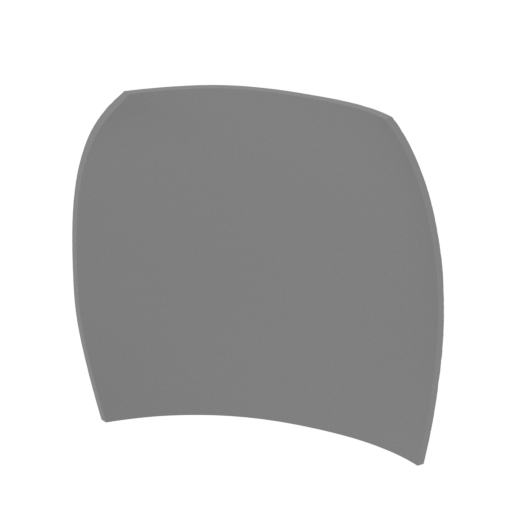 | 8_head(repaired).stl 170.61 x 53.98 x 167.25 mm | 6.72 x 2.13 x 6.58 in | Size: 170.61 x 53.98 x 167.25 mm | 6.72 x 2.13 x 6.58 in | File size: 19.33 mb | Printing Time / Filament: 2 h 60 min / 26 m Slicer: prusa v2.9.2 Printer: prusa_xl Non default settings Layer height: 0.2 Fill density: 20% Support material: 1 Support material buildplate only: 1 | ||
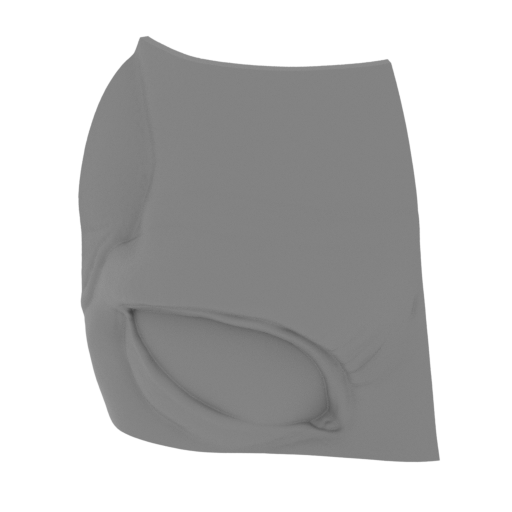 | 6_head(repaired).stl 171.68 x 82.9 x 167.64 mm | 6.76 x 3.26 x 6.6 in | Size: 171.68 x 82.9 x 167.64 mm | 6.76 x 3.26 x 6.6 in | File size: 17.57 mb | Printing Time / Filament: 3 h 52 min / 33 m Slicer: prusa v2.9.2 Printer: prusa_xl Non default settings Layer height: 0.2 Fill density: 20% Support material: 1 Support material buildplate only: 1 | ||
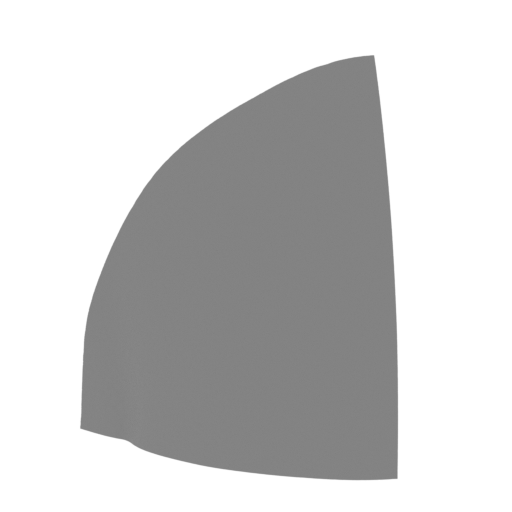 | 4_head(repaired).stl 118.84 x 62.55 x 137.24 mm | 4.68 x 2.46 x 5.4 in | Size: 118.84 x 62.55 x 137.24 mm | 4.68 x 2.46 x 5.4 in | File size: 24.98 mb | Printing Time / Filament: 2 h 13 min / 14 m Slicer: prusa v2.9.2 Printer: prusa_xl Non default settings Layer height: 0.2 Fill density: 20% Support material: 1 Support material buildplate only: 1 | ||
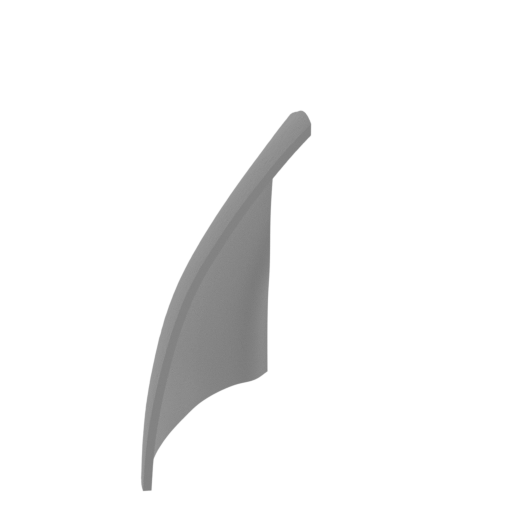 | 2_head(repaired).stl 64.45 x 116.74 x 138.61 mm | 2.54 x 4.6 x 5.46 in | Size: 64.45 x 116.74 x 138.61 mm | 2.54 x 4.6 x 5.46 in | File size: 20.90 mb | Printing Time / Filament: 2 h 5 min / 12 m Slicer: prusa v2.9.2 Printer: prusa_xl Non default settings Layer height: 0.2 Fill density: 20% Support material: 1 Support material buildplate only: 1 | ||
 | 1_head(repaired).stl 102.78 x 136.34 x 103.46 mm | 4.05 x 5.37 x 4.07 in | Size: 102.78 x 136.34 x 103.46 mm | 4.05 x 5.37 x 4.07 in | File size: 22.86 mb | Printing Time / Filament: 2 h 4 min / 17 m Slicer: prusa v2.9.2 Printer: prusa_xl Non default settings Layer height: 0.2 Fill density: 20% Support material: 1 Support material buildplate only: 1 | ||
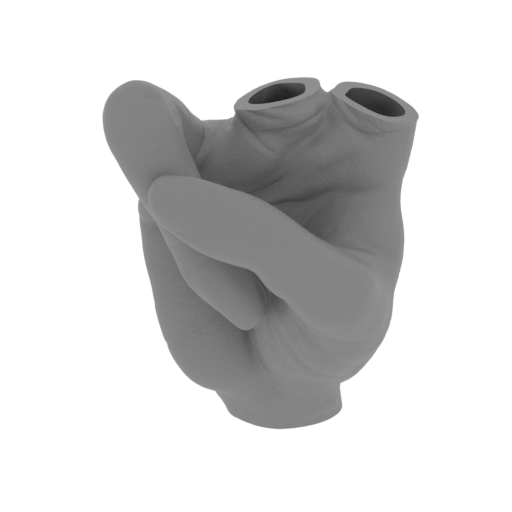 | 27_v2_hand_R_V_2(repaired).stl 82.37 x 79.71 x 115.59 mm | 3.24 x 3.14 x 4.55 in | Size: 82.37 x 79.71 x 115.59 mm | 3.24 x 3.14 x 4.55 in | File size: 21.56 mb | Printing Time / Filament: 4 h 46 min / 30 m Slicer: prusa v2.9.2 Printer: prusa_xl Non default settings Layer height: 0.2 Fill density: 20% Support material: 1 Support material buildplate only: 1 | ||
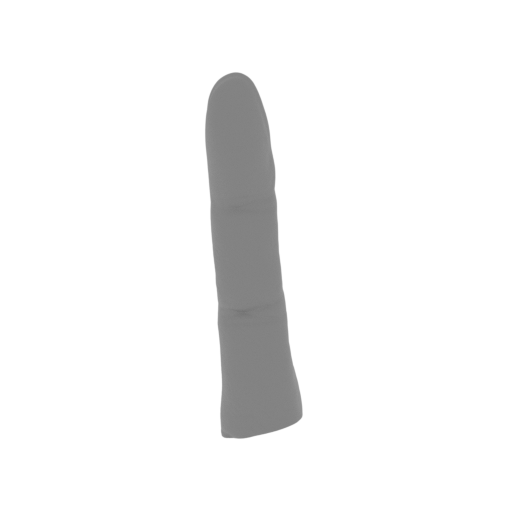 | 28_1_v2_hand_R_finger(repaired).stl 30.24 x 29.47 x 123.74 mm | 1.19 x 1.16 x 4.87 in | Size: 30.24 x 29.47 x 123.74 mm | 1.19 x 1.16 x 4.87 in | File size: 8.18 mb | Printing Time / Filament: 1 h 49 min / 6 m Slicer: prusa v2.9.2 Printer: prusa_xl Non default settings Layer height: 0.2 Fill density: 20% Support material: 1 Support material buildplate only: 1 | ||
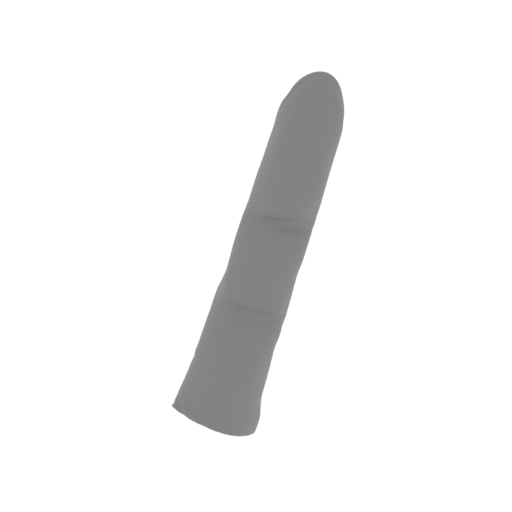 | 28_2_v2_hand_R_finger(repaired).stl 50.86 x 28.24 x 121.49 mm | 2 x 1.11 x 4.78 in | Size: 50.86 x 28.24 x 121.49 mm | 2 x 1.11 x 4.78 in | File size: 8.22 mb | Printing Time / Filament: 1 h 47 min / 6 m Slicer: prusa v2.9.2 Printer: prusa_xl Non default settings Layer height: 0.2 Fill density: 20% Support material: 1 Support material buildplate only: 1 | ||
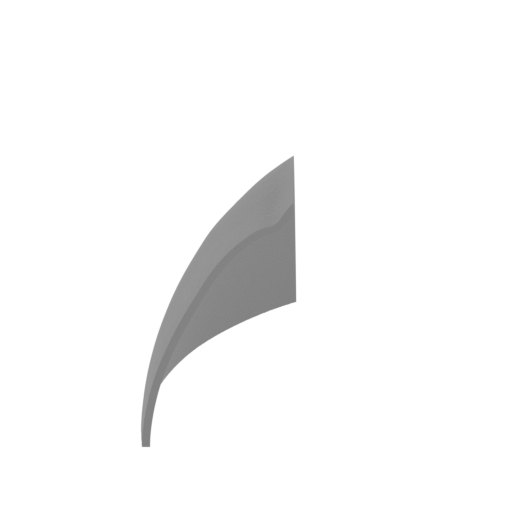 | 3_head(repaired).stl 70.16 x 147.77 x 100.42 mm | 2.76 x 5.82 x 3.95 in | Size: 70.16 x 147.77 x 100.42 mm | 2.76 x 5.82 x 3.95 in | File size: 21.59 mb | Printing Time / Filament: 12 h 28 min / 9 m | ||
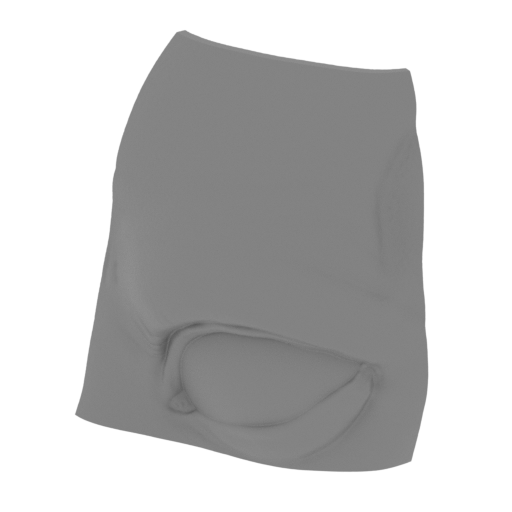 | 5_head(repaired).stl 162.36 x 82.77 x 170.6 mm | 6.39 x 3.26 x 6.72 in | Size: 162.36 x 82.77 x 170.6 mm | 6.39 x 3.26 x 6.72 in | File size: 19.54 mb | Printing Time / Filament: 23 h 53 min / 15 m | ||
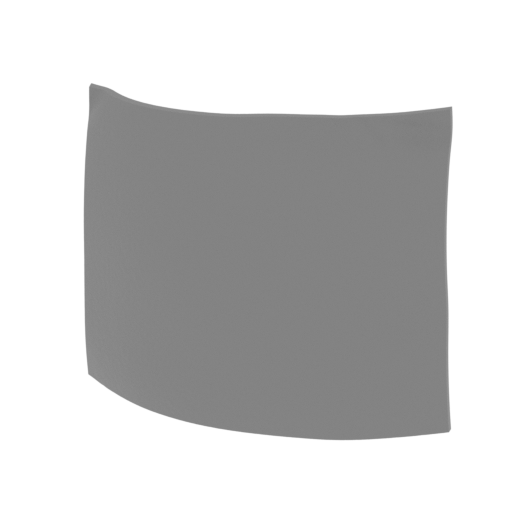 | 7_head(repaired).stl 168.28 x 48.9 x 147.9 mm | 6.63 x 1.93 x 5.82 in | Size: 168.28 x 48.9 x 147.9 mm | 6.63 x 1.93 x 5.82 in | File size: 19.89 mb | Printing Time / Filament: 12 h 6 min / 7 m | ||
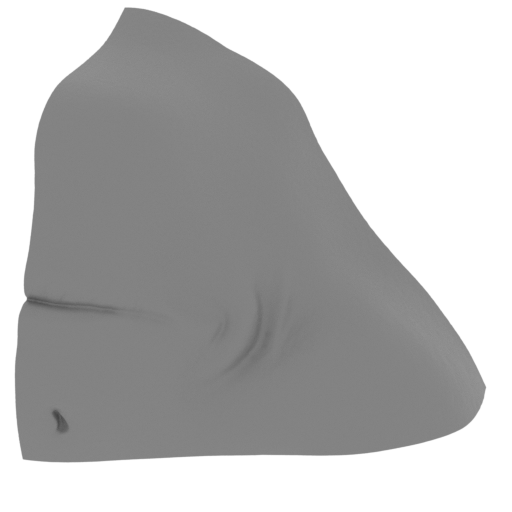 | 12_head(repaired).stl 126.07 x 109.22 x 120.27 mm | 4.96 x 4.3 x 4.74 in | Size: 126.07 x 109.22 x 120.27 mm | 4.96 x 4.3 x 4.74 in | File size: 19.15 mb | Printing Time / Filament: 29 h 30 min / 25 m | ||
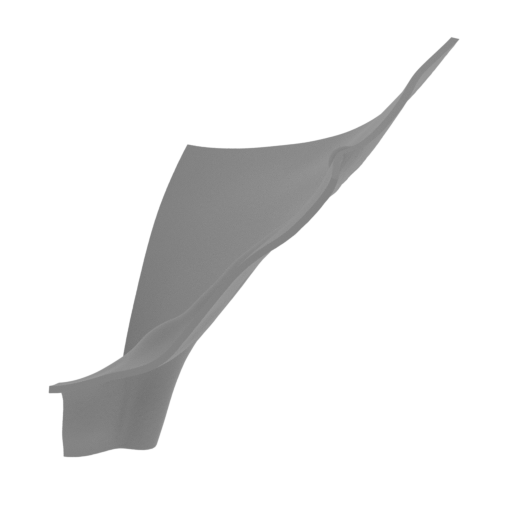 | 16_head_16(repaired).stl 125.65 x 160.74 x 150.63 mm | 4.95 x 6.33 x 5.93 in | Size: 125.65 x 160.74 x 150.63 mm | 4.95 x 6.33 x 5.93 in | File size: 17.52 mb | Printing Time / Filament: 52 h 23 min / 43 m | ||
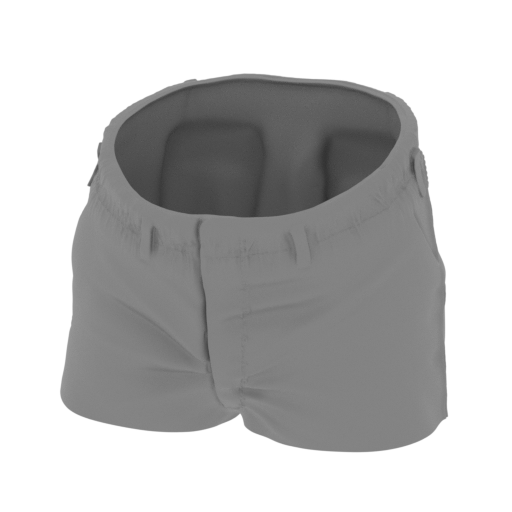 | 20_shorts_1(repaired).stl 194.8 x 153.49 x 152.57 mm | 7.67 x 6.04 x 6.01 in | Size: 194.8 x 153.49 x 152.57 mm | 7.67 x 6.04 x 6.01 in | File size: 41.09 mb | Printing Time / Filament: 69 h 19 min / 35 m | ||
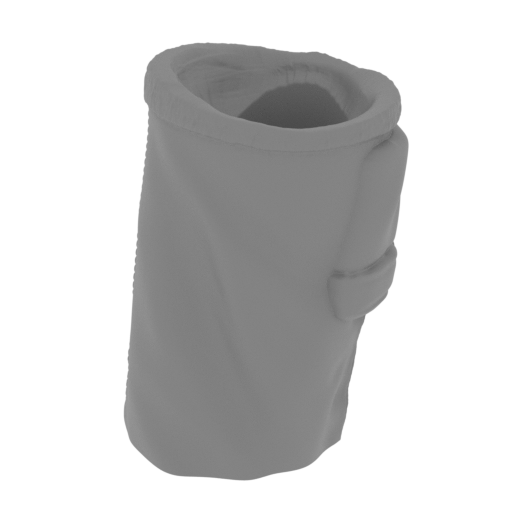 | 22_shorts_3(repaired).stl 130.68 x 102.5 x 169.61 mm | 5.14 x 4.04 x 6.68 in | Size: 130.68 x 102.5 x 169.61 mm | 5.14 x 4.04 x 6.68 in | File size: 27.59 mb | Printing Time / Filament: 59 h 49 min / 35 m | ||
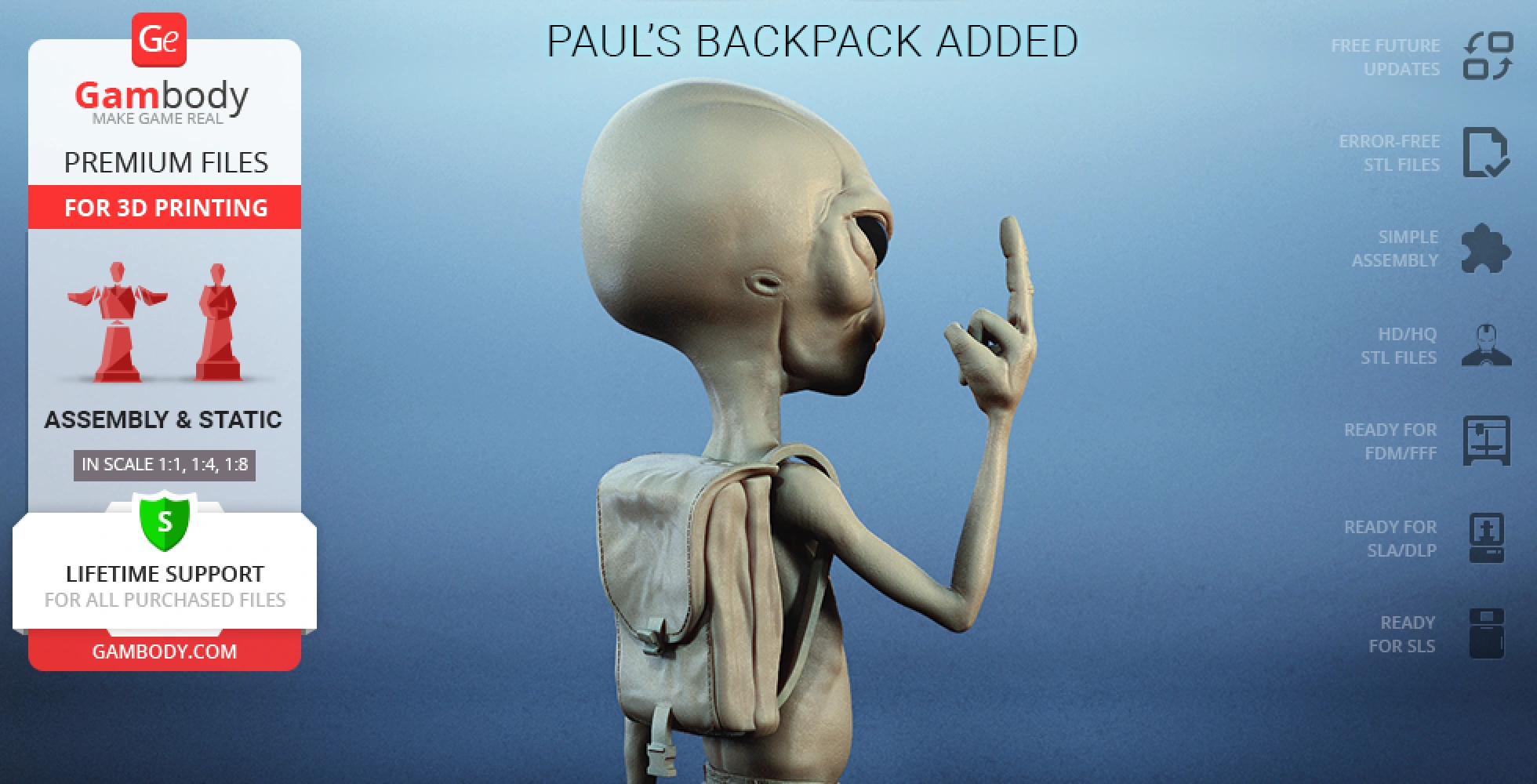
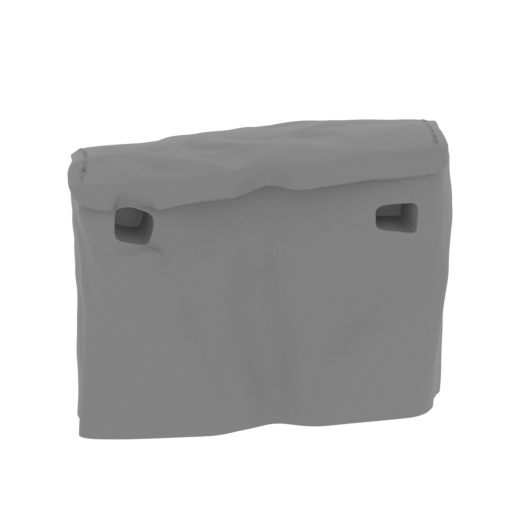 | 38_backpack_1_FDM(repaired).stl 210.18 x 184.53 x 154.86 mm | 8.27 x 7.26 x 6.1 in | Size: 210.18 x 184.53 x 154.86 mm | 8.27 x 7.26 x 6.1 in | File size: 45.09 mb | Printing Time / Filament: 179 h 28 min / 145 m | ||
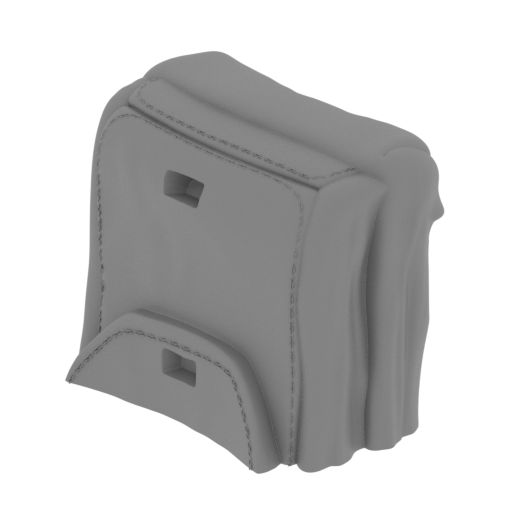 | 39_backpack_2_FDM(repaired).stl 199.7 x 179.13 x 155.82 mm | 7.86 x 7.05 x 6.13 in | Size: 199.7 x 179.13 x 155.82 mm | 7.86 x 7.05 x 6.13 in | File size: 45.72 mb | Printing Time / Filament: 166 h 50 min / 137 m | ||
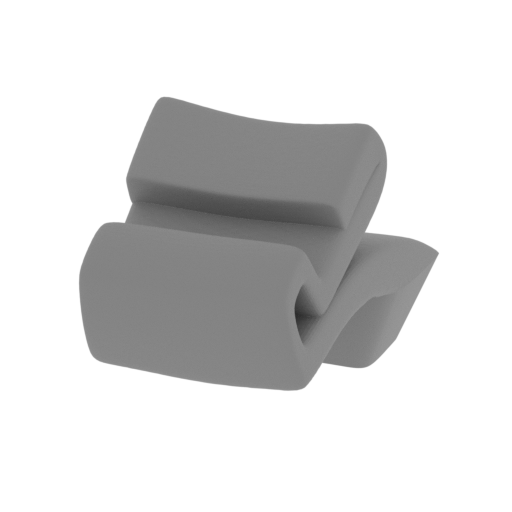 | 40_backpack_3_FDM(repaired).stl 26.31 x 41.02 x 30.95 mm | 1.04 x 1.61 x 1.22 in | Size: 26.31 x 41.02 x 30.95 mm | 1.04 x 1.61 x 1.22 in | File size: 15.25 mb | Printing Time / Filament: 2 h 11 min / 1 m | ||
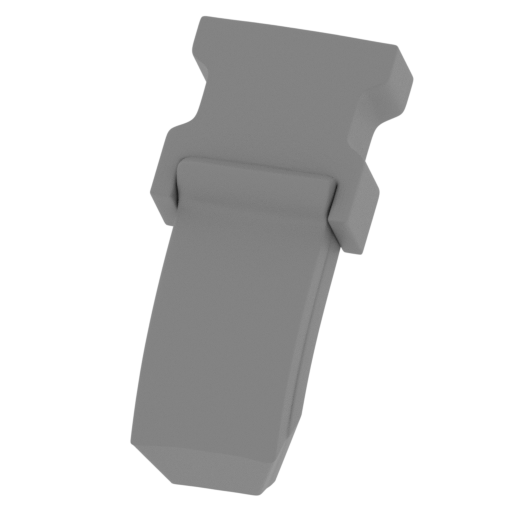 | 41_backpack_4_FDM(repaired).stl 35.23 x 57.92 x 65.29 mm | 1.39 x 2.28 x 2.57 in | Size: 35.23 x 57.92 x 65.29 mm | 1.39 x 2.28 x 2.57 in | File size: 20.14 mb | Printing Time / Filament: 5 h 21 min / 4 m | ||
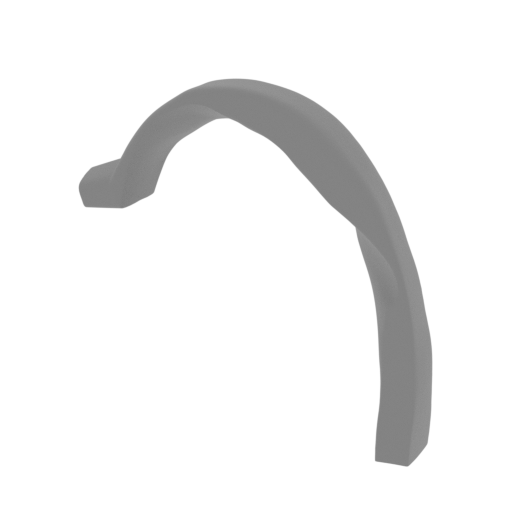 | 42_backpack_5_FDM(repaired).stl 122.12 x 31.89 x 133.9 mm | 4.81 x 1.26 x 5.27 in | Size: 122.12 x 31.89 x 133.9 mm | 4.81 x 1.26 x 5.27 in | File size: 19.40 mb | Printing Time / Filament: 13 h 57 min / 11 m | ||
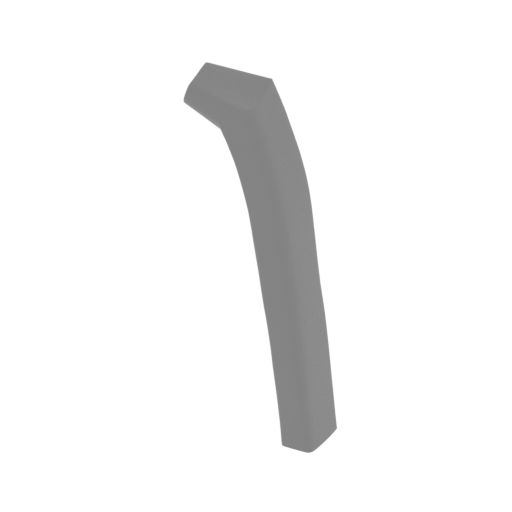 | 43_backpack_6_FDM(repaired).stl 46.41 x 30.42 x 130.13 mm | 1.83 x 1.2 x 5.12 in | Size: 46.41 x 30.42 x 130.13 mm | 1.83 x 1.2 x 5.12 in | File size: 20.03 mb | Printing Time / Filament: 5 h 45 min / 4 m | ||
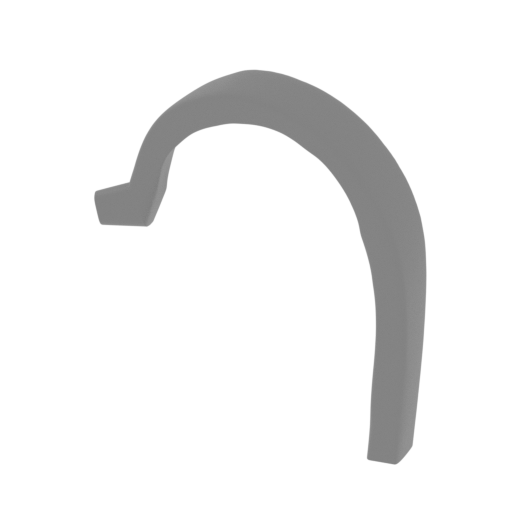 | 44_backpack_7_FDM(repaired).stl 129.74 x 28.08 x 147.47 mm | 5.11 x 1.11 x 5.81 in | Size: 129.74 x 28.08 x 147.47 mm | 5.11 x 1.11 x 5.81 in | File size: 20.58 mb | Printing Time / Filament: 16 h 51 min / 14 m | ||
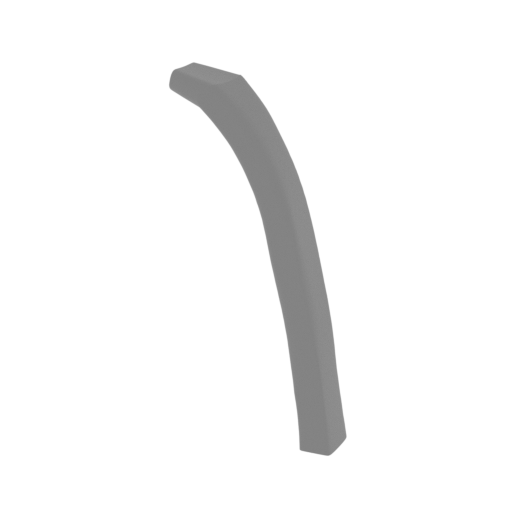 | 45_backpack_8_FDM(repaired).stl 66.58 x 22.91 x 149.82 mm | 2.62 x 0.9 x 5.9 in | Size: 66.58 x 22.91 x 149.82 mm | 2.62 x 0.9 x 5.9 in | File size: 20.06 mb | Printing Time / Filament: 6 h 33 min / 4 m | ||
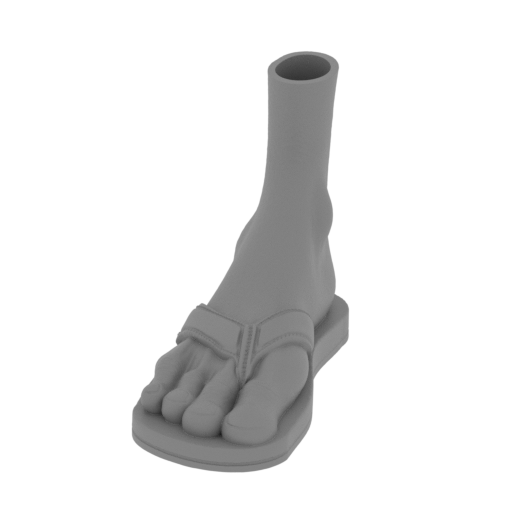 | 46_foot_R(repaired).stl 84.15 x 191.51 x 145.21 mm | 3.31 x 7.54 x 5.72 in | Size: 84.15 x 191.51 x 145.21 mm | 3.31 x 7.54 x 5.72 in | File size: 39.50 mb | Printing Time / Filament: 37 h 39 min / 23 m | ||
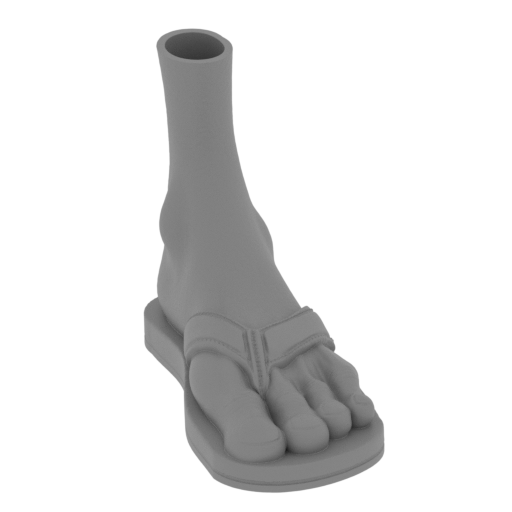 | 47_foot_L(repaired).stl 143.09 x 173.65 x 145.31 mm | 5.63 x 6.84 x 5.72 in | Size: 143.09 x 173.65 x 145.31 mm | 5.63 x 6.84 x 5.72 in | File size: 39.30 mb | Printing Time / Filament: 36 h 31 min / 23 m | ||
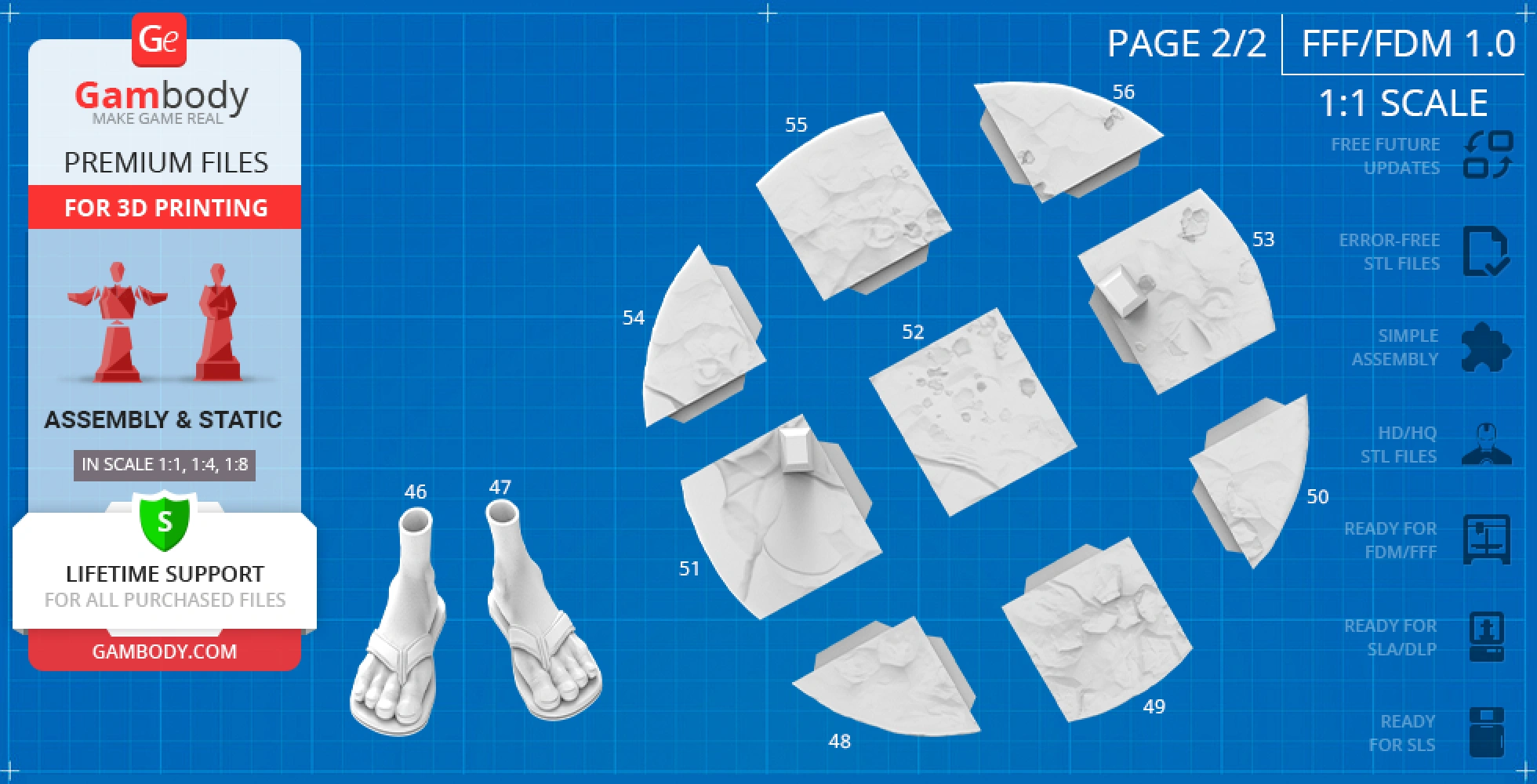
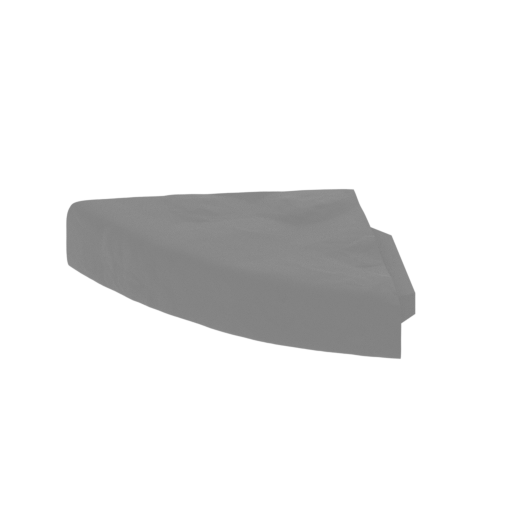 | 48_platform_1(repaired).stl 191 x 121.89 x 35.5 mm | 7.52 x 4.8 x 1.4 in | Size: 191 x 121.89 x 35.5 mm | 7.52 x 4.8 x 1.4 in | File size: 31.81 mb | Printing Time / Filament: 30 h 17 min / 18 m | ||
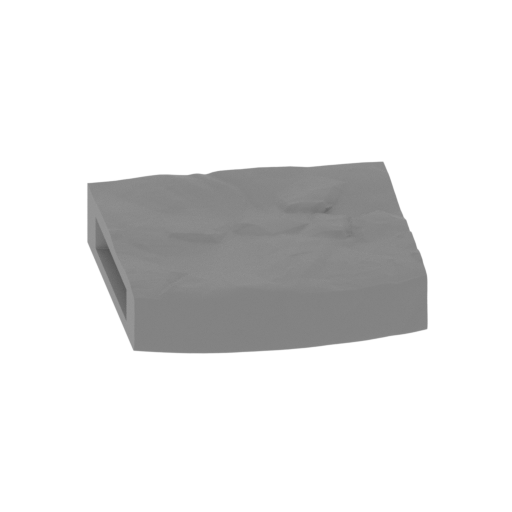 | 49_platform_2(repaired).stl 193.09 x 186.7 x 34.48 mm | 7.6 x 7.35 x 1.36 in | Size: 193.09 x 186.7 x 34.48 mm | 7.6 x 7.35 x 1.36 in | File size: 34.58 mb | Printing Time / Filament: 45 h 37 min / 27 m | ||
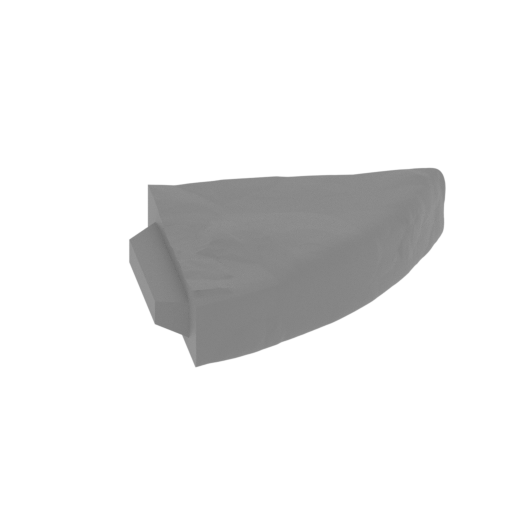 | 50_platform_3(repaired).stl 120.82 x 176.91 x 35.24 mm | 4.76 x 6.96 x 1.39 in | Size: 120.82 x 176.91 x 35.24 mm | 4.76 x 6.96 x 1.39 in | File size: 29.62 mb | Printing Time / Filament: 27 h 60 min / 17 m | ||
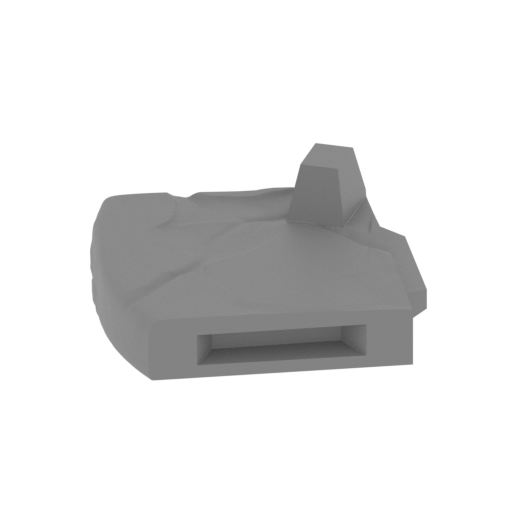 | 51_platform_4(repaired).stl 202.94 x 207.58 x 63.33 mm | 7.99 x 8.17 x 2.49 in | Size: 202.94 x 207.58 x 63.33 mm | 7.99 x 8.17 x 2.49 in | File size: 31.46 mb | Printing Time / Filament: 55 h 40 min / 34 m | ||
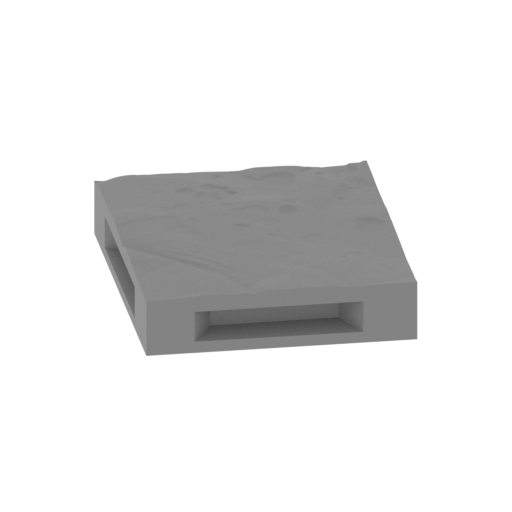 | 52_platform_5(repaired).stl 209.79 x 210.71 x 35.41 mm | 8.26 x 8.3 x 1.39 in | Size: 209.79 x 210.71 x 35.41 mm | 8.26 x 8.3 x 1.39 in | File size: 35.76 mb | Printing Time / Filament: 53 h 54 min / 33 m | ||
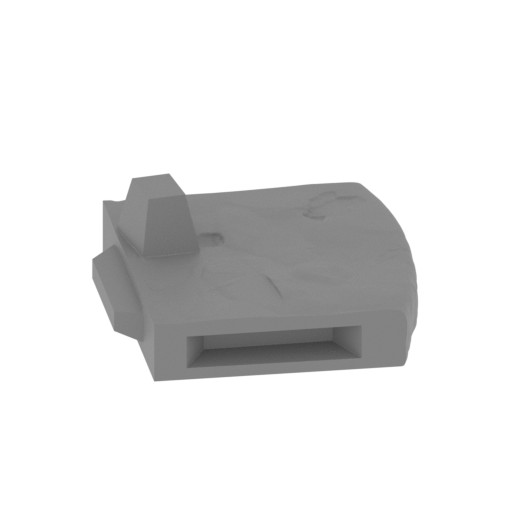 | 53_platform_6(repaired).stl 199.4 x 208.22 x 63.33 mm | 7.85 x 8.2 x 2.49 in | Size: 199.4 x 208.22 x 63.33 mm | 7.85 x 8.2 x 2.49 in | File size: 30.98 mb | Printing Time / Filament: 54 h 58 min / 33 m | ||
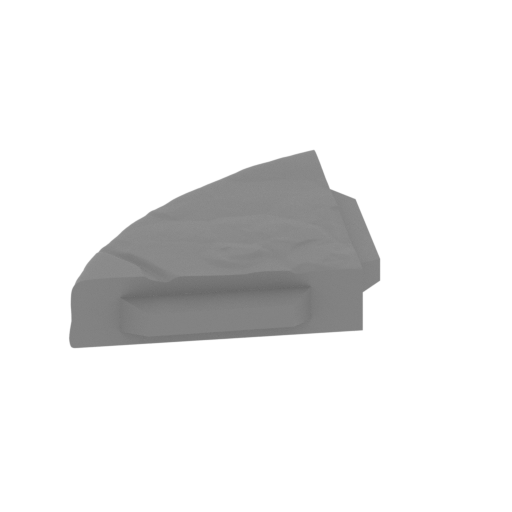 | 54_platform_7(repaired).stl 124.98 x 184.09 x 35.51 mm | 4.92 x 7.25 x 1.4 in | Size: 124.98 x 184.09 x 35.51 mm | 4.92 x 7.25 x 1.4 in | File size: 32.74 mb | Printing Time / Filament: 29 h 54 min / 18 m | ||
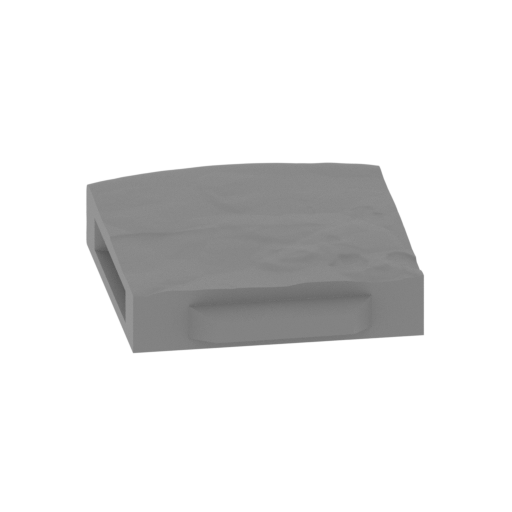 | 55_platform_8(repaired).stl 197.27 x 190.72 x 35.58 mm | 7.77 x 7.51 x 1.4 in | Size: 197.27 x 190.72 x 35.58 mm | 7.77 x 7.51 x 1.4 in | File size: 34.28 mb | Printing Time / Filament: 48 h 22 min / 29 m | ||
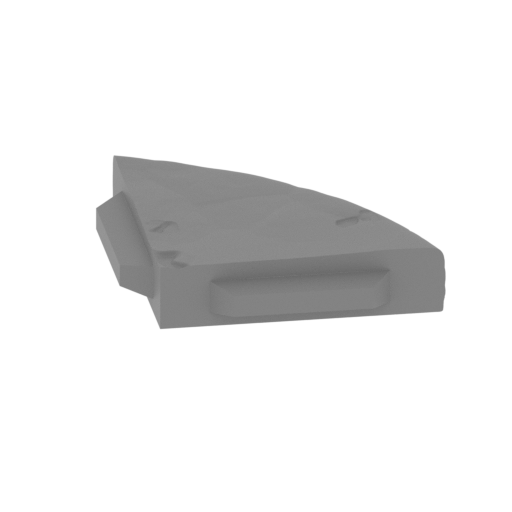 | 56_platform_9(repaired).stl 192.31 x 122.47 x 34.99 mm | 7.57 x 4.82 x 1.38 in | Size: 192.31 x 122.47 x 34.99 mm | 7.57 x 4.82 x 1.38 in | File size: 30.55 mb | Printing Time / Filament: 30 h 38 min / 18 m | ||
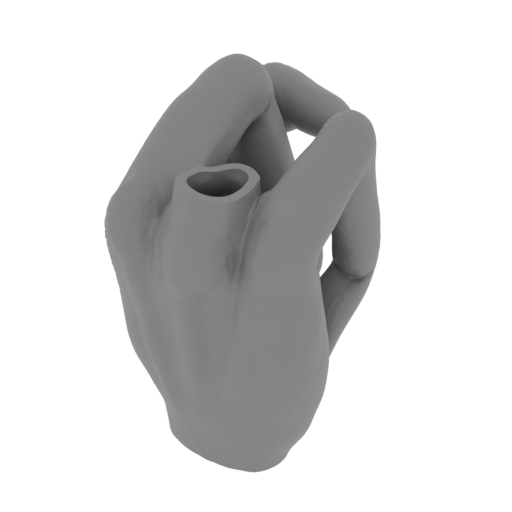 | 27_hand_R_V_1(repaired).stl 81.42 x 97.65 x 117.62 mm | 3.21 x 3.84 x 4.63 in | Size: 81.42 x 97.65 x 117.62 mm | 3.21 x 3.84 x 4.63 in | File size: 22.29 mb | Printing Time / Filament: 28 h 28 min / 17 m | ||
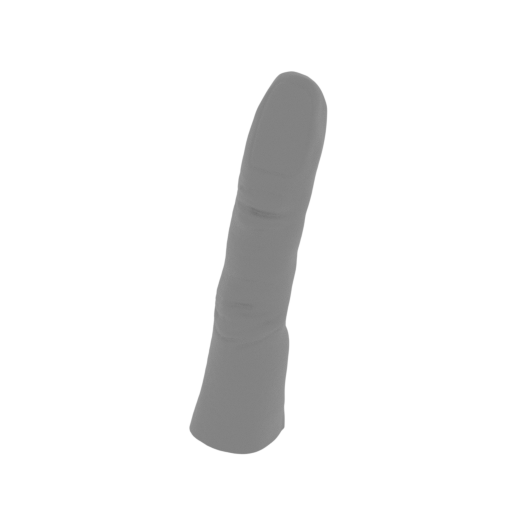 | 28_finger_for_hand_R_V_1(repaired).stl 33.36 x 31.66 x 104.96 mm | 1.31 x 1.25 x 4.13 in | Size: 33.36 x 31.66 x 104.96 mm | 1.31 x 1.25 x 4.13 in | File size: 9.73 mb | Printing Time / Filament: 3 h 27 min / 2 m | ||
ABOUT THIS 3D MODEL
The surprising 2011 sci-fi comedy film “Paul” invites you to embark on a road-trip tour of America’s hottest UFO sites including the infamous Area 51! The tour guarantees lots of fun adventures and a joyful company of two British geeks and an alien named Paul! Having lived in Area 51 for more than 60 years, the sharp-witted alien decides to leave the top-secret site and join Graeme and Clive in the escape from government agents.
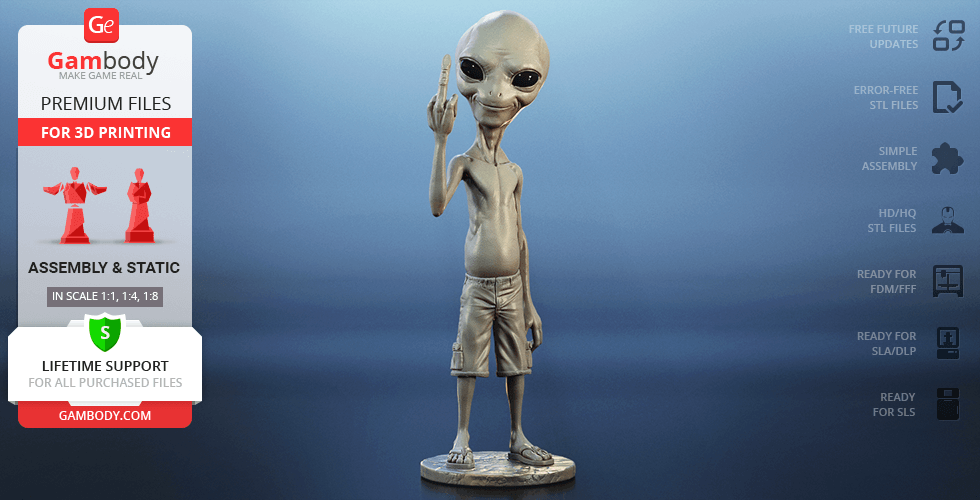
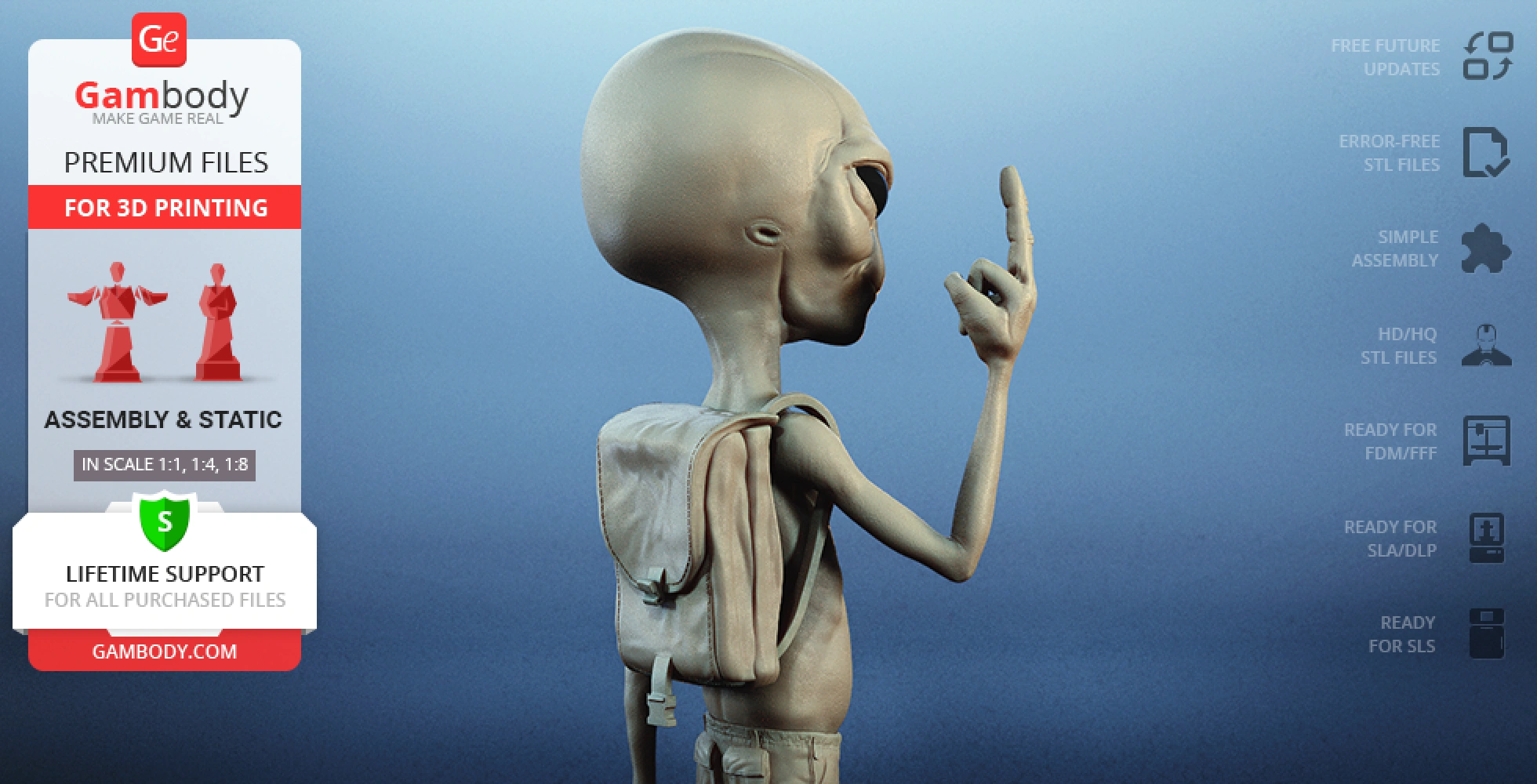
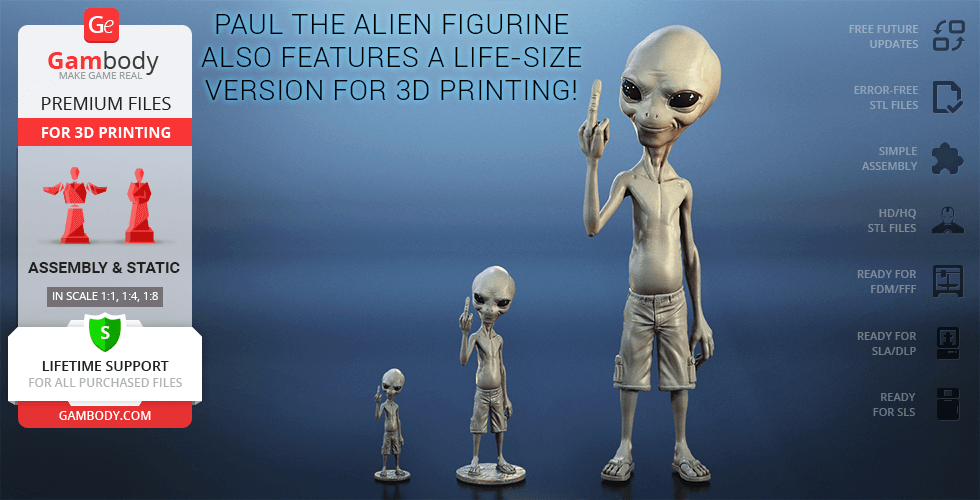
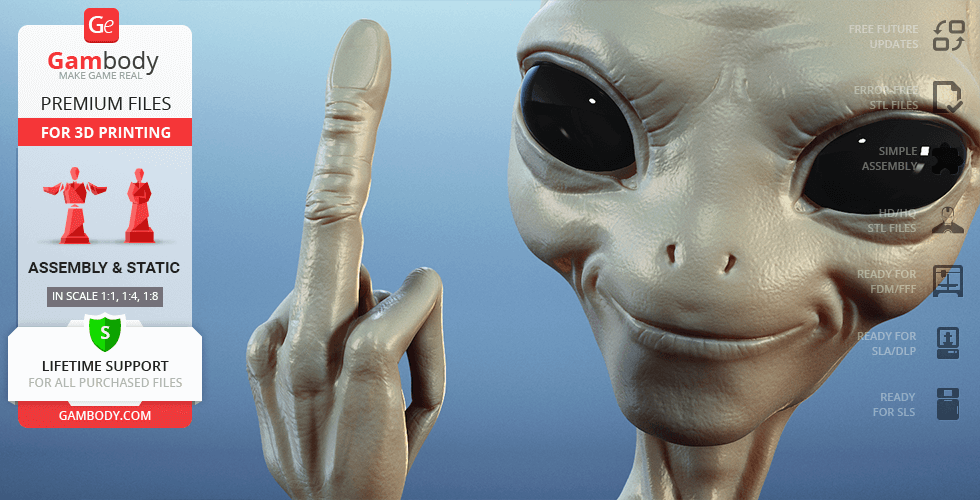
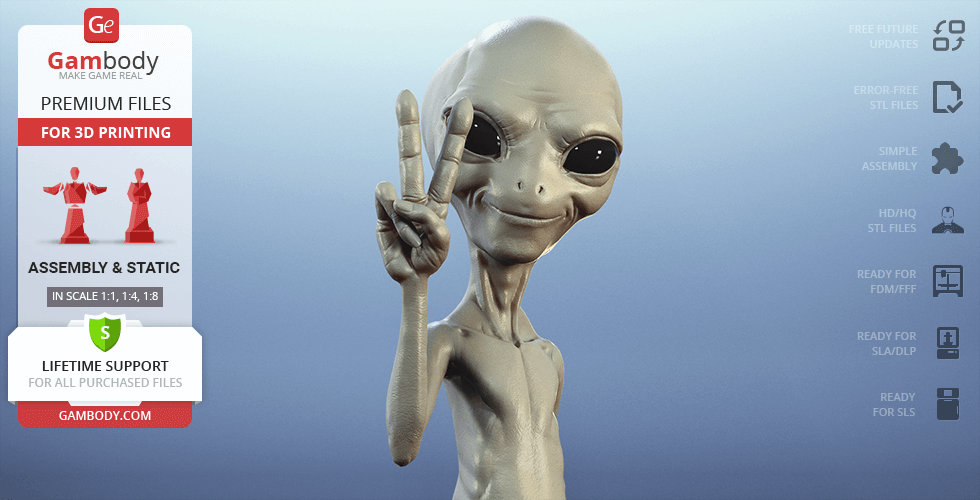
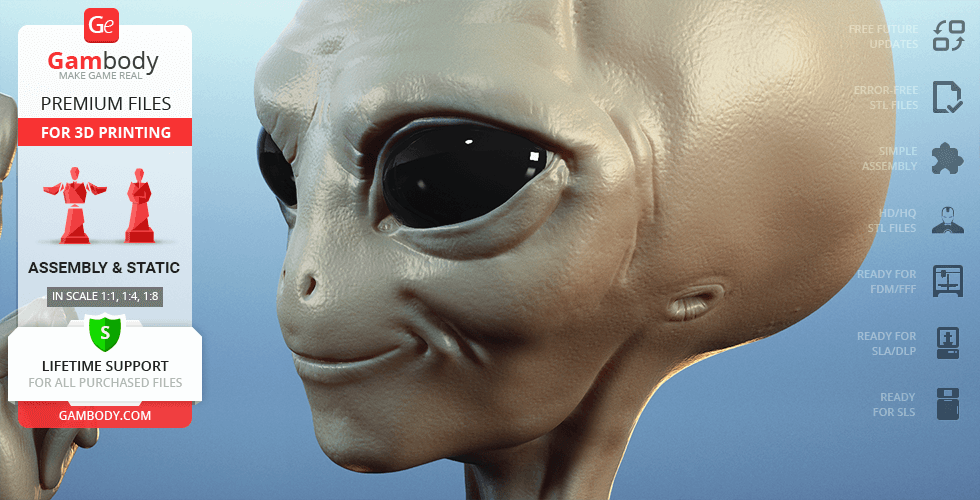
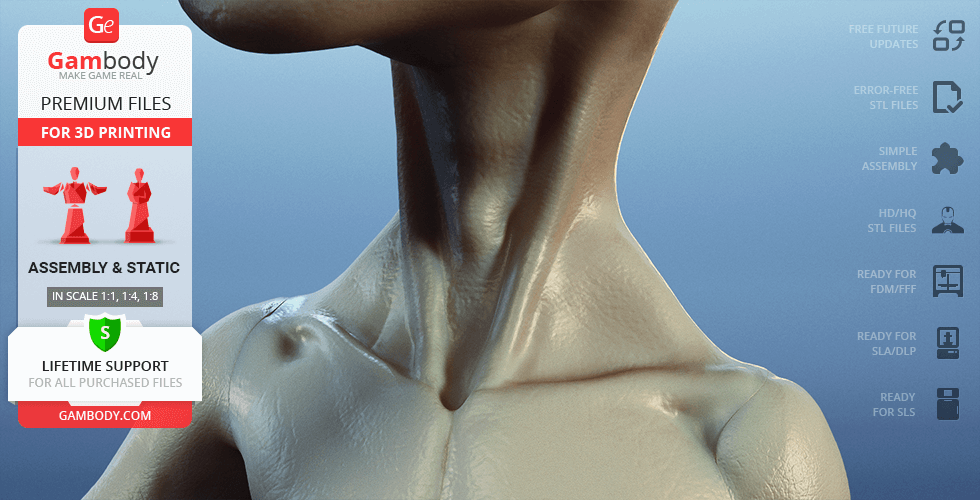
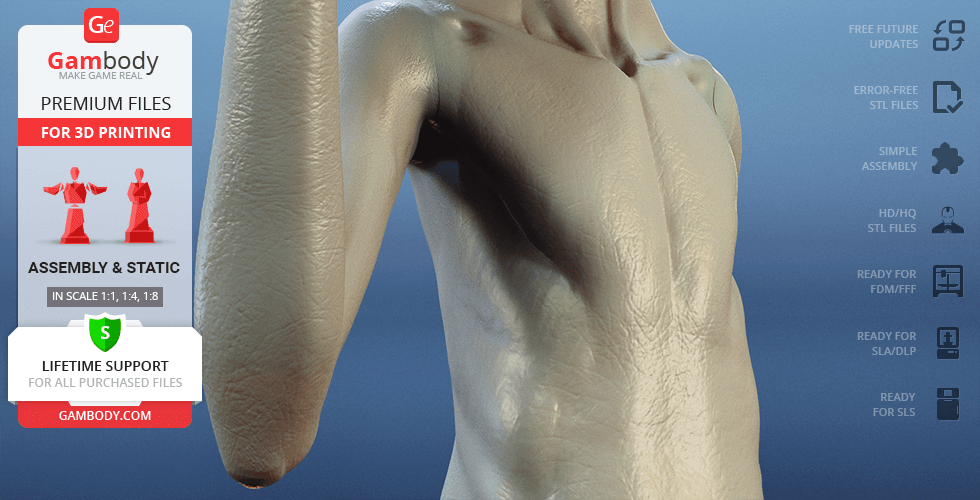
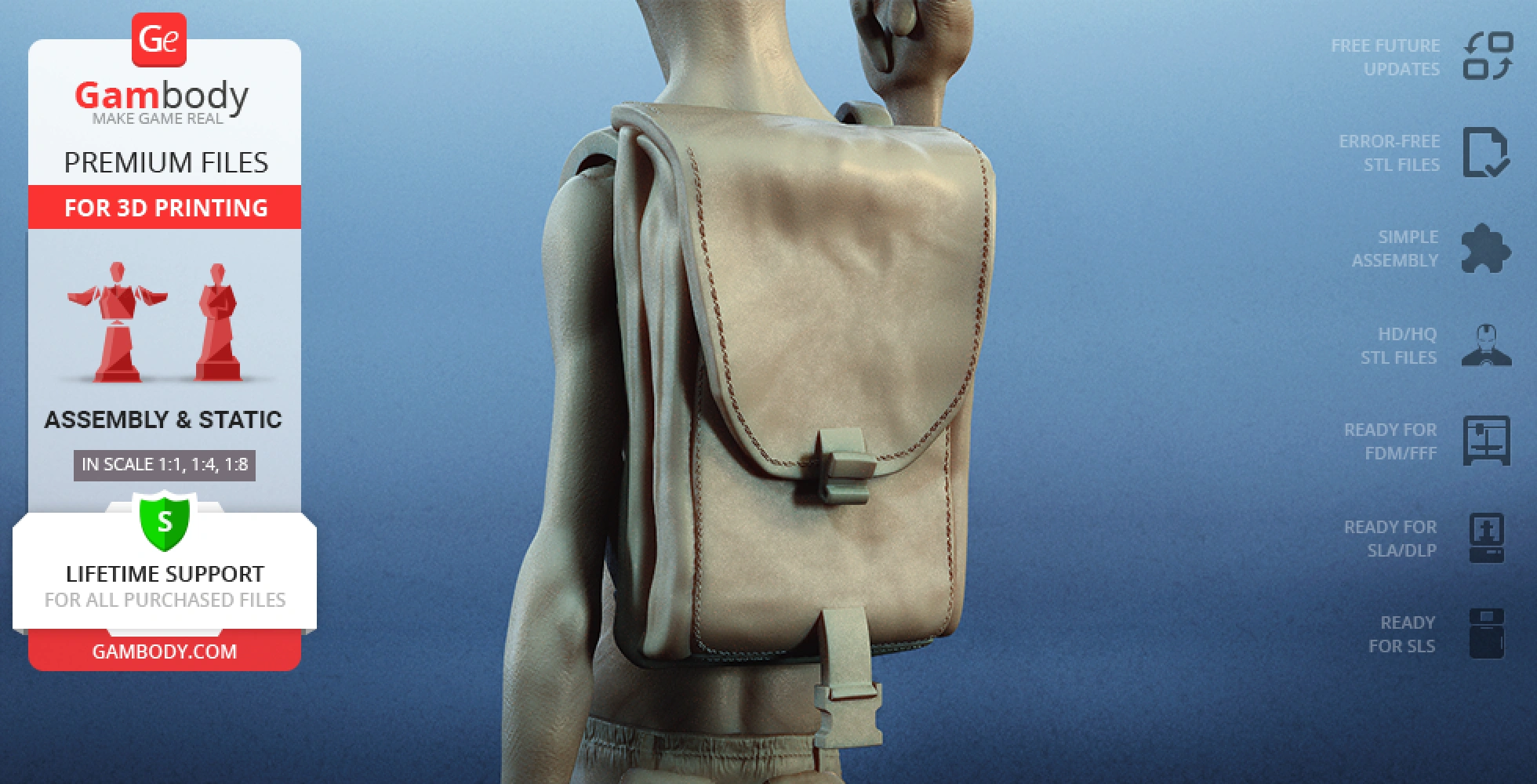
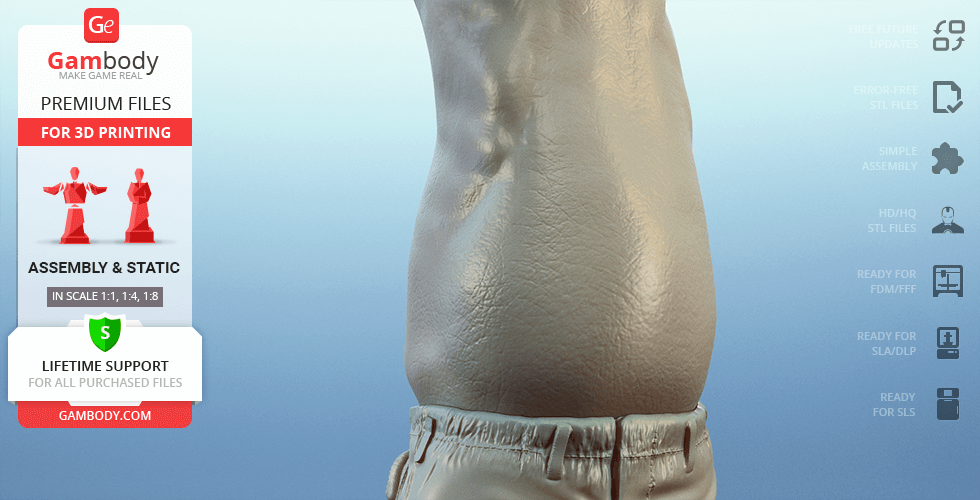
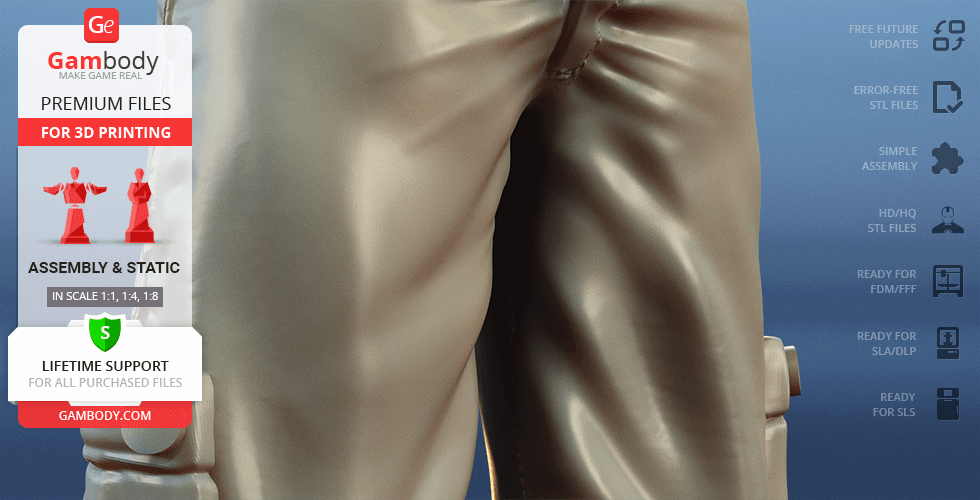
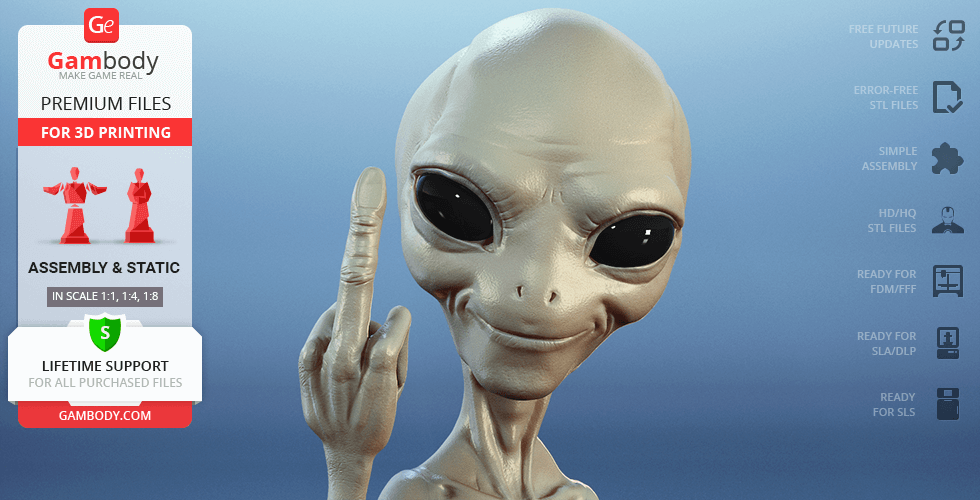
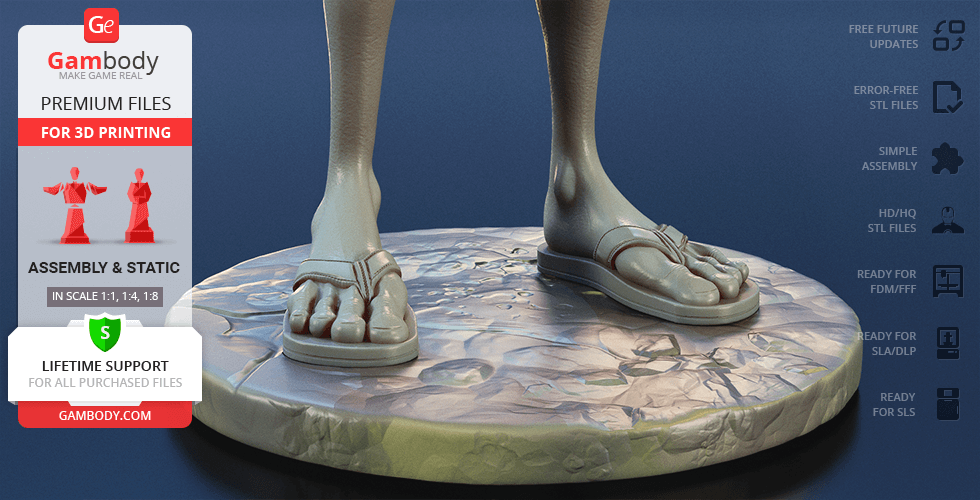
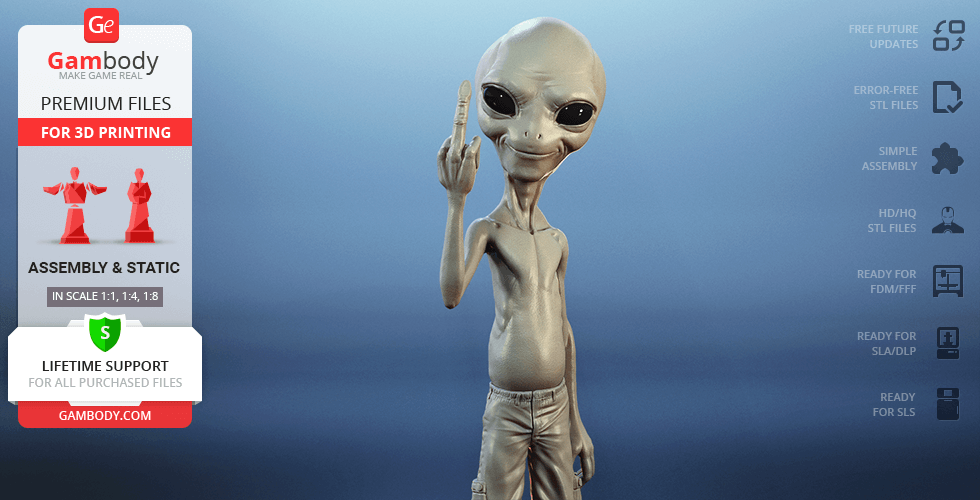
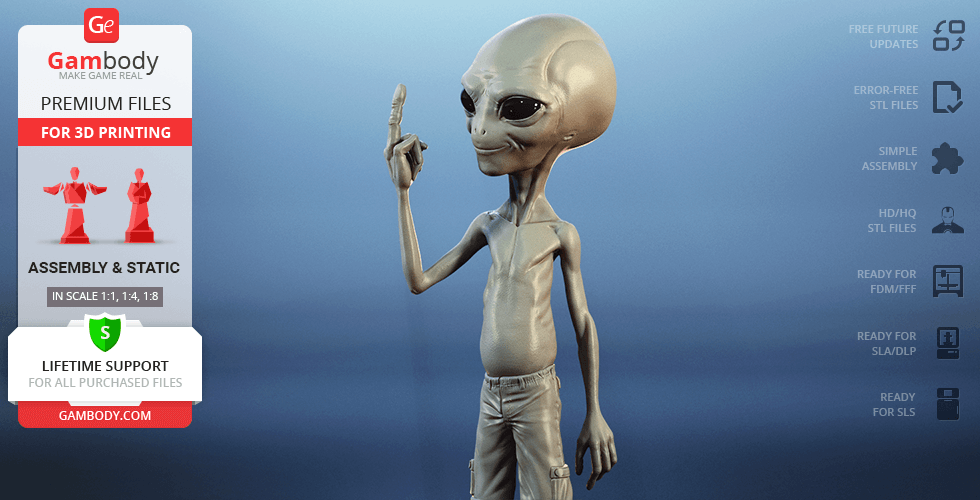
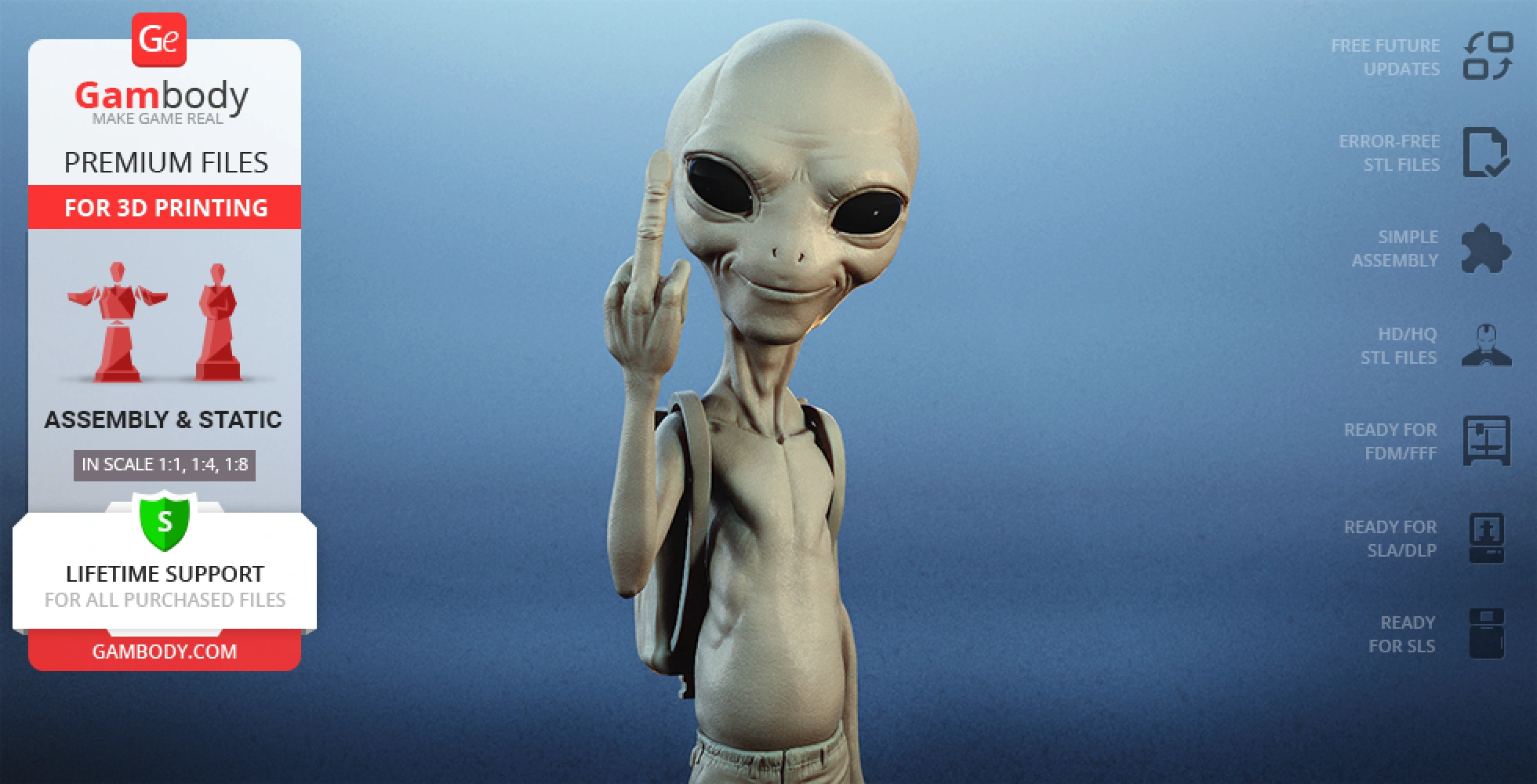
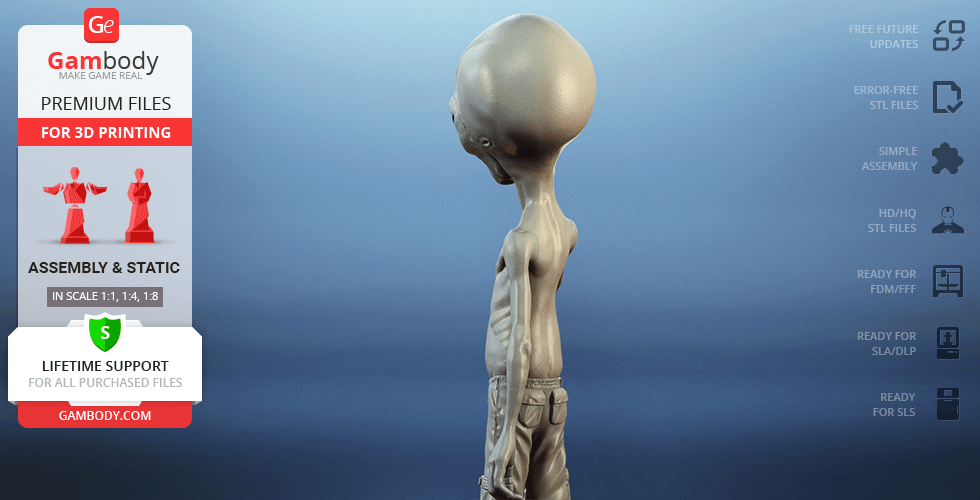
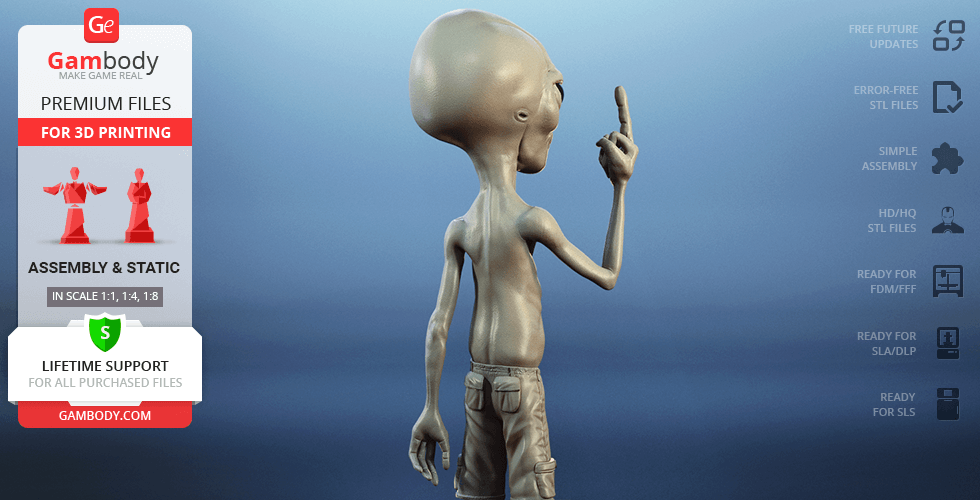
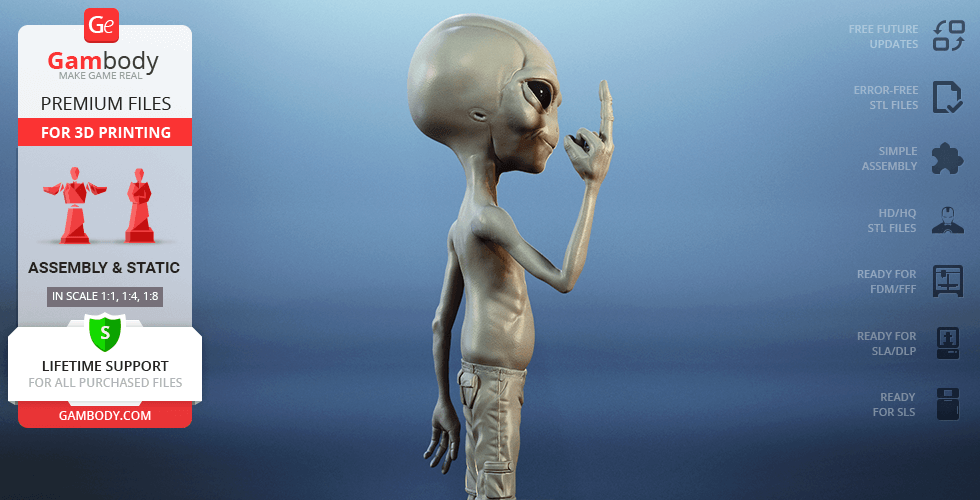
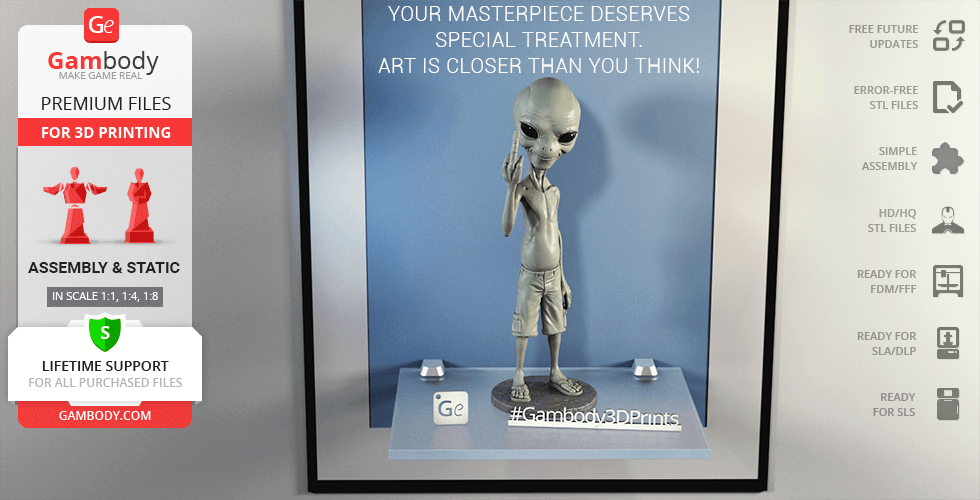
Having rewatched the comedy, our contributing 3D artist decided to give the 3D printing variant of the hilarious alien a go. Paul is a typical alien with a massive head, large eyes and lanky body - a type of the extraterrestrial image that we've come to know as the classics. The author of the model for 3D printing drew particular inspiration from Graeme’s drawing of Paul that portrays the mischievous alien going beyond the PG-13 limits. The amusing 3D printing Paul also has its life-size version available! That means you are as always a 3D printing away from your own extraterrestrial friend.
ADAPTATION FOR 3D PRINTING
Paul the Alien figurine for 3D printing is a static assembly model and its moderation and adaptation for different types of 3D printers took Gambody team circa 40 hours. The figurine’s anatomy and proportions were thoroughly reviewed during the moderation process for the extraterrestrial to be depicted harmoniously in the intended pose.
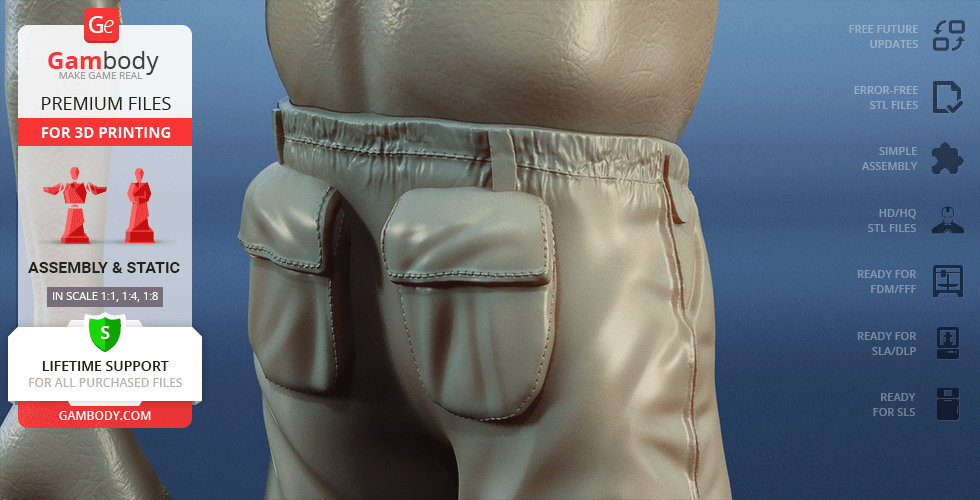
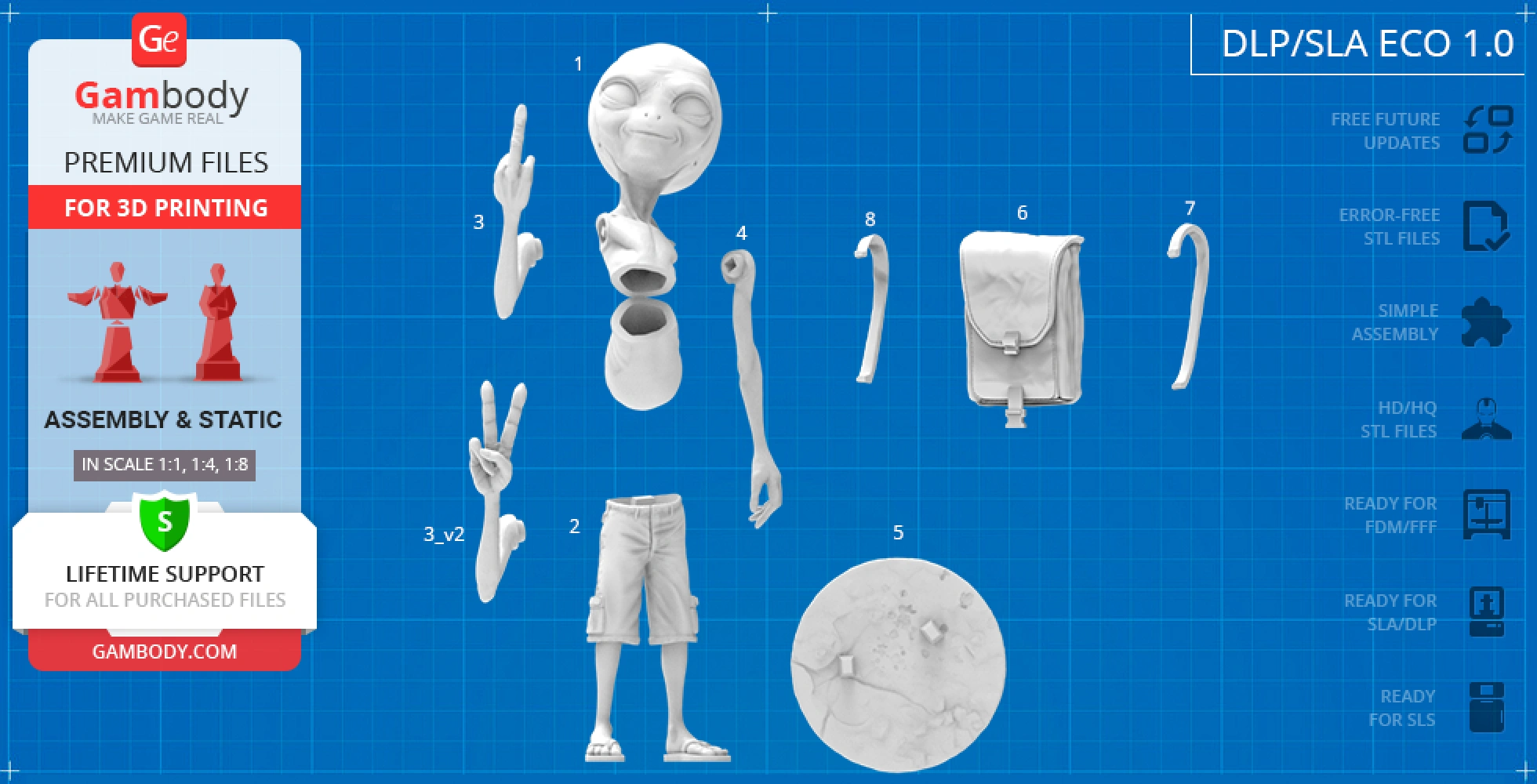
The model’s cutting was chosen by our team to minimise the amount of generated support and some of the parts were hollowed out for you to save resin in the Eco version. In order to conceal the places where the assembly parts of the model must be connected, the figurine was cut along the contour of Paul’s outfit seams. In addition to that, there was prepared a life-size version of the 3D printing figurine that was cut into as many parts as needed to fit the assembly pieces into average 3D printers’ build plates and assemble a 1:1 Paul the Alien.
All assembly parts in FFF/FDM versions come in STL files in recommendedpositions that were worked out in order to ensure the smoothness of the details’ surfaces after printing and so that the 3D printing beginners won't face difficulties when placing the parts on a build plate. When downloading any figurine's file you will also receive "Assembly Manual" for FFF/FDM 1.0, FFF/FDM Life-size 1.0 and DLP/SLA 1.0 versions in PDF format.
The figurine is saved in STL files, a format supported by most 3D printers. All STL files for 3D printing have been checked in Netfabb and no errors were shown.
The model's scale was calculated from the approximate height of Paul which is 1320 mm. The 3D printing figurine's chosen scale is 1:1 and 1:4 for the FFF/FDM version and 1:8 for the DLP/SLA/SLS versions.
VERSIONS' SPECIFICATIONS
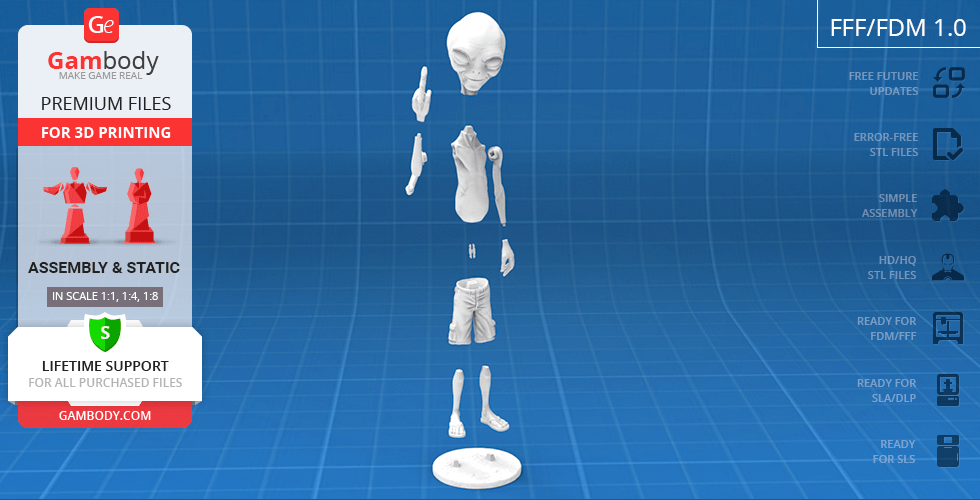
FFF/FDM 1.0 version features:
- Contains 19 parts;
- A printed model is 340 mm tall, 113 mm wide, 121 mm deep;
- The assembly kit includes lock 12_ge_lock_7S(x1) to attach the model's legs to the body securely without glue;
- All parts are divided in such a way that you will print them with the smallest number of support structures.
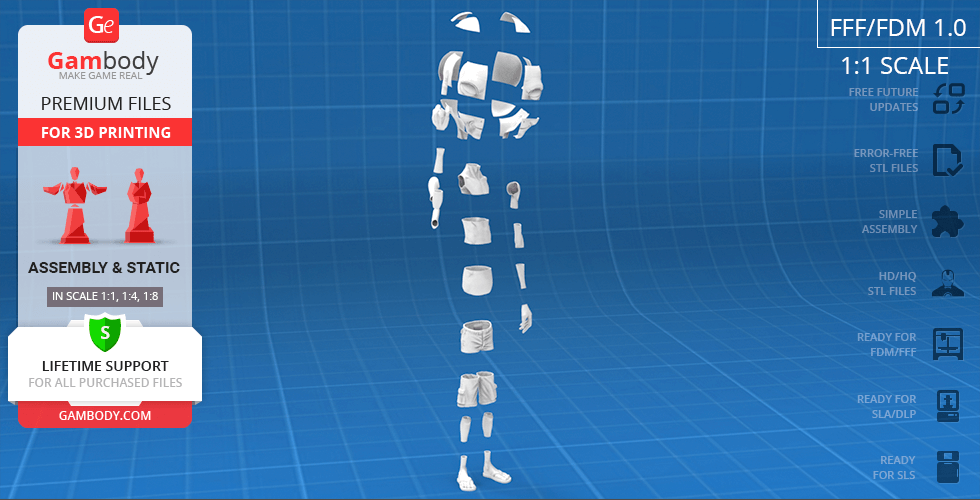
FFF/FDM Life-size 1.0 version features:
- Contains 49 parts;
- A printed model is 1339 mm tall, 353 mm wide, 485 mm deep;
- All parts are divided in such a way that you will fit them into the build plates of average 3D printers;- Made fully hollow to save printing material.
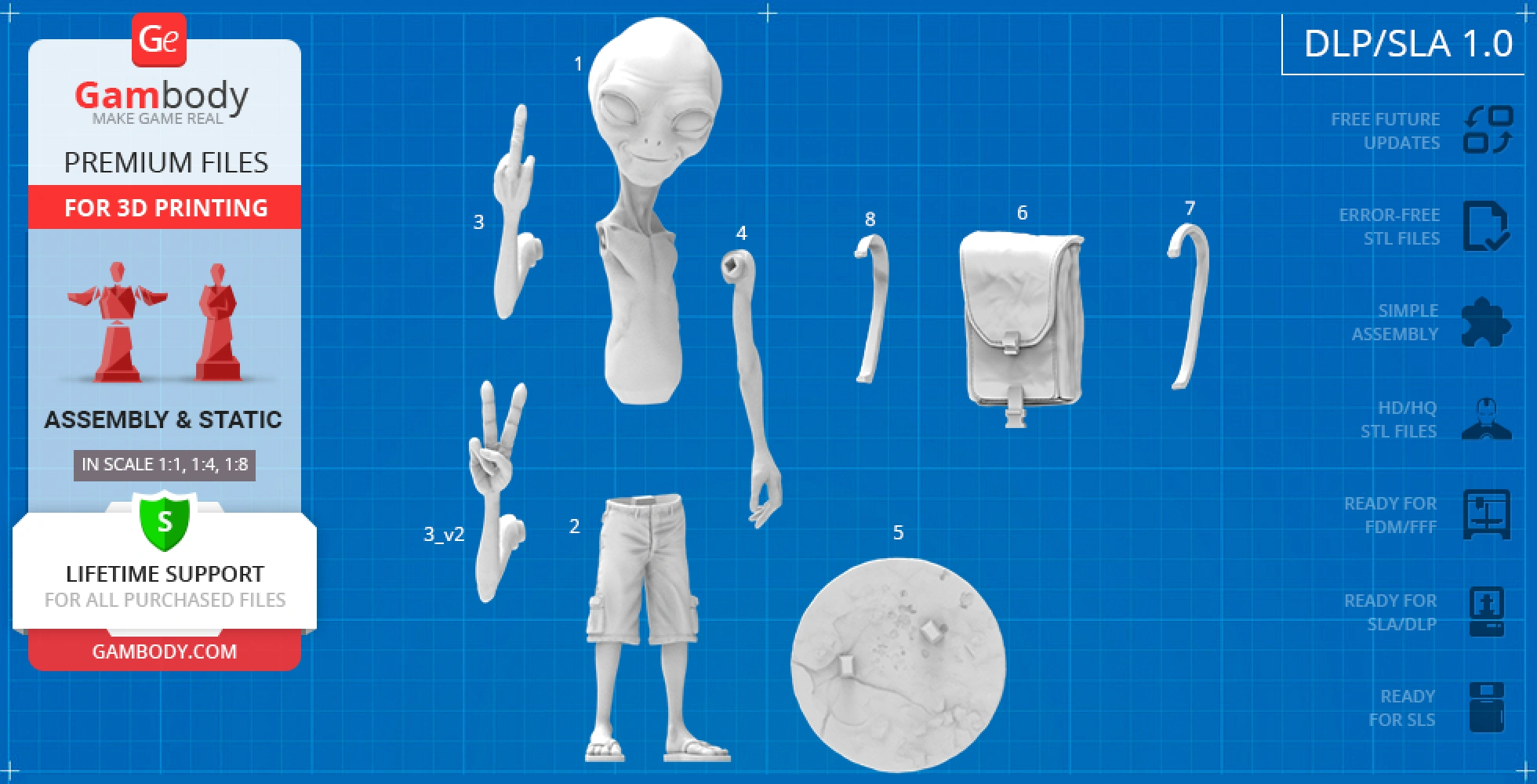
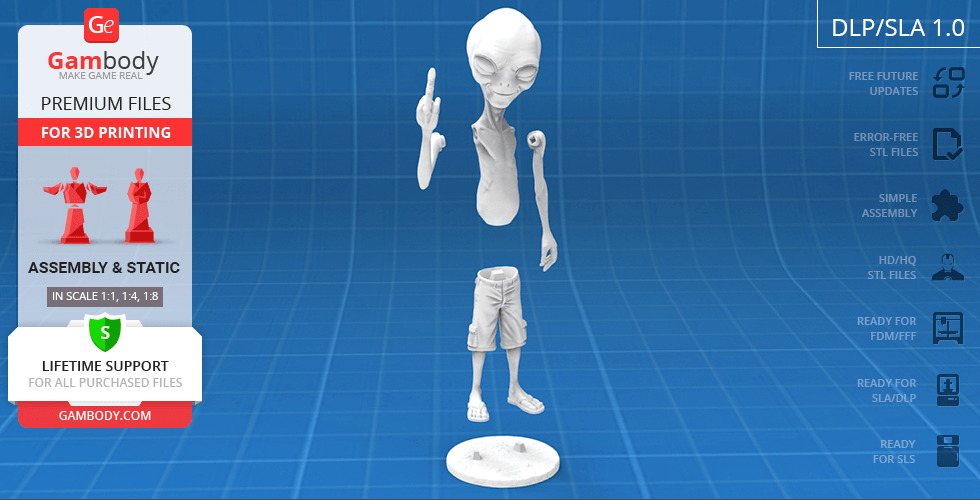
DLP/SLA 1.0 version features:
- Contains 9 parts;
- A printed model is 170 mm tall, 57 mm wide, 60 mm deep;
- All parts are divided in such a way to fit the build plates and to ensure that support structures are generated where needed.
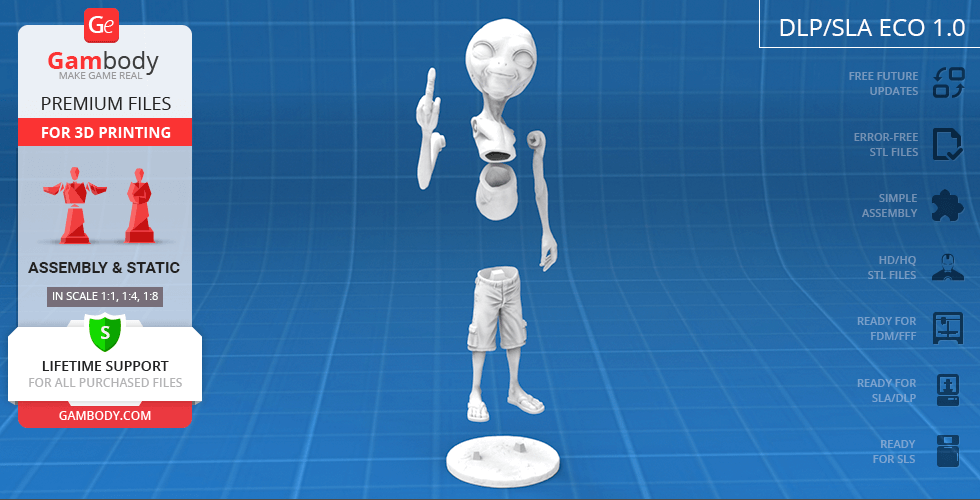
DLP/SLA Eco1.0 version features:
- Contains 9 parts;
- A printed model is 170 mm tall, 57 mm wide, 60 mm deep;
- Contains some hollowed out parts to save resin.
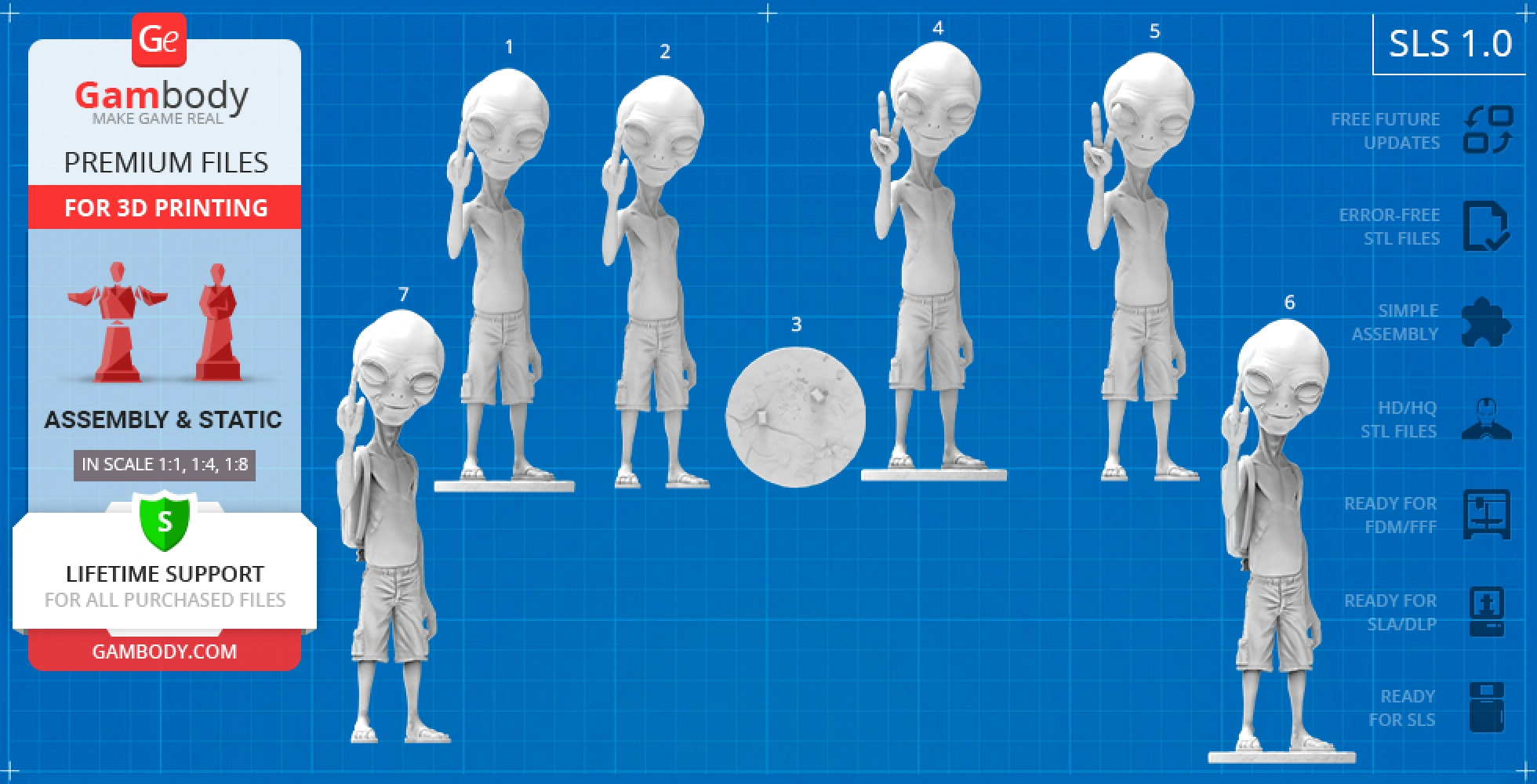
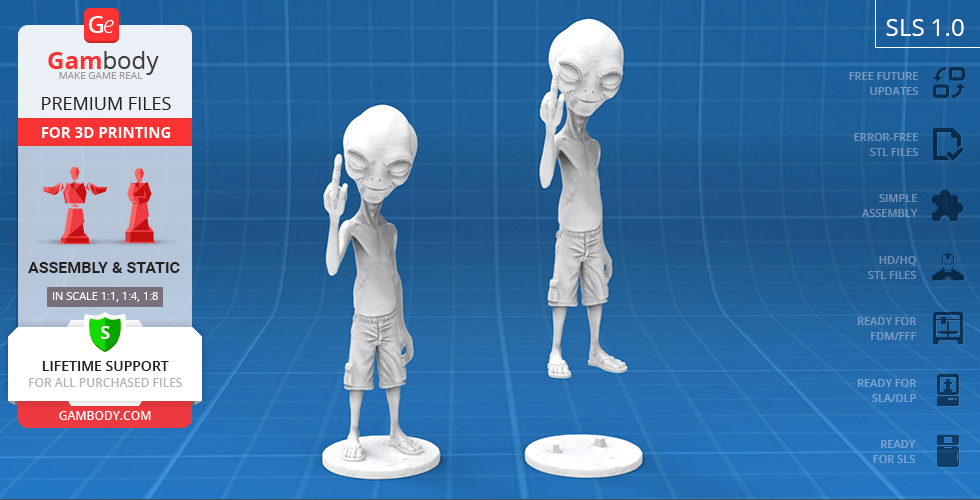
SLS 1.0 version features:
- Made as a solid one-piece Paul the Alien figurine;
- A printed model is 170 mm tall, 57 mm wide, 60 mm deep;
- Contains 7 parts - a solid Paul model and the alien with the platform separated.
You can get the figurine of Paul the Alien for 3D Printing immediately after the purchase! Just click the green Buy button in the top-right corner of the model’s page. You can pay with PayPal or your credit card.
Watch the tutorial on how to assemble Paul the Alien 3D Printing Figurine at Gambody YouTube channel.
Also, you may like more Aliens for 3D Printing, as well as other Heroes3D Printing Figurines.
_______
FAQ:
Average customer rating (40 reviews)
4.5
Ratings breakdown
Click a star rating to filter reviews
Overall experience
Level of detail in the model
4.5
Model cut quality and assembly guide
4.5
Clarity and accuracy of the model page
4.5



 Verified purchase
 Level of detail in the model
3.9
Model cut quality and assembly guide
4
Clarity and accuracy of the model page
4
Some gaps needed filling and sanding nothing you wouldn’t normally encounter though overall had good fun doing this model
I’ll definitely be doing the full size one in the future
 Verified purchase
 Level of detail in the model
4
Model cut quality and assembly guide
4
Clarity and accuracy of the model page
4

 Community Support Team
 Based on your description, since the print progresses successfully and only detaches from the build plate on the hand part only, the issue is more likely related to bed adhesion.
We would highly recommend trying a build plate adhesive such as 3D Lac, Magigoo, or a similar 3D printing glue. Additionally, please make sure that a brim is enabled in your slicer settings, as both measures can help improve bed adhesion and prevent the part from detaching during the later stages of printing.
Please try these recommendations, and if the issue persists, kindly send a few photos of the failed print to support@gambody.com. Our Moderation Team will carefully review the case and advise on the most appropriate solution.
Just a reminder that any Premium STL file purchase includes lifetime technical support, so we'll do our best to help you overcome any printing challenges and get your project completed successfully!

 Verified purchase
 Level of detail in the model
5
Model cut quality and assembly guide
4.8
Clarity and accuracy of the model page
5
 Verified purchase
 Level of detail in the model
4.7
Model cut quality and assembly guide
4.6
Clarity and accuracy of the model page
4.6
 Community Support Team
 We’ve received feedback from the model’s author, Docik. While creating blank versions of parts 20–22 is technically possible, it would require a more extensive rework than it may initially seem. This includes not only remodeling those parts from scratch, but also adjusting the surrounding connecting components and re-segmenting the lower body. As a result, the author is currently unable to provide a clear timeline for such an update due to other ongoing projects.
As an alternative, the Moderation Team suggests a more efficient solution: modifying the existing geometry by slightly narrowing the hip/shorts area. This approach would make it easier to fit fabric shorts over the printed parts while preserving proper assembly and proportions. It can be implemented significantly faster than a full redesign of the lower body.
Please let us know if this alternative would work for you – we’ll be happy to proceed accordingly.
If you have any further questions, feel free to reach out – we’re always here to help.
Community Support Team We’ve seen similar approaches before, and in many cases 3D makers simply add fabric shorts over the printed parts to get the look they’re after.
That said, we’ve passed your request along to the model’s author, Docik, for review. As soon as we have any updates, we’ll be sure to let you know.
If you have any other questions in the meantime, feel free to reach out – we’re always happy to help!
Verified purchase Level of detail in the model
4.3
Model cut quality and assembly guide
3.8
Clarity and accuracy of the model page
4.3
Community Support Team Slight sanding/fitting on some joints is pretty normal in 3D printing, especially when you scale a model up or down. Tolerances can behave a bit differently depending on your printer calibration, material, and how the parts cure/cool, so a quick test-fit + light sanding is often part of the finishing process to get perfectly seamless transitions.
Really appreciate you sharing your experience — and thanks again for the A1 rating!
Verified purchase Level of detail in the model
5
Model cut quality and assembly guide
4.3
Clarity and accuracy of the model page
4.8
It's been almost three years since I bought the first edition of Paul, and in the meantime I've been able to easily download two new updates for the model free of charge – the lifetime support is fantastic!
The many parts are printed on three different printers – at that time, an Artillery Genius, a Viper, and a JGAURORA.
The assembly took me over a year, as I constantly had to figure out how to achieve sufficient stability for Paul. The thin legs, the large head... He was supposed to be detachable, in three sections – head, torso, and legs.
After many hours of filling and painting, he actually stood up on his little legs by himself. A fantastic experience.
Verified purchase Level of detail in the model
5
Model cut quality and assembly guide
5
Clarity and accuracy of the model page
4.9
Excellent file and setup, easy to print, harder to stick together on the head LOL. I am going to print it again but this time mod the file for magnet fitting of the head pieces making the process easier. If you want a life size paul then have at it, fun and always a pleaser, there are no faults with this model at all which I love.
Verified purchase Level of detail in the model
5
Model cut quality and assembly guide
5
Clarity and accuracy of the model page
5
Verified purchase Level of detail in the model
5
Model cut quality and assembly guide
5
Clarity and accuracy of the model page
5
 This feedback is from a user who hasn't purchased this model
 Level of detail in the model
5
Model cut quality and assembly guide
5
Clarity and accuracy of the model page
5
This feedback is from a user who hasn't purchased this model Level of detail in the model
5
Model cut quality and assembly guide
5
Clarity and accuracy of the model page
5
Verified purchase Level of detail in the model
4
Model cut quality and assembly guide
4
Clarity and accuracy of the model page
4
This feedback is from a user who hasn't purchased this model Level of detail in the model
4
Model cut quality and assembly guide
4
Clarity and accuracy of the model page
4
Verified purchase Level of detail in the model
4
Model cut quality and assembly guide
4
Clarity and accuracy of the model page
4
Verified purchase Level of detail in the model
3
Model cut quality and assembly guide
3
Clarity and accuracy of the model page
3
Verified purchase Level of detail in the model
5
Model cut quality and assembly guide
5
Clarity and accuracy of the model page
5
Verified purchase Level of detail in the model
4
Model cut quality and assembly guide
4
Clarity and accuracy of the model page
4
Verified purchase Level of detail in the model
5
Model cut quality and assembly guide
5
Clarity and accuracy of the model page
5
Verified purchase Level of detail in the model
5
Model cut quality and assembly guide
5
Clarity and accuracy of the model page
5

 This feedback is from a user who hasn't purchased this model
 Level of detail in the model
5
Model cut quality and assembly guide
5
Clarity and accuracy of the model page
5
Below you'll find detailed slicing settings for Bambu Studio 2.0+, Orca Slicer 2.0+, UltiMaker Cura 5.0+, PrusaSlicer 2.0+, Slic3r 1.3+, Simplify3D 5.0+ to help you get the best results when printing this model. These settings are optimized specifically for this 3D model, but please note they may need slight adjustments depending on your printer or filament. When in doubt, refer to your printer's user manual.
To avoid printing issues and achieve the best quality, we highly recommend applying the following settings:
 Bambu Studio 2.0+
 For better quality use 0.12 mm layer height, for fast printing use 0.2 mm layer height. For pins and the Ge connectors, use 0.2 layer height.
120-150% of your Layer Height
But you can paint the seam if you want.
You have to calibrate this parameter
You have to calibrate this parameter
You have to calibrate this parameter
For pins and power elements of the structure, such as the vehicle frame, use 3 loop
Disabled for vehicles and enabled for characters
For 0,2 Layer Height
The parameters in this tab vary greatly, it all depends on the quality of your printer. For example, if you have a classic Ender3, stick to the minimum parameters, but if you have a newer printer, for example Anycubic cobra 3 v2, you can select the maximum recommended values
Settings for advanced users, change these parameters only if you have sufficient 3D printing expertise
Enable this parameter if your model requires supports
We also recommend placing and removing supports manually in some places using special button
1-2 loops for more thick support
Top Z distance = 1-1.3 layer Height. If the supports are hard to remove, try increasing this setting by 0.1-0,4 mm
Bottom Z distance = 1-1.3 layer Height. If the supports are hard to remove, try increasing this setting by 0.1-0,4 mm
You have to calibrate this parameter which one is better for your filament
Increase this parameter if the supports are hard to remove from walls
For PLA and PETG filament types
5-8 mm is optional for small prints that have bad adhesion to the build plate
You have to calibrate this parameter
Read the description on your filament roll
Read the description on your filament roll and increase this parameter for fast printers
Read the description on your filament roll and increase this parameter for fast printers
 Orca Slicer 2.0+
 For better quality use 0.12 mm layer height, for fast printing use 0.2 mm layer height. For pins and the Ge connectors, use 0.2 layer height.
120-150% of your Layer Height
But you can paint the seam if you want.
0.01-0.05 You have to calibrate this parameter
0.01-0.05 You have to calibrate this parameter
0.1-0.2 You have to calibrate this parameter
For pins and power elements of the structure, such as the vehicle frame, use 3 loop
Disabled for vehicles and ships, enabled for characters
For 0,2 Layer Height
For 0,2 Layer Height
The parameters in this tab vary greatly, it all depends on the quality of your printer. For example, if you have a classic Ender3, stick to the minimum parameters, but if you have a newer printer, for example, Anycubic Kobra 3 Or Bambulab A1, you can select the maximum recommended values.
Settings for advanced users, change these parameters only if you have sufficient 3D printing expertise
Enable this parameter if your model requires supports
We also recommend placing and removing supports manually in some places using special button
Top Z distance = 1-1.3 layer Height. If the supports are hard to remove, try increasing this setting by 0.1-0,4 mm
Bottom Z distance = 1-1.3 layer Height. If the supports are hard to remove, try increasing this setting by 0.1-0,4 mm
Increase this parameter if the supports are hard to remove from walls
For PLA and PETG filament types
5-8 mm is optional for small prints that have bad adhesion to the build plate
Read the description on your filament roll
Read the description on your filament roll and increase this parameter for fast printers
You have to calibrate this parameter
Read the description on your filament roll and increase this parameter for fast printers
Read the description on your filament roll
This field is filled in according to your printer specifications when you add it to the slicer.
You can add custom G-code here for the start and end of the print. However, be careful - this is for advanced users only!
You have to calibrate your printer using Ge retraction test models
Retraction Length: For direct-drive setups use 0.5 mm to 2.5 mm; for Bowden extruders use 5 to 7 mm
This is how fast the filament is pulled back—40-60 mm/s for direct drive and 30-50 mm/s for Bowden setups.
You have to calibrate this parameter: Reduce it until the printer starts to hit the parts with the nozzle during printing, then increase it by 0.2.
 UltiMaker Cura 5.0+
 For better quality use 0.12 mm layer height, for fast printing use 0.2 mm layer height. For pins and the Ge connectors, use 0.2 layer height.
120-150% of your Layer Height
To increase the strength of the print parts, use wall line count: 3
For pins and connectors use 50% Infill
These parameters are for standard PLA plastic. If you are using a different type of plastic, check the printing temperature recommended by the manufacturer. Also, read the description on your filament spool. For fast printers, add +30 °C to the current parameters.
The parameters in this tab vary greatly, it all depends on the quality of your printer. For example, if you have a classic Ender3, stick to the minimum parameters, but if you have a newer printer, for example Anycubic cobra 3 v3, you can select the maximum recommended values
Settings for advanced users, change these parameters only if you have sufficient 3D printing expertise.
You need to calibrate this parameter using Gambody test models. These values are average values for a Direct Drive extruder; for a Bowden extruder, the values should be increased.
You need to calibrate this parameter using Gambody test models. These values are average values for a Direct Drive extruder; for a Bowden extruder, the values should be increased.
Use this value other than 0 if your nozzle catches on the internal infill during travel moves. Try to keep this value as low as possible in height.
Use normal supports to support large, straight surfaces (most mechanical or technical parts).
You have to calibrate this parameter according to the capabilities of your printer and your filament, using a Gambody test models.
Use 1 instead of 0 if your supports are thin and tall. They will be harder to remove, but much stronger.
Top Z distance = 1-1.3 layer Height. If the supports are hard to remove, try increasing this setting by 0.1-0,4 mm
Increase this parameter if the supports are hard to remove from walls
Use tree supports to support complex objects, such as characters.
You have to calibrate this parameter according to the capabilities of your printer and your filament, using a Gambody test models.
Top Z distance = 1-1.3 layer Height. If the supports are hard to remove, try increasing this setting by 0.1-0,4 mm
Increase this parameter if the supports are hard to remove from walls
Use a skirt for all parts when printing on outdated printers.
Use a brim when printing thin but tall parts, as well as parts with a small bed adhesion area.
 PrusaSlicer 2.0+
 For better quality use 0.12 mm layer height, for fast printing use 0.2 mm layer height. For pins and the Ge connectors, use 0.2 layer height.
120-150% of your Layer Height
for 0.2 Layer Height
But you can paint the seam if you want.
(for PLA and PETG)
(5-8 mm is optional for small prints that have bad adhesion to the build plate)
Enable this parameter if your model requires supports
(45-50 degree)You have to calibrate this parameter according to the capabilities of your printer
and your filament, using a Gambody test models.
Top contact Z distance = 1-1.3 layer Height. If the supports are hard to remove, try
increasing this setting by 0.1-0,4 mm
Top contact Z distance = 1-1.3 layer Height. If the supports are hard to remove, try
increasing this setting by 0.1-0,4 mm
Increase this parameter if the supports are hard to remove from walls
The parameters in this tab vary greatly, it all depends on the quality of your printer. For example, if you have a classic Ender3, stick to the minimum parameters, but if you have a newer printer, for example Anycubic cobra 3 v3, you can select the maximum recommended values
Settings for advanced users, change these parameters only if you have sufficient 3D printing expertise. Use the minimum value for outdated printers without acceleration calibration, and the maximum value for modern printers if you need it.
These settings only work for 3D printers with multiple extruders
You can try setting all parameters in this section, except the First layer, to values between 0.75% of your nozzle diameter and 1.25% of your nozzle diameter. Adjusting them will help you work out the optimal parameters for the best quality for your print. As for the First layer, you can set it to 150% of the diameter of your nozzle for better adhesion to the build plate (for a nozzle with a diameter of 0.4 mm, the First layer extrusion width can be from 0.3 mm to 0.5 mm)
For better printing quality you have to calibrate this parameter using Gambody test model.
Check your filament manufacturer's temperature recommendations on the spool.
Cooling parameters depends on the material you use for printing.
*for PLA
 Slic3r 1.3+
 For better quality use 0.12 mm layer height, for fast printing use 0.2 mm layer height. For pins and the Ge connectors, use 0.2 layer height.
120-150% of your Layer Height
For 0.12 Layer Height
For 0.12 Layer Height
For pins and connectors use 50% Infill
Use skirt for outdated 3d printers
(5-8 mm is optional for small prints that have bad adhesion to the build plate)
Enable this parameter if your model requires supports
(45-60 degree)You have to calibrate this parameter according to the capabilities of your printer and your filament, using a Gambody test models
Contact Z distance = 1-1.3 layer Height. If the supports are hard to remove, try increasing this setting by 0.1-0,4 mm
The parameters in this tab vary greatly, it all depends on the quality of your printer. For example, if you have a classic Ender3, stick to the minimum parameters, but if you have a newer printer, for example Anycubic cobra 3 v3, you can select the maximum recommended values
Settings for advanced users, change these parameters only if you have sufficient 3D printing expertise. Use the minimum value for outdated printers without acceleration calibration, and the maximum value for modern printers if you need it.
You have to calibrate this parameter from 0.9 to 1.1 according to the capabilities of your printer and your filament, using a Gambody test models.
Check your filament manufacturer's temperature recommendations on the spool.
Cooling parameters depends on the material you use for printing.
Calibrate this value if you need to reduce or improve the adhesion between the plastic and the heat bed
Your current nozzle diameter
You need to calibrate this parameter using Gambody test models. These values are average values for a Direct Drive extruder; for a Bowden extruder, the values should be increased.
 Simplify3D 5.0+
 Your current nozzle diameter
You have to calibrate this parameter using Gambody test models.
You need to calibrate this parameter using Gambody test models. These values are average values for a Direct Drive extruder; for a Bowden extruder, the values should be increased.
For better quality use 0.12 mm layer height, for fast printing use 0.2 mm layer height. For pins and the Ge connectors, use 0.2 layer height.
For 0,2 Layer Height
For 0,2 Layer Height
To increase the strength of the print parts, use Outline Perimeters: 3
You can enable this parameter to print rounded or spherical models, as well as character models.
Use this option only if your parts are too tight. but better calibrate your printer extrusion
Use this option only if your parts are too tight. but better calibrate your printer extrusion
Use 2 and more if you want to create skirt instead brim
1-2 for skirt and 10-20 for brim
Use for wipe nozzle if you need
Use For ABS filament
For pins and connectors use 50% Infill
Top Z distance = 1-1.3 layer Height. If the supports are hard to remove, try increasing this setting by 0.1-0,4 mm
Calibrate your filament and detect optimal temperature for it
Average temperature for PLA filament
The parameters in this tab vary greatly, it all depends on the quality of your printer. For example, if you have a classic Ender3, stick to the minimum parameters, but if you have a newer printer, for example Anycubic cobra 3 v3, you can select the maximum recommended values
Settings for advanced users, change these parameters only if you have sufficient 3D printing expertise.