Community

 es
es  ua
ua 



Files
3D model format
Stereolithography (.stl)
Total files

Slicer settings
Mesh error check
Netfabb
Support
Lifetime support from Gambody team
Update requests
Available to verified buyers
Model complexity
Easy: simple printing and assembly with minimal parts and supports.
Model versions
DLP/SLA
Assembly method
not specified
Features
Additional details
Part of diorama
No
Add-on pack available
No
You will get instant access to the STL files of Squiggly Beasts 3D Printing Miniatures | Static after completing your purchase. Simply add the model to your cart and check out using PayPal, credit or debit card, Apple Pay, Google Pay, Alipay, or other available payment methods.
Watch the assembly video for Squiggly Beasts 3D Printing Miniatures | Static, and explore more tutorials, behind-the-scenes content, 3D printing timelapses, and painting guides on the official Gambody YouTube channel.
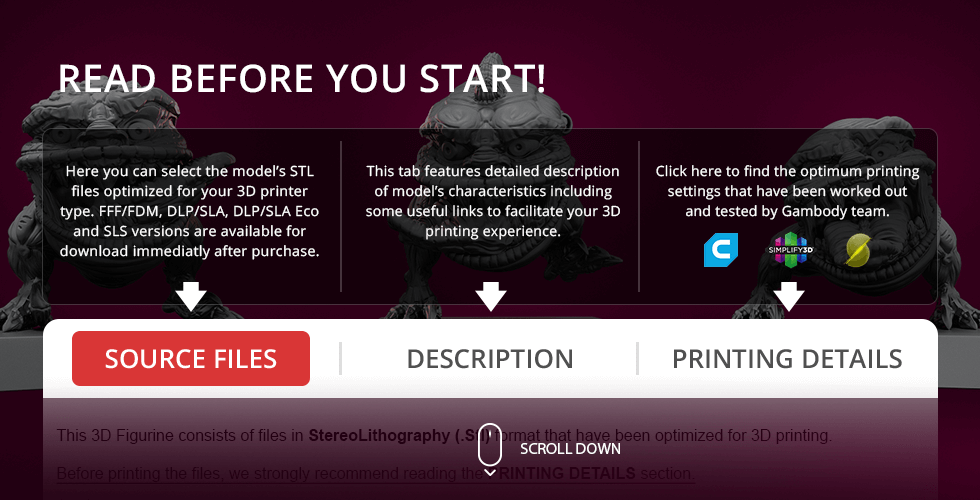
These 3D Miniatures consist of files in StereoLithography (.Stl) format that is optimized for 3D printing.
Before printing the files, we strongly recommend reading the PRINTING DETAILS section.
Squiggly Beasts 3D Printing Miniatures come in one version for DLP/SLA/SLS 3D printer types. Files for 3D printing are available for download after the purchase.
Detailed information about these 3D printing miniatures is available in the DESCRIPTION section.
Before printing, take a look at Printing Details for recommended settings and tips to achieve better results.
| File name | Size (mm | in) | Size(mb) | Printing Time / Resin | |||
|---|---|---|---|---|---|---|
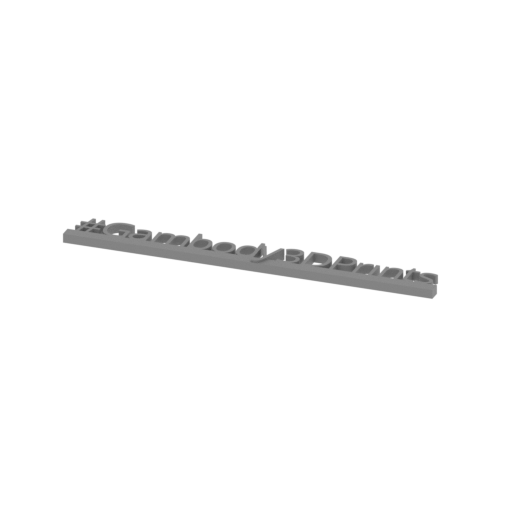 | Tag (repaired).stl 150 x 18 x 5 mm | 5.91 x 0.71 x 0.2 in | Size: 150 x 18 x 5 mm | 5.91 x 0.71 x 0.2 in | File size: 1.78 mb | Printing Time / Resin: 29 min / 8.6 ml Slicer: prusa v2.9.2 Printer: photon_mono_4_lb Non default settings Layer height: 0.05 Supports enable: 1 Support buildplate only: 0 Exposure time: 2.2 | ||
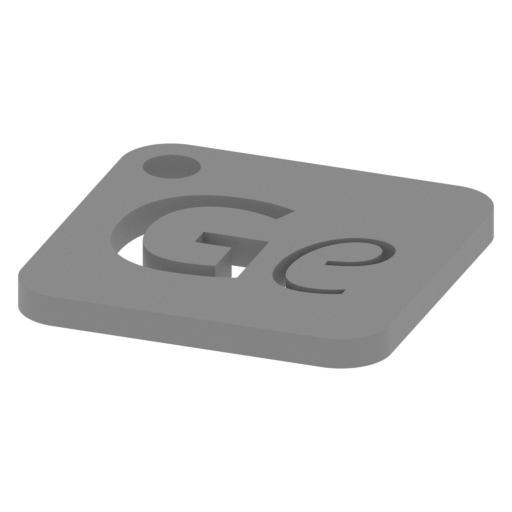 | Keychain (repaired).stl 30 x 30 x 2 mm | 1.18 x 1.18 x 0.08 in | Size: 30 x 30 x 2 mm | 1.18 x 1.18 x 0.08 in | File size: 0.37 mb | Printing Time / Resin: 24 min / 3.3 ml Slicer: prusa v2.9.2 Printer: photon_mono_4_lb Non default settings Layer height: 0.05 Supports enable: 1 Support buildplate only: 0 Exposure time: 2.2 | ||
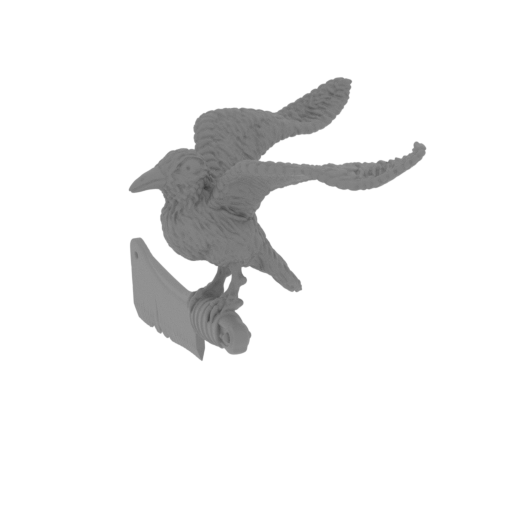 | 14_V2.0_11_2_Wild_Orc_Squig_SLA_SLS(repaired).stl 21 x 18 x 17 mm | 0.83 x 0.71 x 0.67 in | Size: 21 x 18 x 17 mm | 0.83 x 0.71 x 0.67 in | File size: 10.71 mb | Printing Time / Resin: 1 h 2 min / 0.8 ml Slicer: prusa v2.9.2 Printer: photon_mono_4_lb Non default settings Layer height: 0.05 Supports enable: 1 Support buildplate only: 0 Exposure time: 2.2 | ||
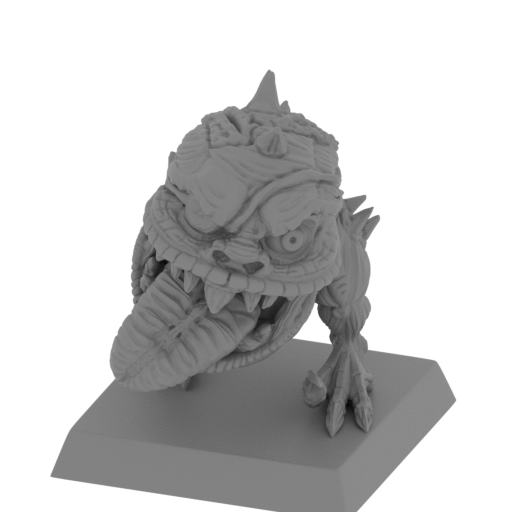 | 13_V2.0_11_1_Wild_Orc_Squig_SLA_SLS(repaired).stl 28 x 34 x 35 mm | 1.1 x 1.34 x 1.38 in | Size: 28 x 34 x 35 mm | 1.1 x 1.34 x 1.38 in | File size: 60.19 mb | Printing Time / Resin: 1 h 47 min / 9.5 ml Slicer: prusa v2.9.2 Printer: photon_mono_4_lb Non default settings Layer height: 0.05 Supports enable: 1 Support buildplate only: 0 Exposure time: 2.2 | ||
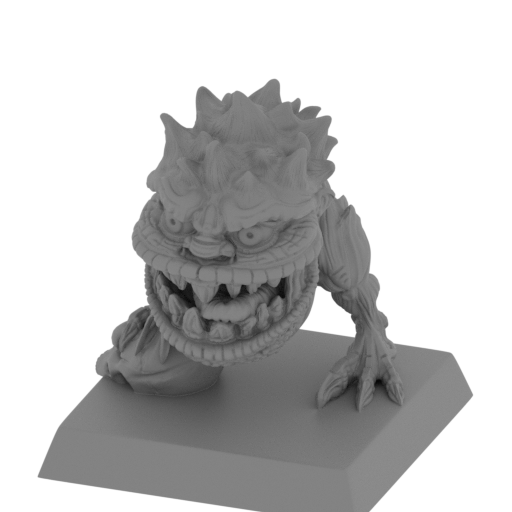 | 12_Wild_Orc_Squig_SLA_SLS(repaired).stl 28 x 29 x 33 mm | 1.1 x 1.14 x 1.3 in | Size: 28 x 29 x 33 mm | 1.1 x 1.14 x 1.3 in | File size: 58.34 mb | Printing Time / Resin: 1 h 41 min / 7.6 ml Slicer: prusa v2.9.2 Printer: photon_mono_4_lb Non default settings Layer height: 0.05 Supports enable: 1 Support buildplate only: 0 Exposure time: 2.2 | ||
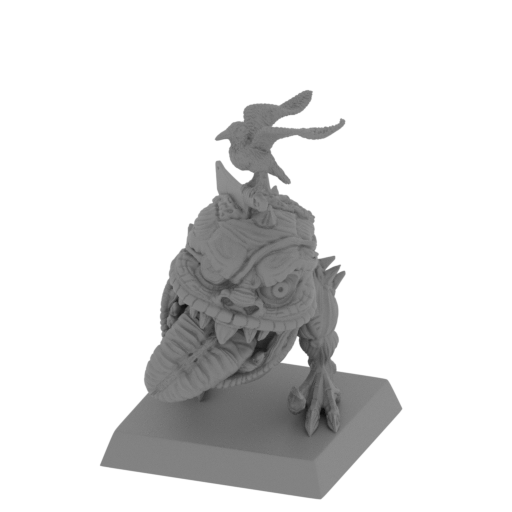 | 11_Wild_Orc_Squig_SLA_SLS(repaired).stl 29 x 34 x 47 mm | 1.14 x 1.34 x 1.85 in | Size: 29 x 34 x 47 mm | 1.14 x 1.34 x 1.85 in | File size: 62.41 mb | Printing Time / Resin: 2 h 17 min / 10.1 ml Slicer: prusa v2.9.2 Printer: photon_mono_4_lb Non default settings Layer height: 0.05 Supports enable: 1 Support buildplate only: 0 Exposure time: 2.2 | ||
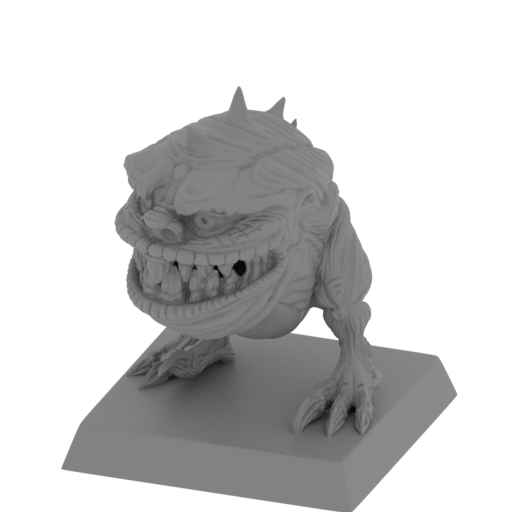 | 10_Wild_Orc_Squig_SLA_SLS(repaired).stl 28 x 30 x 36 mm | 1.1 x 1.18 x 1.42 in | Size: 28 x 30 x 36 mm | 1.1 x 1.18 x 1.42 in | File size: 59.06 mb | Printing Time / Resin: 1 h 49 min / 8.6 ml Slicer: prusa v2.9.2 Printer: photon_mono_4_lb Non default settings Layer height: 0.05 Supports enable: 1 Support buildplate only: 0 Exposure time: 2.2 | ||
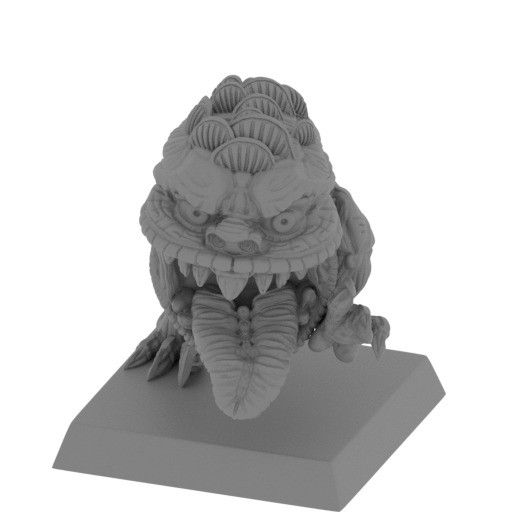 | 9_Wild_Orc_Squig_SLA_SLS(repaired).stl 30 x 32 x 36 mm | 1.18 x 1.26 x 1.42 in | Size: 30 x 32 x 36 mm | 1.18 x 1.26 x 1.42 in | File size: 58.81 mb | Printing Time / Resin: 1 h 50 min / 9.6 ml Slicer: prusa v2.9.2 Printer: photon_mono_4_lb Non default settings Layer height: 0.05 Supports enable: 1 Support buildplate only: 0 Exposure time: 2.2 | ||
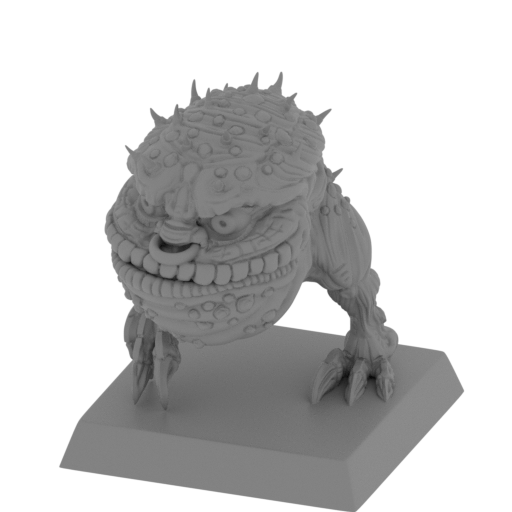 | 8_Wild_Orc_Squig_SLA_SLS(repaired).stl 28 x 32 x 35 mm | 1.1 x 1.26 x 1.38 in | Size: 28 x 32 x 35 mm | 1.1 x 1.26 x 1.38 in | File size: 61.32 mb | Printing Time / Resin: 1 h 47 min / 9.7 ml Slicer: prusa v2.9.2 Printer: photon_mono_4_lb Non default settings Layer height: 0.05 Supports enable: 1 Support buildplate only: 0 Exposure time: 2.2 | ||
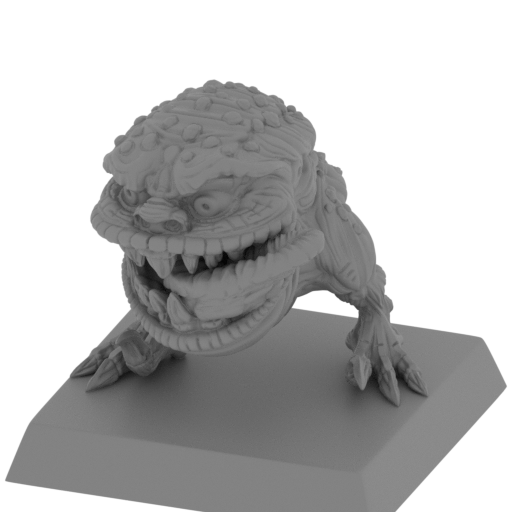 | 7_Wild_Orc_Squig_SLA_SLS(repaired).stl 28 x 28 x 28 mm | 1.1 x 1.1 x 1.1 in | Size: 28 x 28 x 28 mm | 1.1 x 1.1 x 1.1 in | File size: 60.43 mb | Printing Time / Resin: 1 h 29 min / 6.8 ml Slicer: prusa v2.9.2 Printer: photon_mono_4_lb Non default settings Layer height: 0.05 Supports enable: 1 Support buildplate only: 0 Exposure time: 2.2 | ||
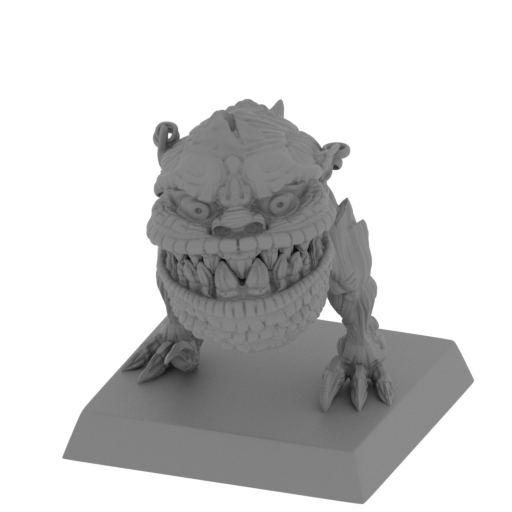 | 6_Wild_Orc_Squig_SLA_SLS(repaired).stl 28 x 34 x 34 mm | 1.1 x 1.34 x 1.34 in | Size: 28 x 34 x 34 mm | 1.1 x 1.34 x 1.34 in | File size: 57.97 mb | Printing Time / Resin: 1 h 44 min / 8.7 ml Slicer: prusa v2.9.2 Printer: photon_mono_4_lb Non default settings Layer height: 0.05 Supports enable: 1 Support buildplate only: 0 Exposure time: 2.2 | ||
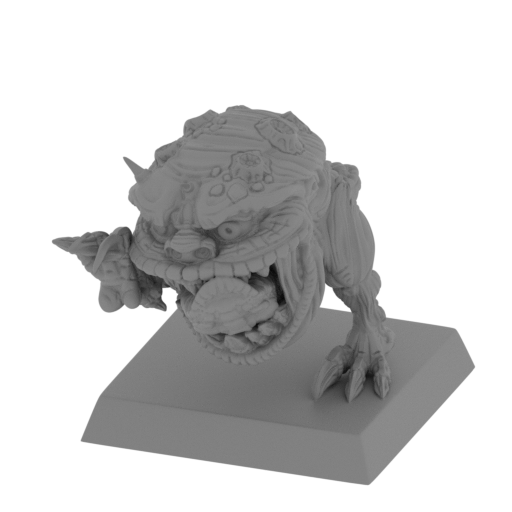 | 5_Wild_Orc_Squig_SLA_SLS(repaired).stl 30 x 36 x 33 mm | 1.18 x 1.42 x 1.3 in | Size: 30 x 36 x 33 mm | 1.18 x 1.42 x 1.3 in | File size: 61.18 mb | Printing Time / Resin: 1 h 41 min / 9.1 ml Slicer: prusa v2.9.2 Printer: photon_mono_4_lb Non default settings Layer height: 0.05 Supports enable: 1 Support buildplate only: 0 Exposure time: 2.2 | ||
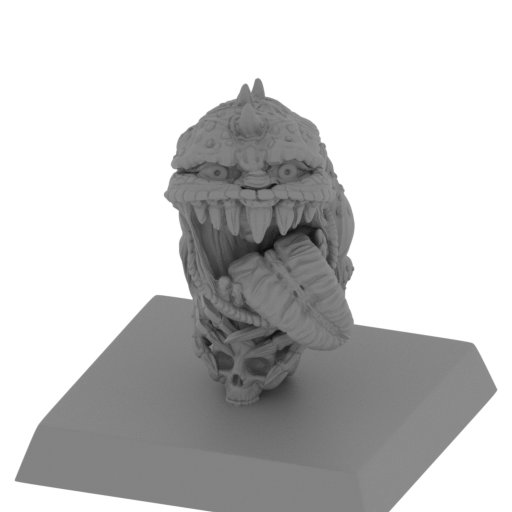 | 4_Wild_Orc_Squig_SLA_SLS(repaired).stl 28 x 28 x 29 mm | 1.1 x 1.1 x 1.14 in | Size: 28 x 28 x 29 mm | 1.1 x 1.1 x 1.14 in | File size: 60.71 mb | Printing Time / Resin: 1 h 33 min / 5.2 ml Slicer: prusa v2.9.2 Printer: photon_mono_4_lb Non default settings Layer height: 0.05 Supports enable: 1 Support buildplate only: 0 Exposure time: 2.2 | ||
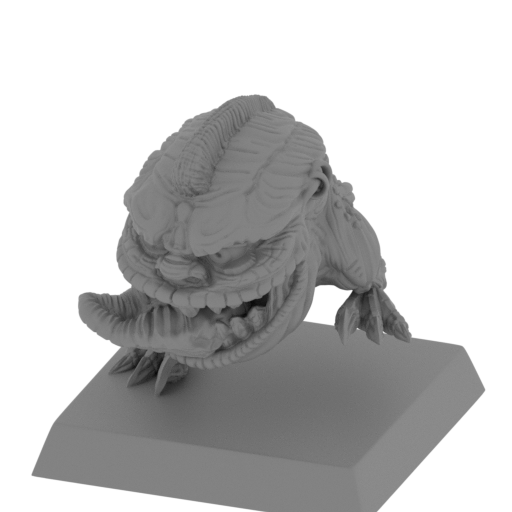 | 3_Wild_Orc_Squig_SLA_SLS(repaired).stl 28 x 29 x 31 mm | 1.1 x 1.14 x 1.22 in | Size: 28 x 29 x 31 mm | 1.1 x 1.14 x 1.22 in | File size: 58.22 mb | Printing Time / Resin: 1 h 37 min / 7.5 ml Slicer: prusa v2.9.2 Printer: photon_mono_4_lb Non default settings Layer height: 0.05 Supports enable: 1 Support buildplate only: 0 Exposure time: 2.2 | ||
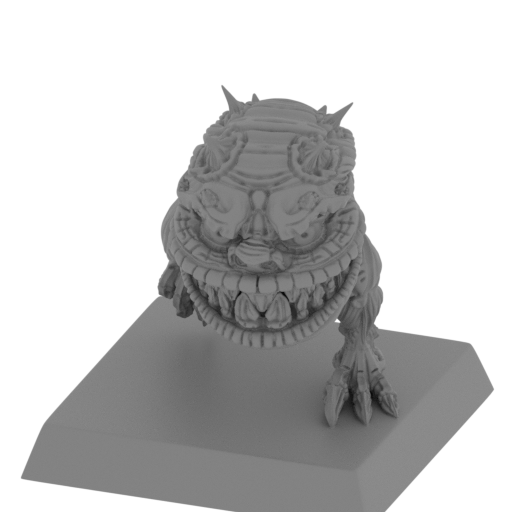 | 2_Wild_Orc_Squig_SLA_SLS(repaired).stl 28 x 29 x 30 mm | 1.1 x 1.14 x 1.18 in | Size: 28 x 29 x 30 mm | 1.1 x 1.14 x 1.18 in | File size: 59.32 mb | Printing Time / Resin: 1 h 34 min / 6.8 ml Slicer: prusa v2.9.2 Printer: photon_mono_4_lb Non default settings Layer height: 0.05 Supports enable: 1 Support buildplate only: 0 Exposure time: 2.2 | ||
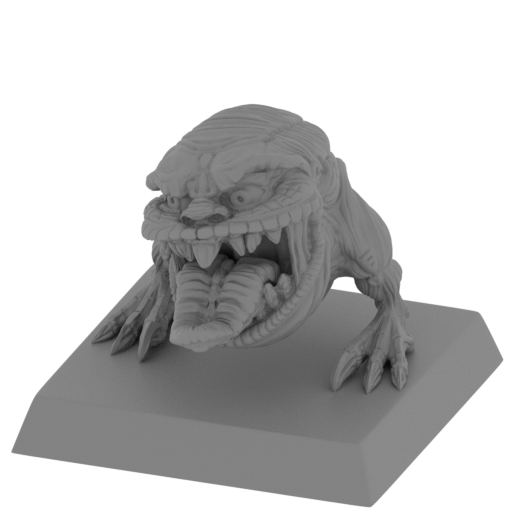 | 1_Wild_Orc_Squig_SLA_SLS(repaired).stl 28 x 29 x 24 mm | 1.1 x 1.14 x 0.94 in | Size: 28 x 29 x 24 mm | 1.1 x 1.14 x 0.94 in | File size: 59.97 mb | Printing Time / Resin: 1 h 20 min / 5.6 ml Slicer: prusa v2.9.2 Printer: photon_mono_4_lb Non default settings Layer height: 0.05 Supports enable: 1 Support buildplate only: 0 Exposure time: 2.2 | ||
ABOUT THESE 3D MINIATURES
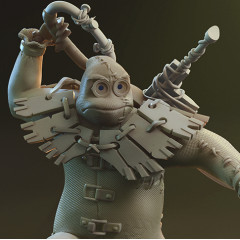
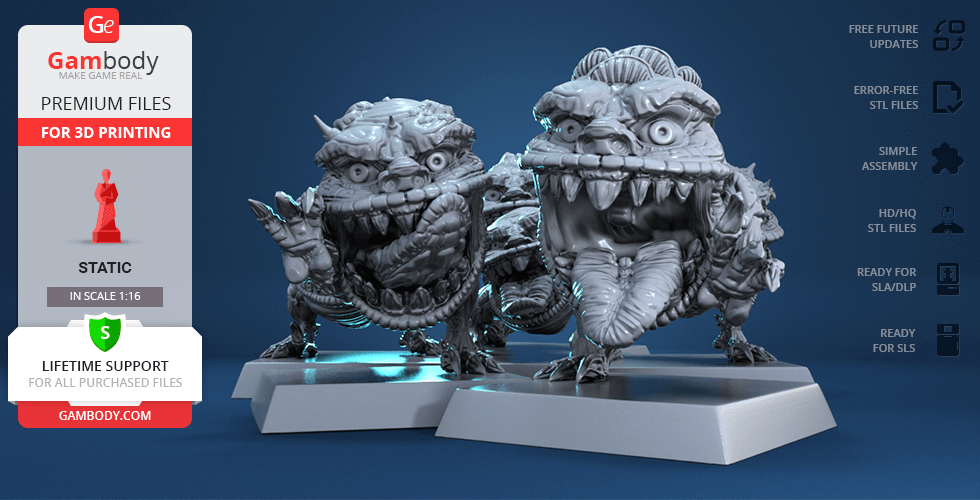
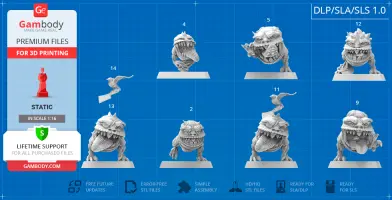
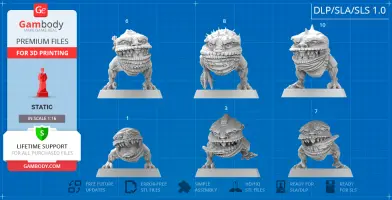
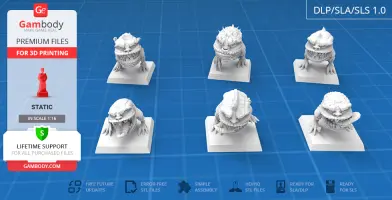
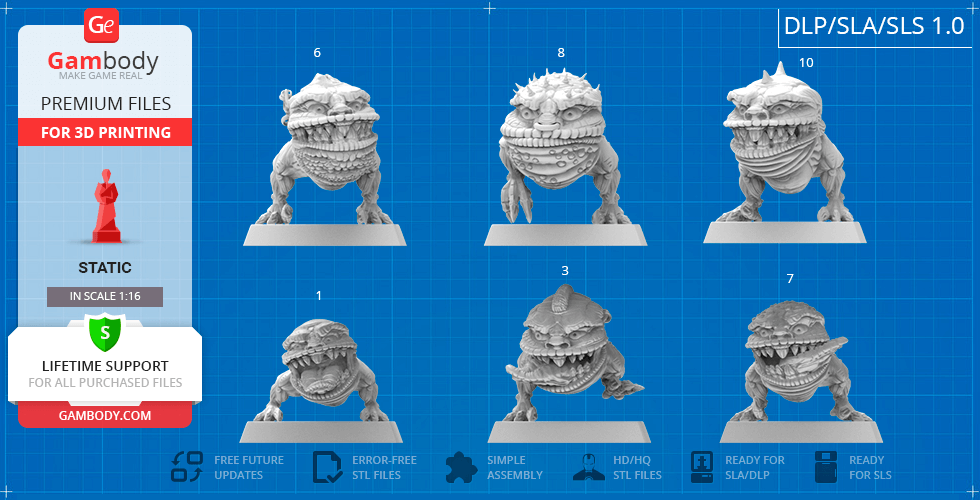
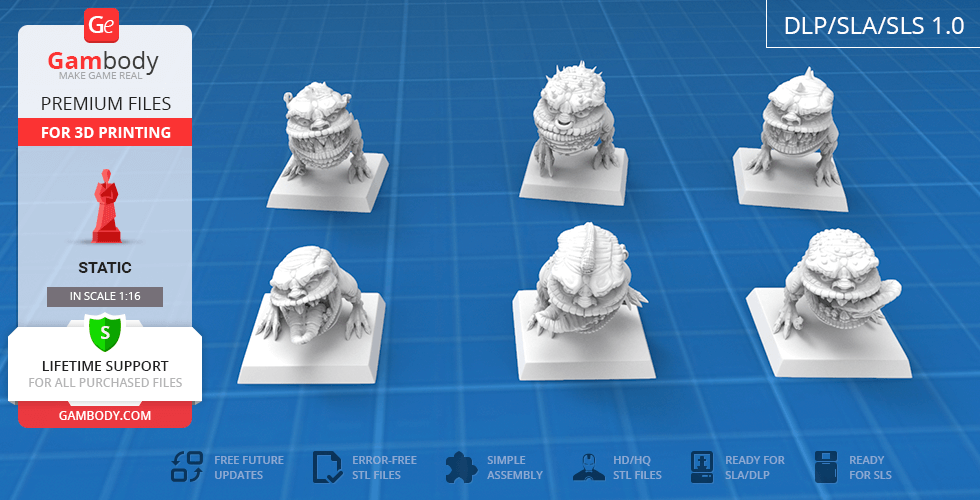
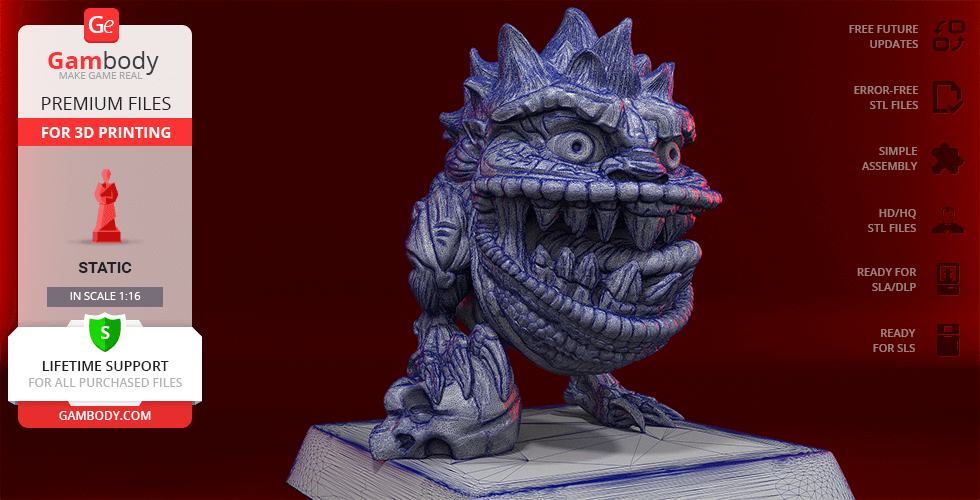
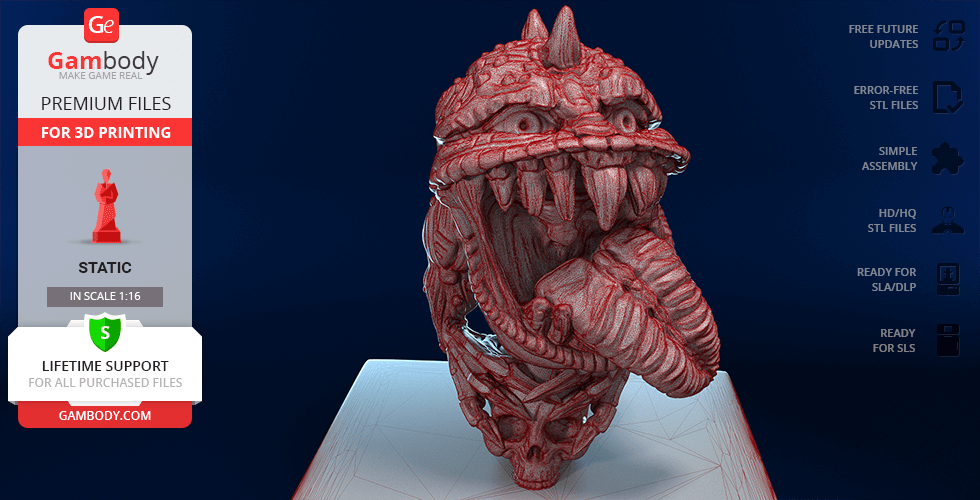
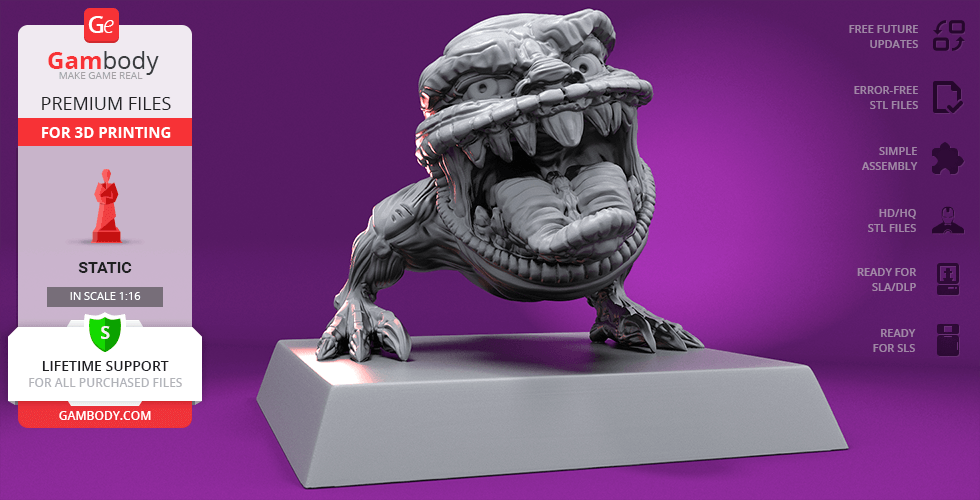
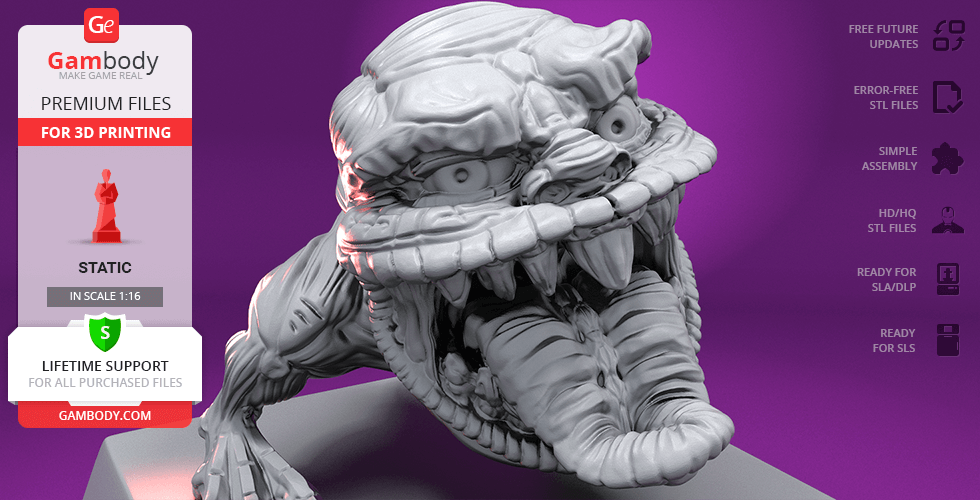
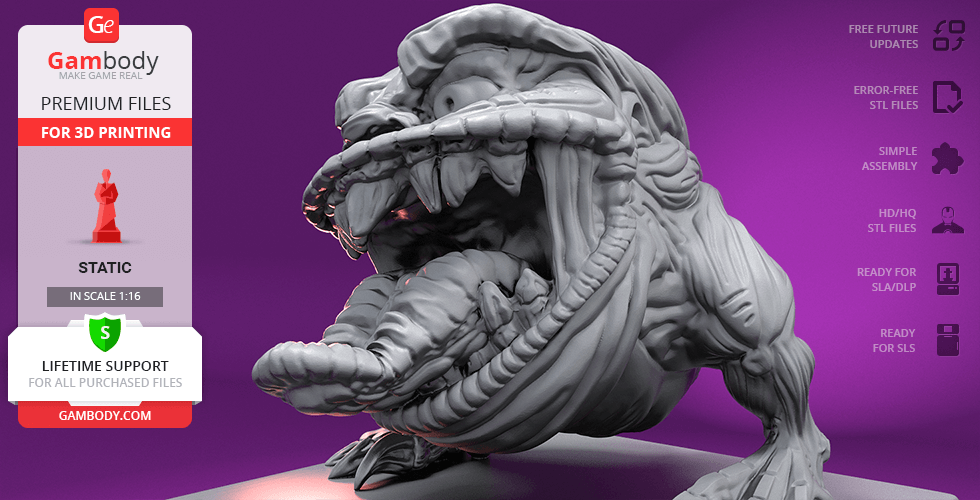
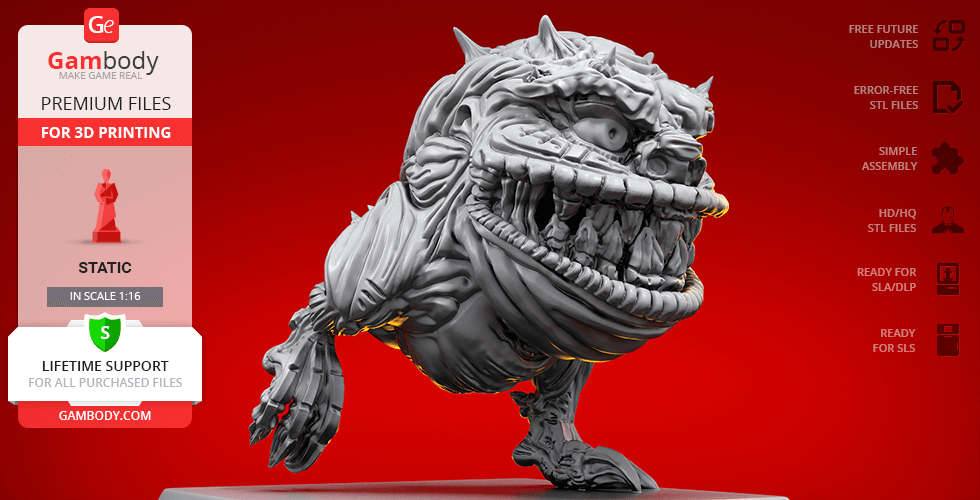
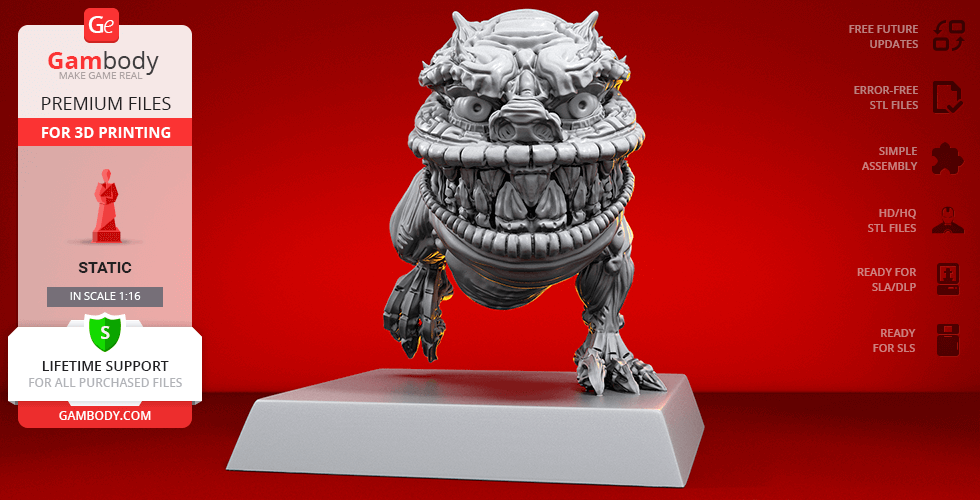
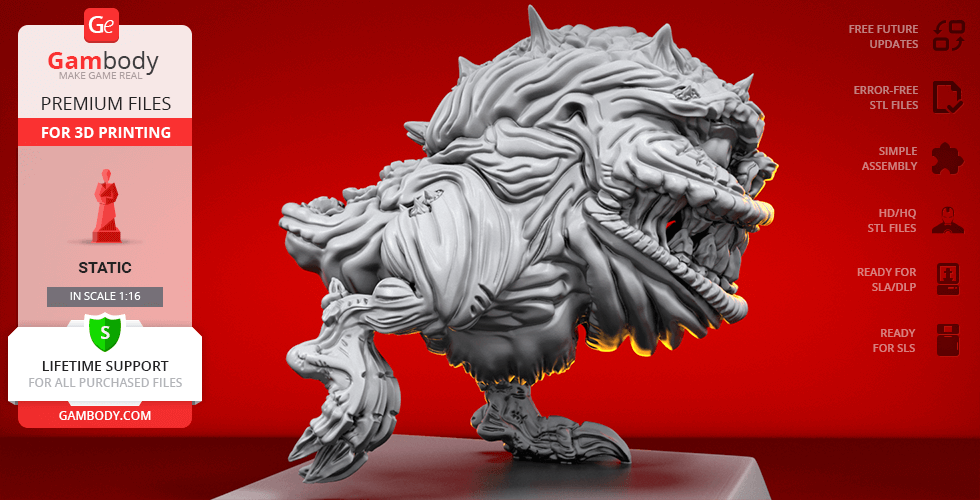
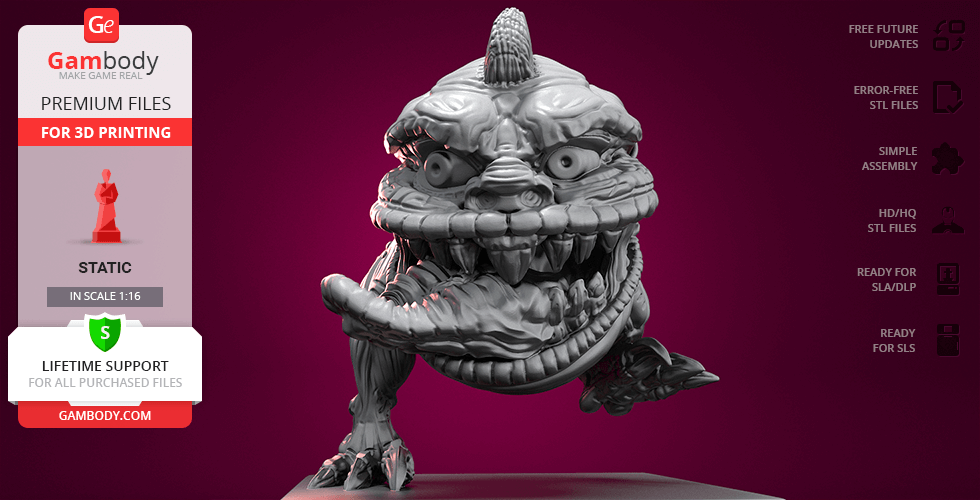
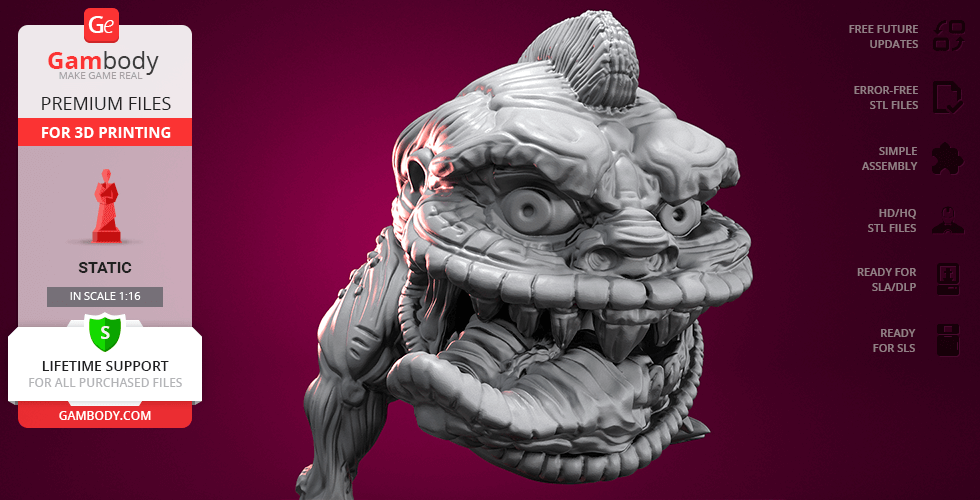
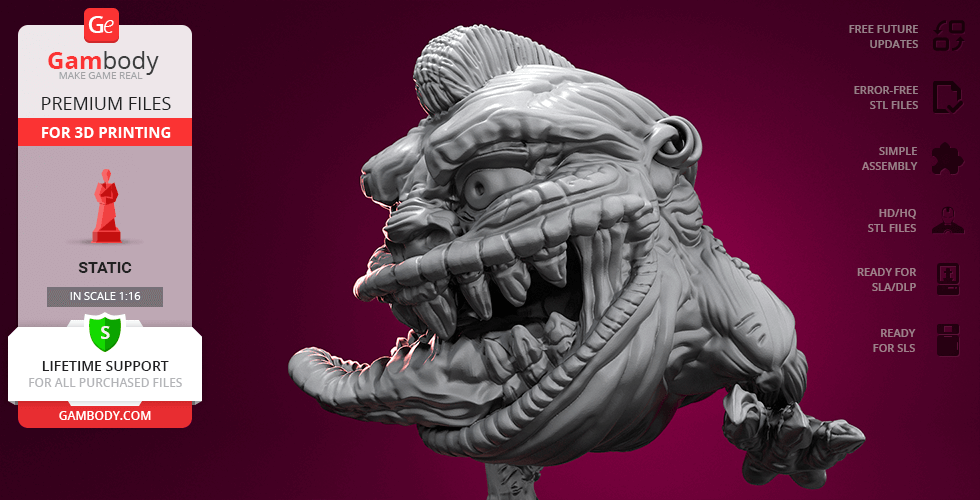
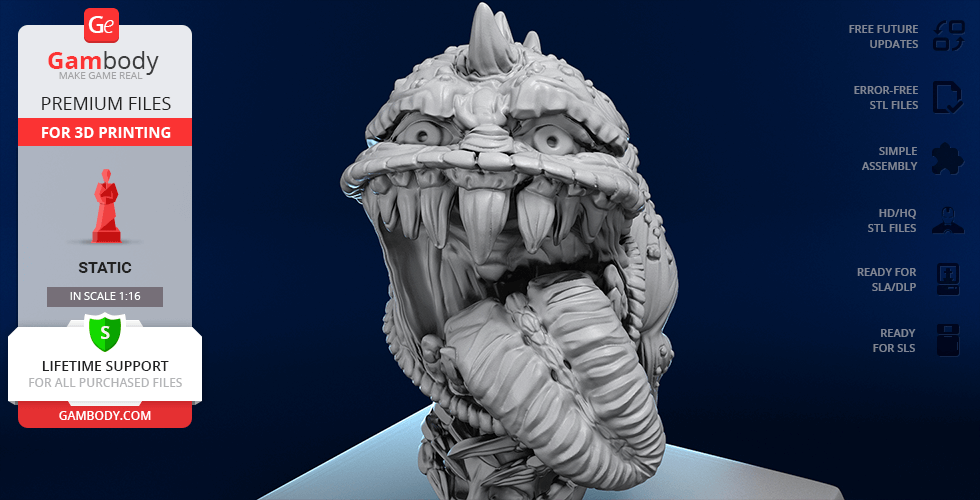
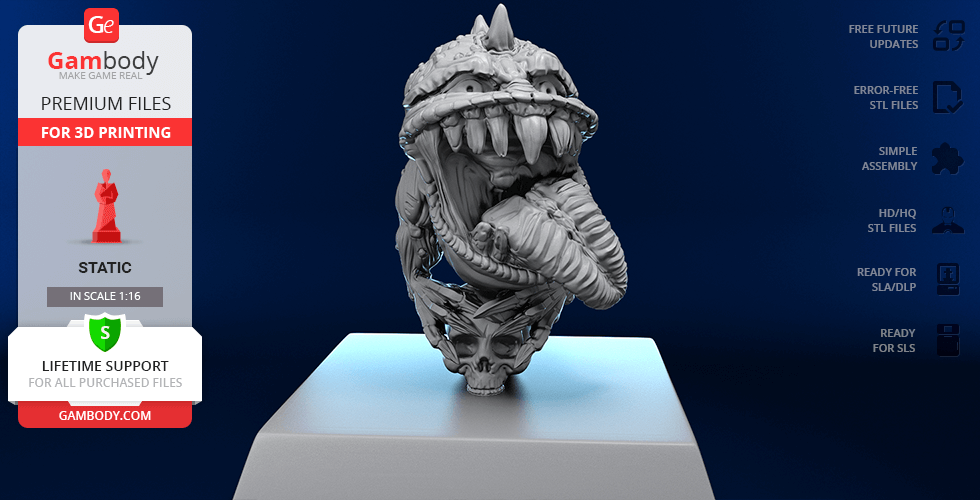
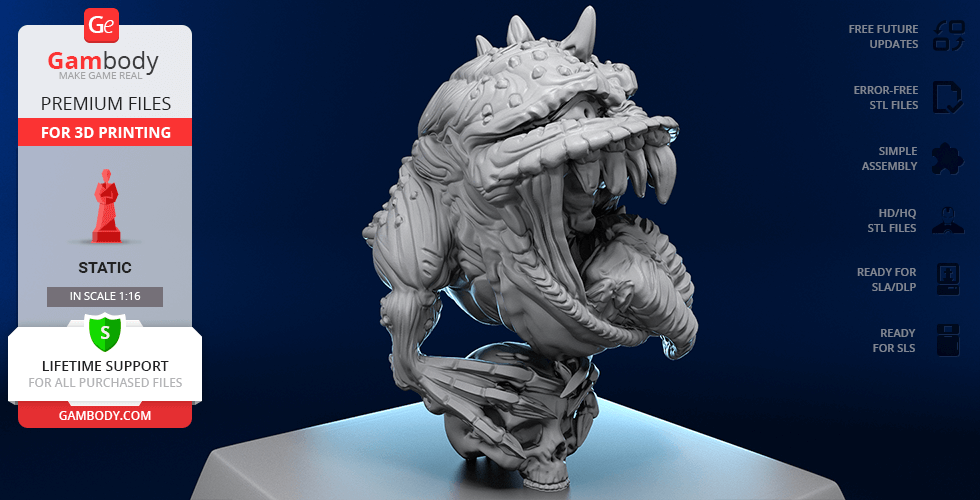
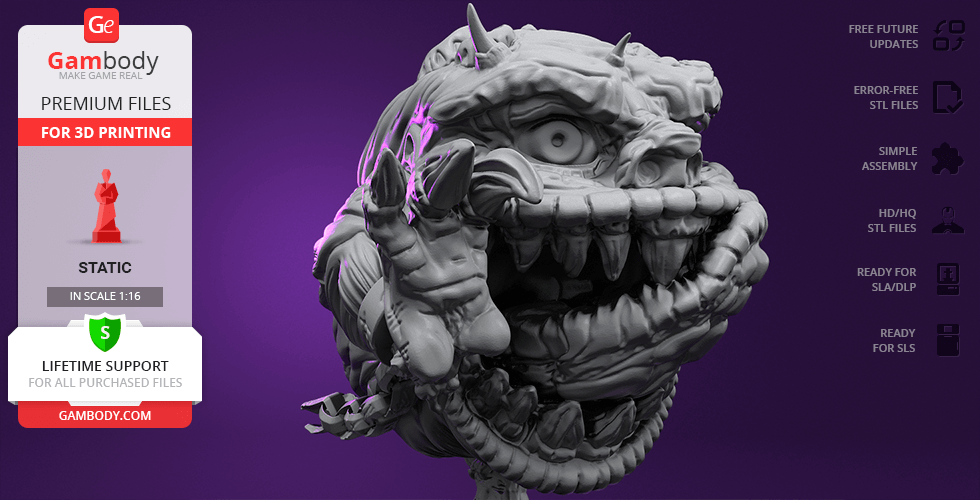
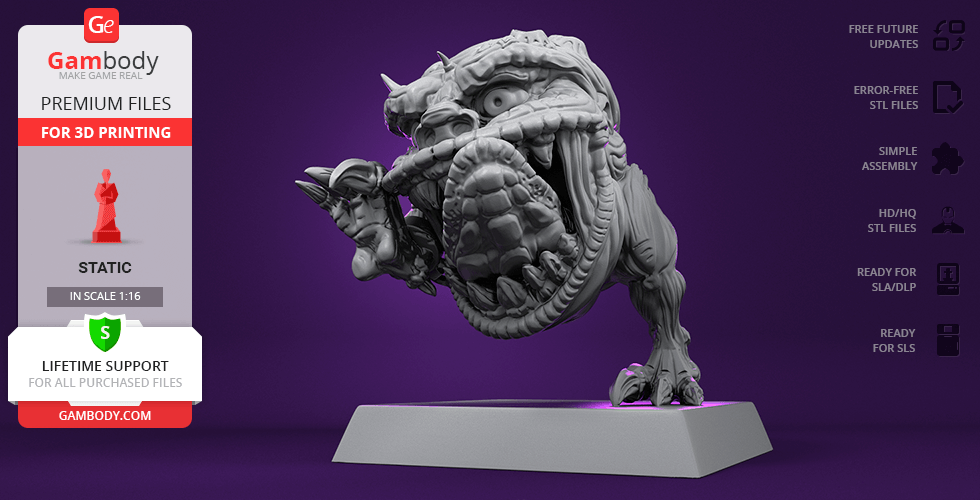
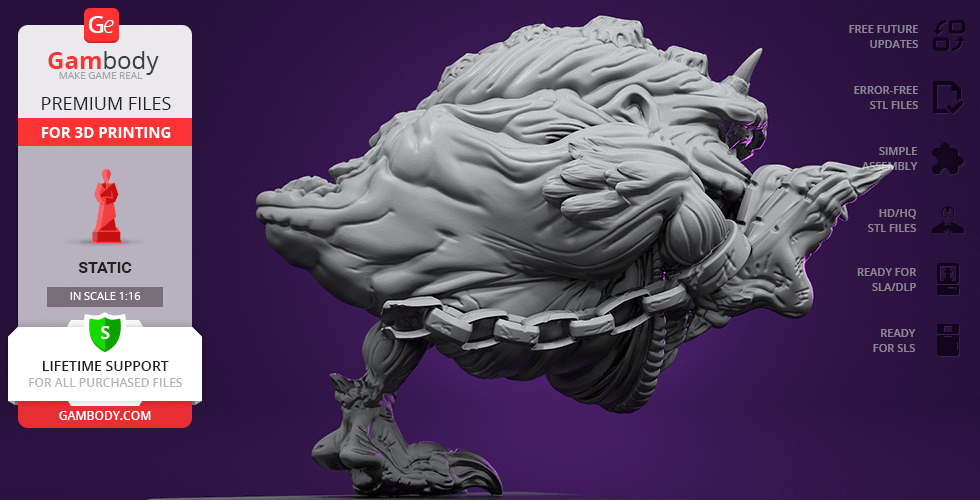
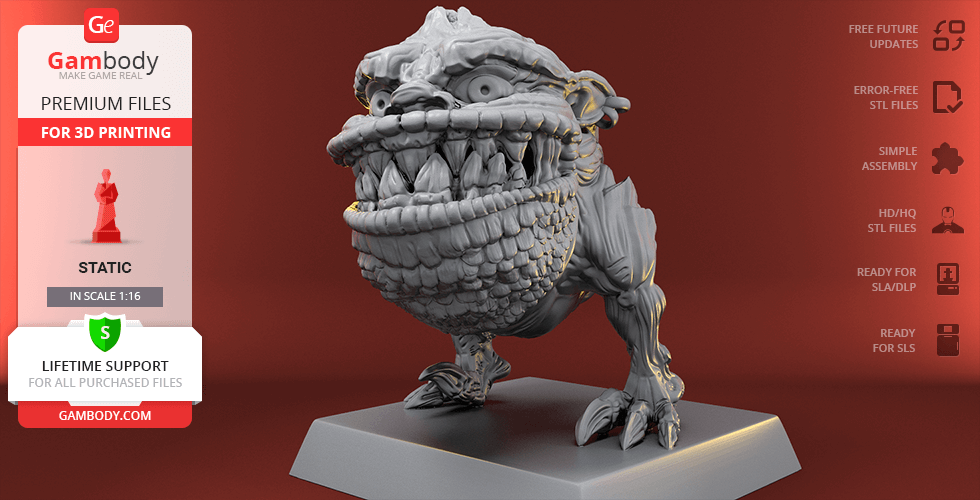
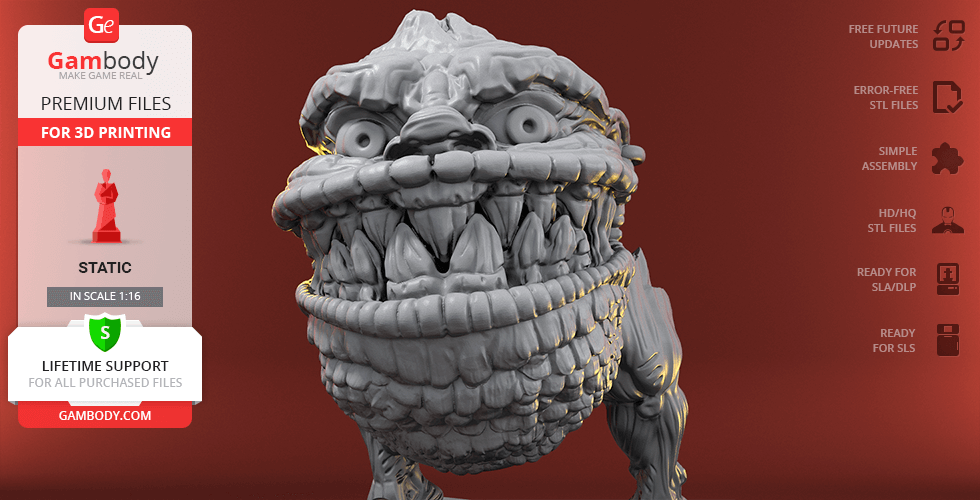
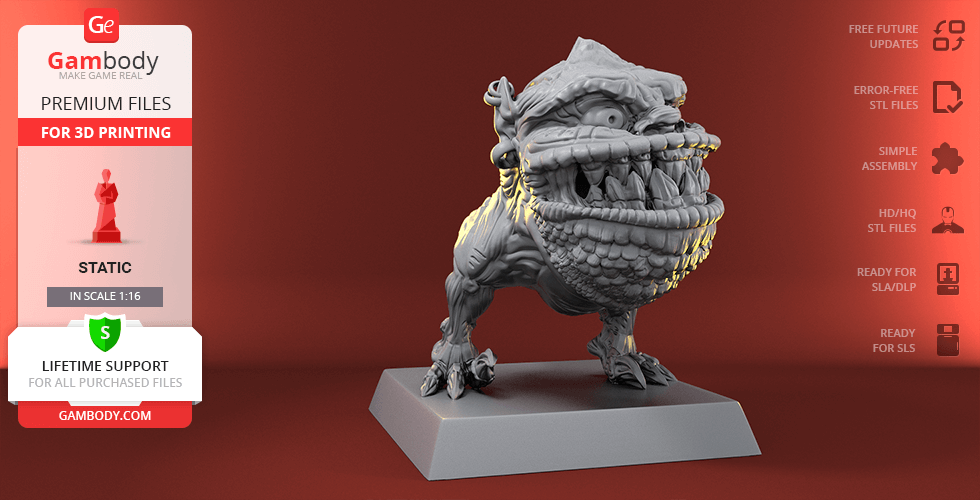
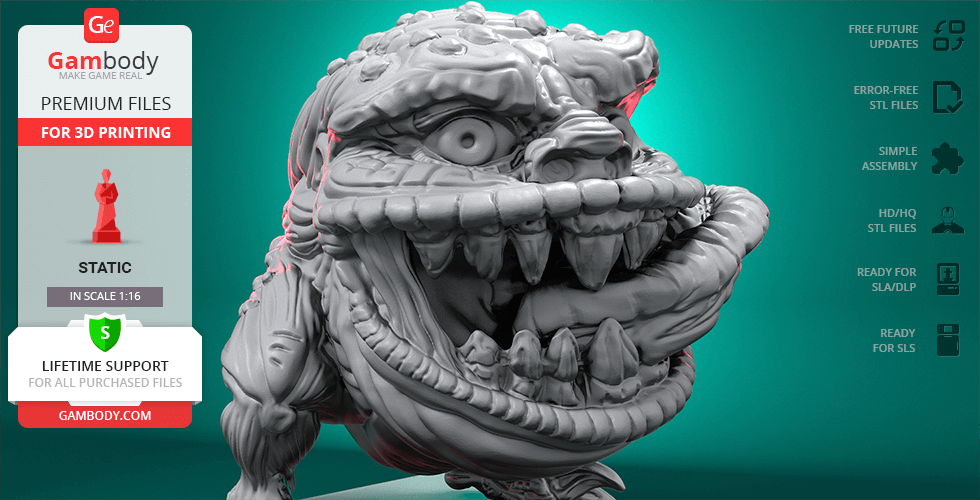
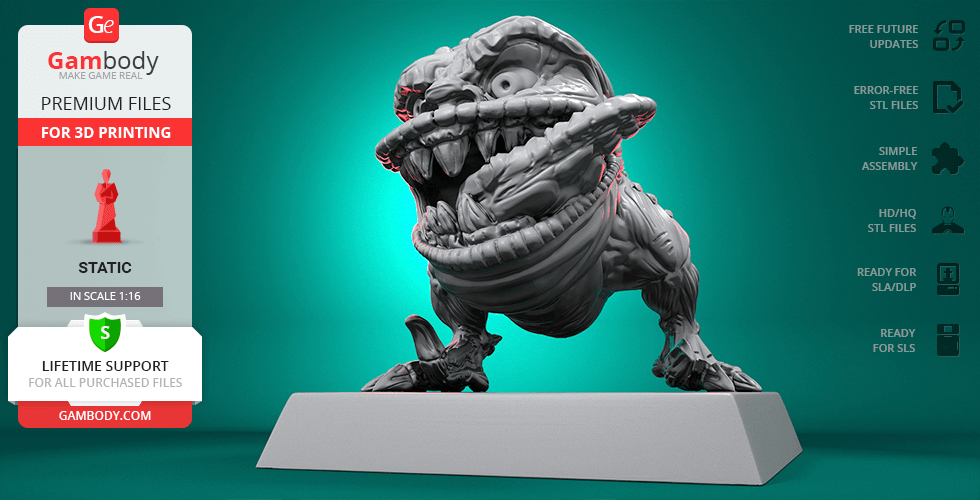
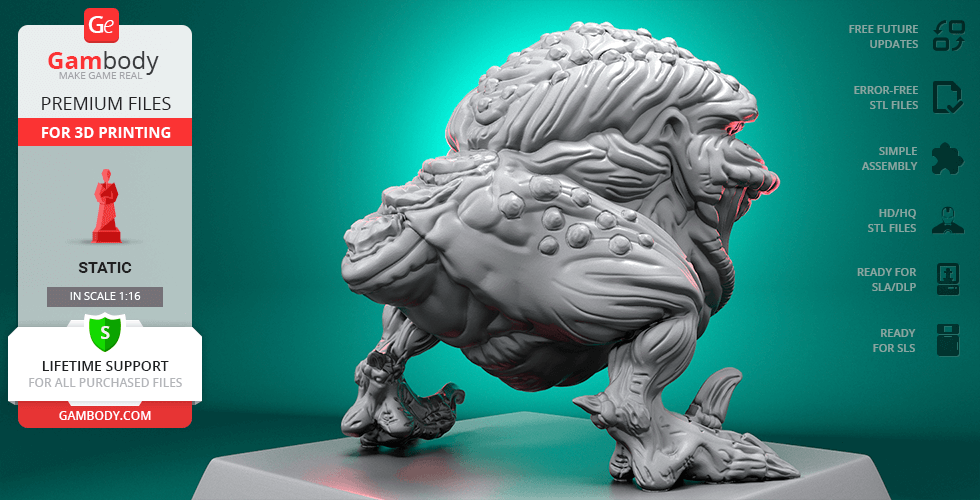
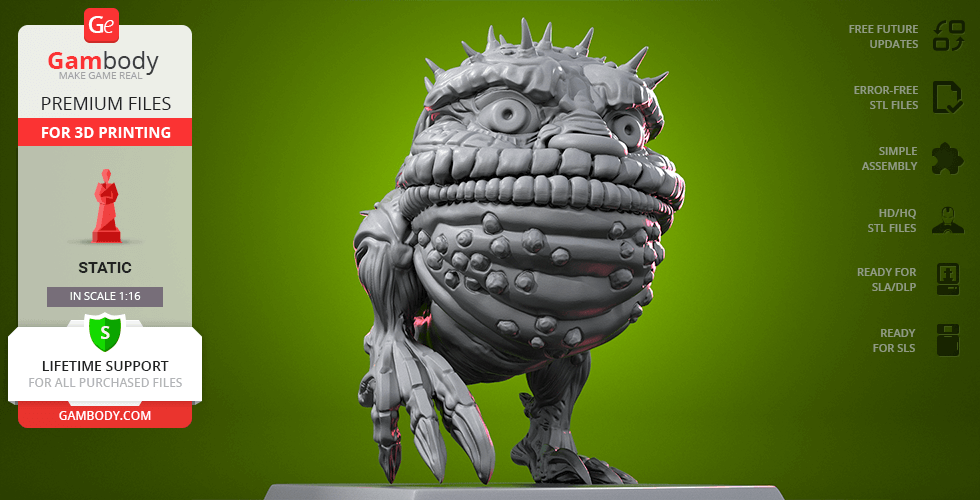
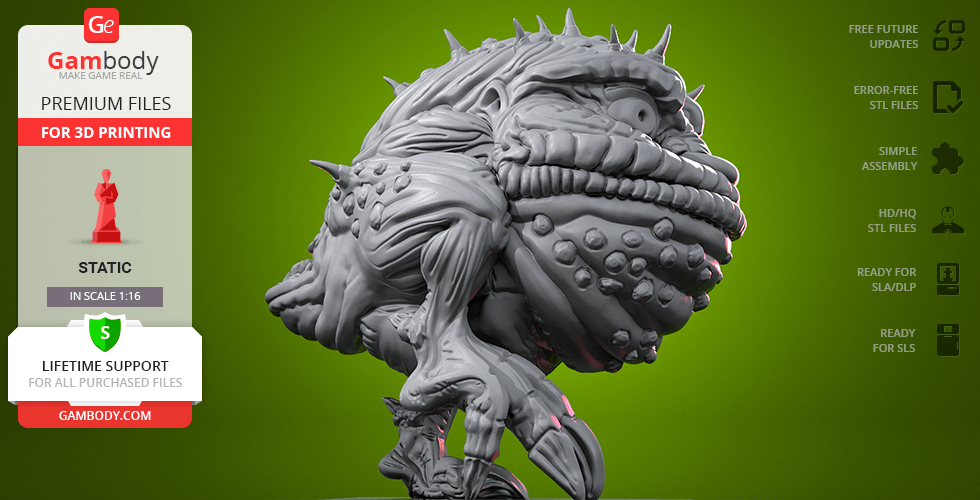
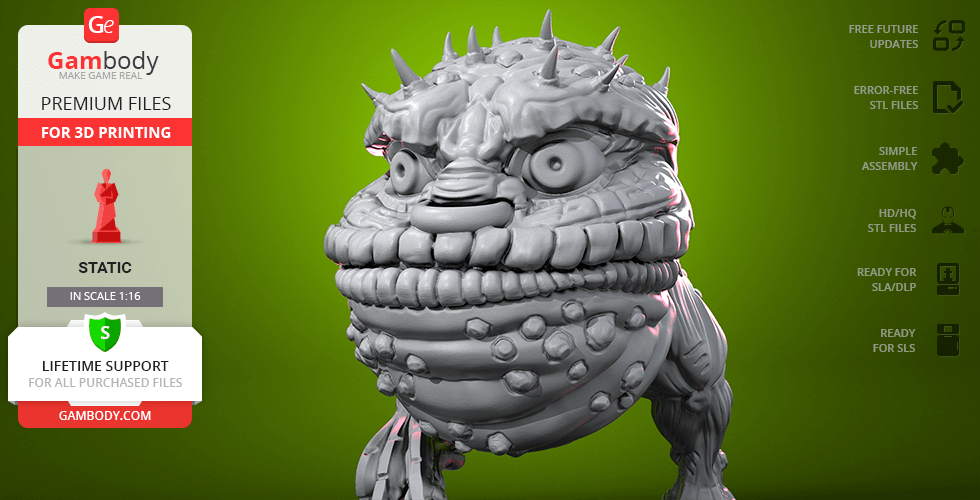
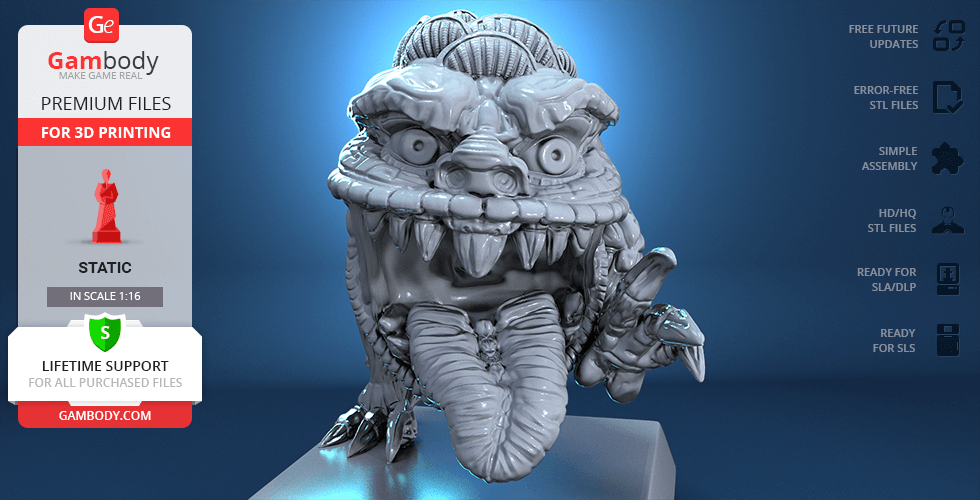
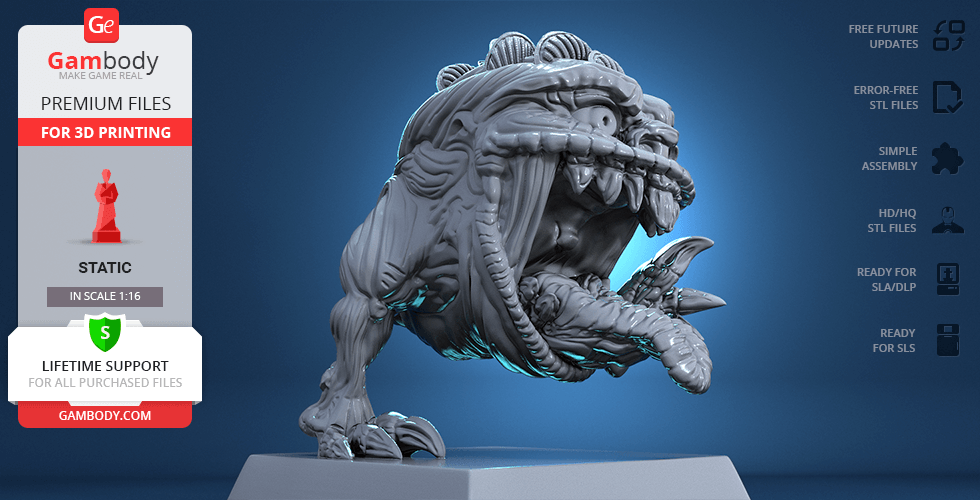
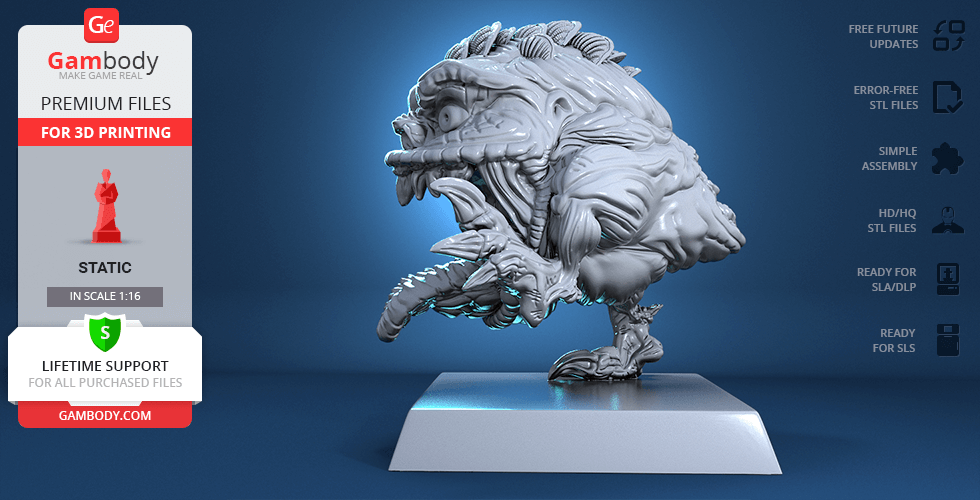
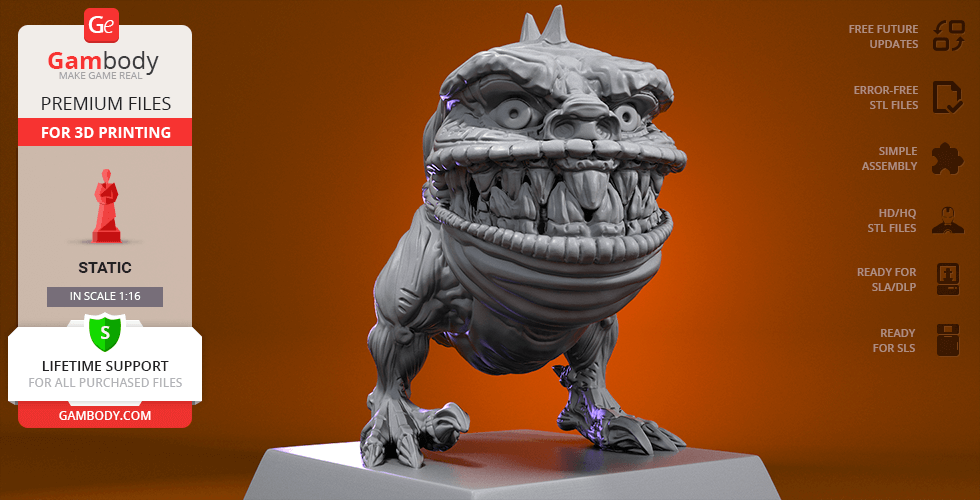
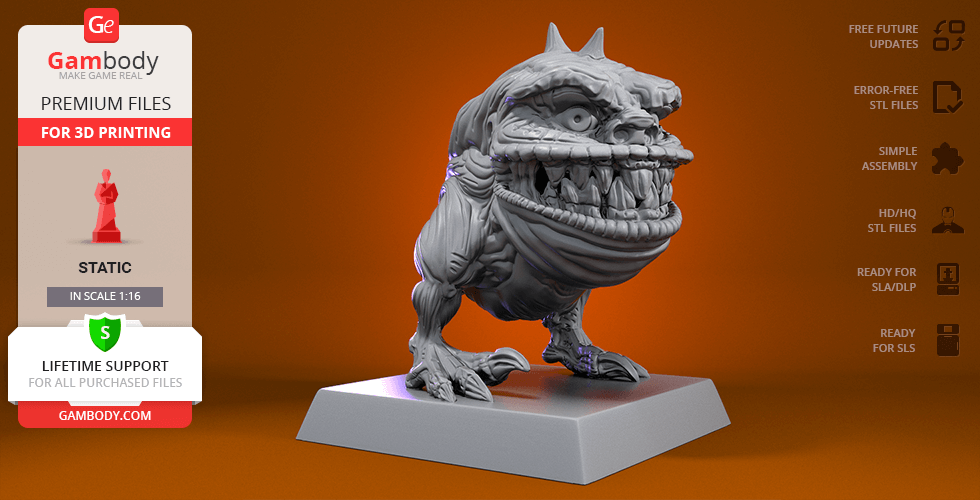
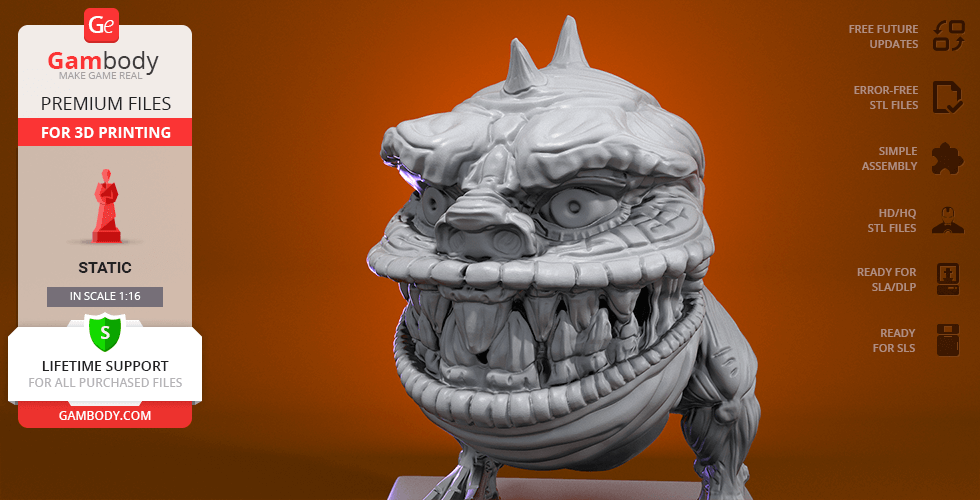
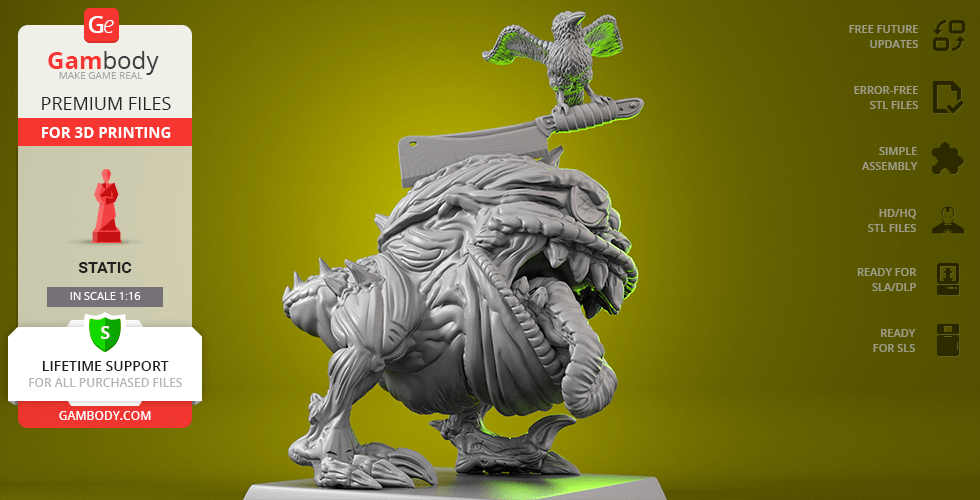
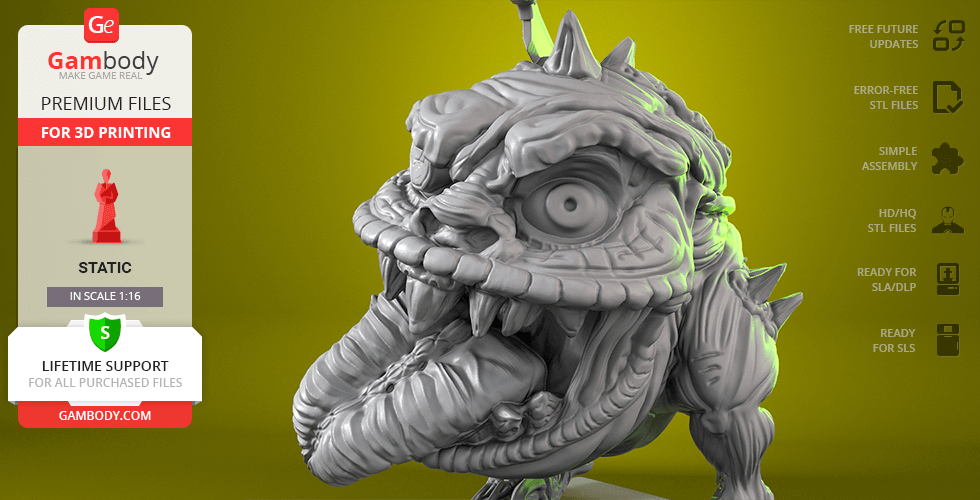
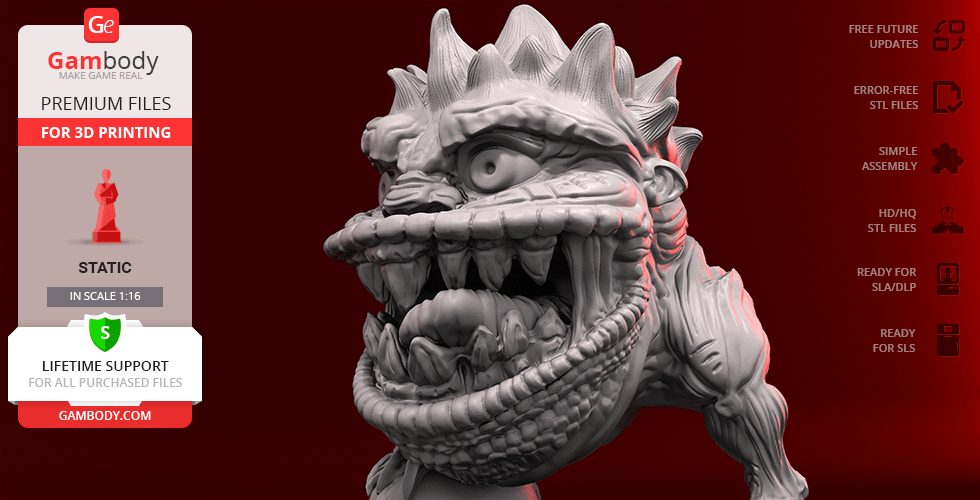
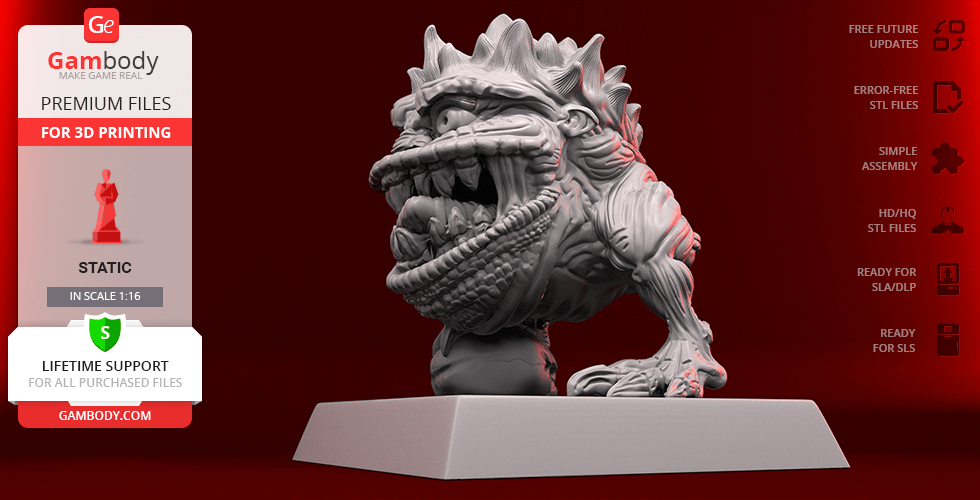
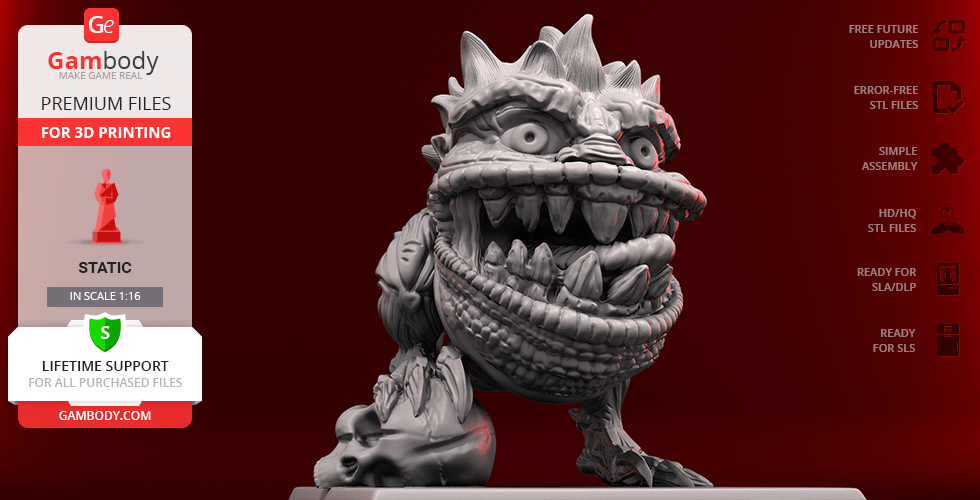
Squiggly Beasts are one of the forms of Orkoid life, the obscure organisms that resemble bouncing balls with gaping mouths full of razor-sharp teeth. The bizarre creatures akin to the Squiggly beasts can be found in various fantasy universes that exist within movies, fiction, video games or tabletop and collectible card games. And being fascinated by the amusing bipedal Squigs, the 3D artist came up with the whole herd of crazy little Orks for all 3D printing and board-gaming enthusiasts to enrich the miniatures collection with the whole unit at once. The whole project comprised of 12 Squigs took the author 96 hours to complete and as a result, any fantasy fan can obtain the total of twelve awesome miniatures for 3D printing. Each Squiggly Beast is depicted with its own unique distinctive feature that allows you to assign every other creature with a specific purpose or task it would fulfil within your tabletop adventure. Though what truly unites the unit is the elevated mood that reigns the squad - every single Orkoid is portrayed gnashing, snarling and moving erratically towards anything that it can taste with its sharp teeth. The Squiggly Beasts certainly look like they are about to join any binge eating contest available, so why resist obtaining such a determined herd to your 3D printed collection?
ADAPTATION FOR 3D PRINTING
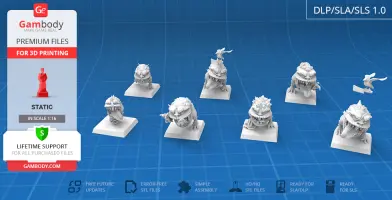
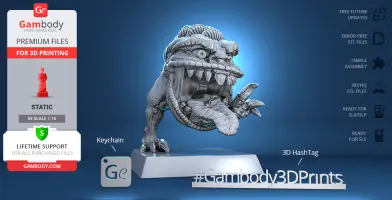
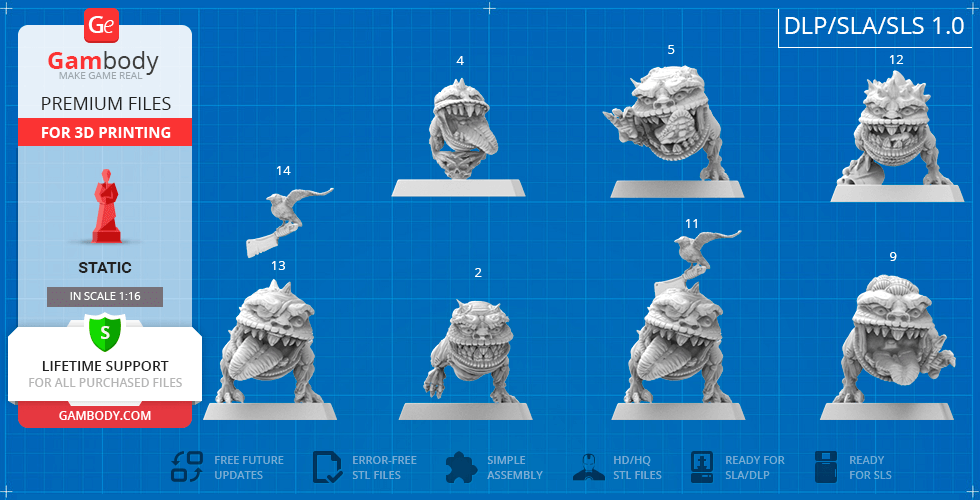
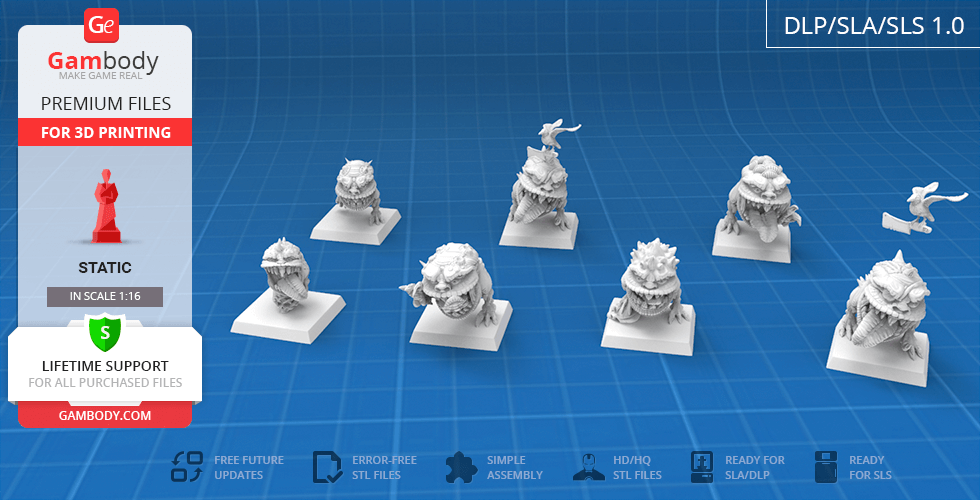
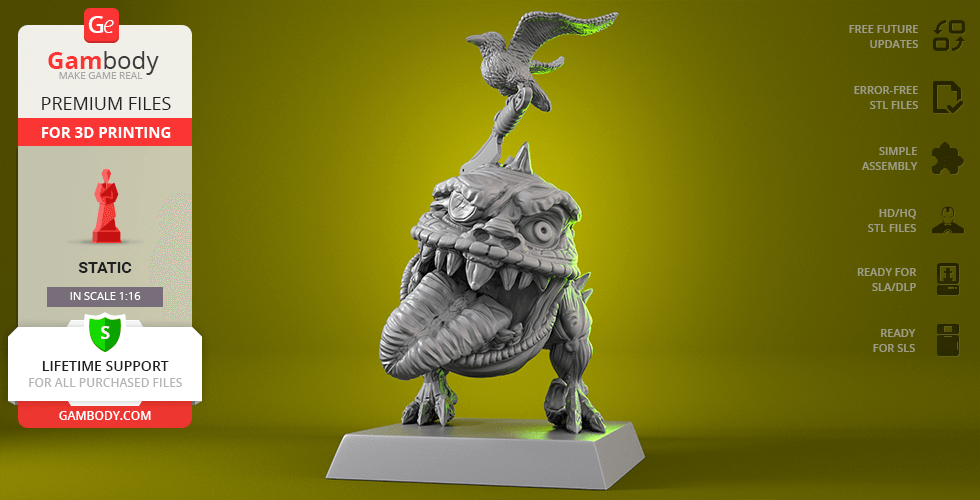
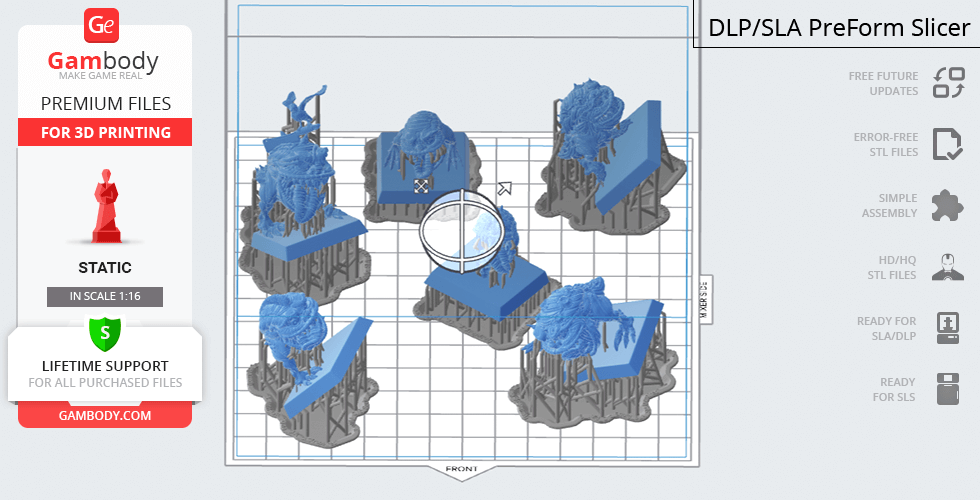
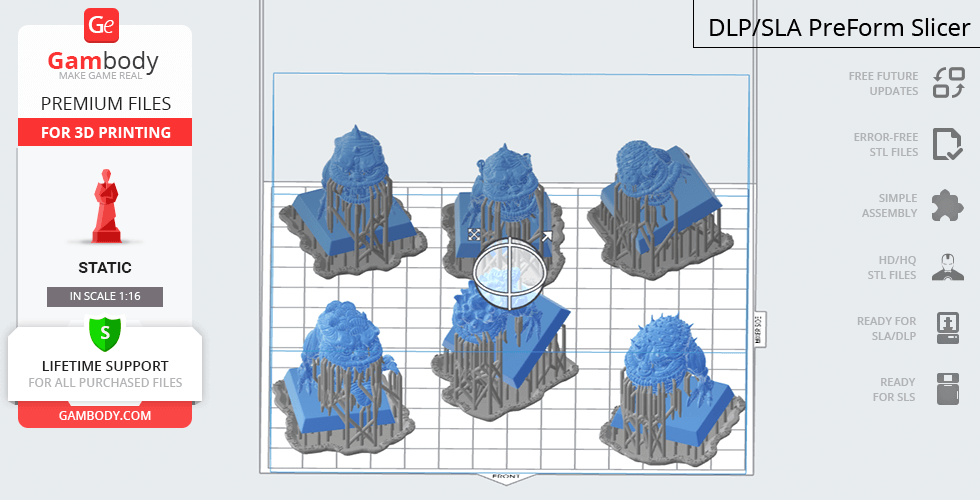
Squiggly Beasts for 3D printing is a set of static miniatures that when printed form a herd of creatures that would become an excellent unit for your fantasy board game. The creatures were intended by the author of the herd as solid miniatures that are meant to be printed on 3D printers of DLP/SLA or SLS technologies. Therefore the unit’s moderation process took Gambody team just 15 hours in total and during the review, the creatures’ proportions were checked, the needed improvements were introduced and it was made sure that all the miniatures’ fine details are printable. As mentioned, all Squiggly Beasts are solid miniatures but so to make sure that you will receive an excellent 3D printed result, one of the creatures is also available with the bird and cleaver that are placed on its top separated. For the amusing beasts to be properly presented, Gambody team prepared lots of renders to showcase each representative of the herd in such a way so that you could see at once that the unit will definitely cheer up any miniatures collection.
The miniatures are saved in STL files, a format supported by most 3D printers. All STL files for 3D printing have been checked in Netfabb and no errors were shown.
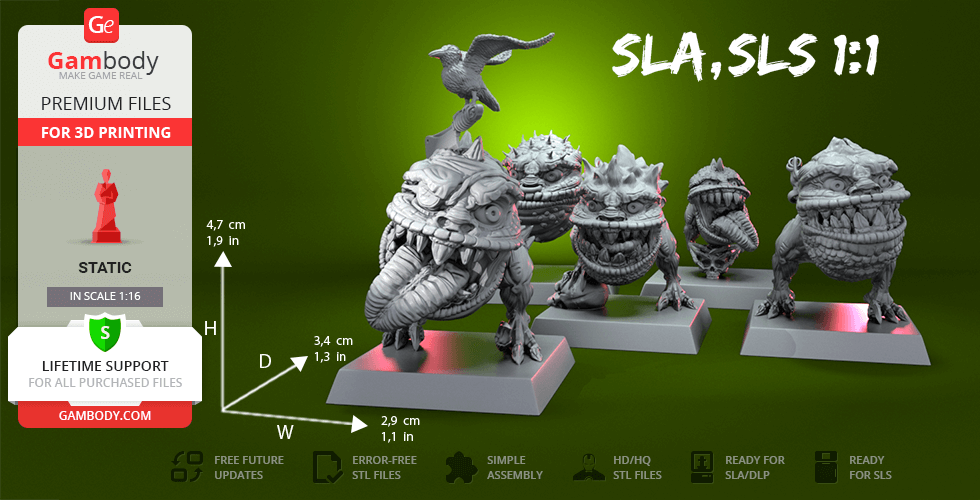
The miniatures' scale was calculated from Squiggly Beasts' height that is 500 mm. The 3D printing miniatures are available in 1/16 scale for the DLP/SLA/SLS version.
VERSION SPECIFICATIONS
DLP/SLA/SLS 1.0 version features:
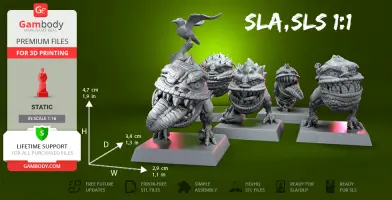
- Contains 14 parts: 12 solid one-piece miniatures and one of the beasts with the bird and cleaver separated;
- A printed miniature is 47 mm tall, 29 mm wide, 34 mm deep;
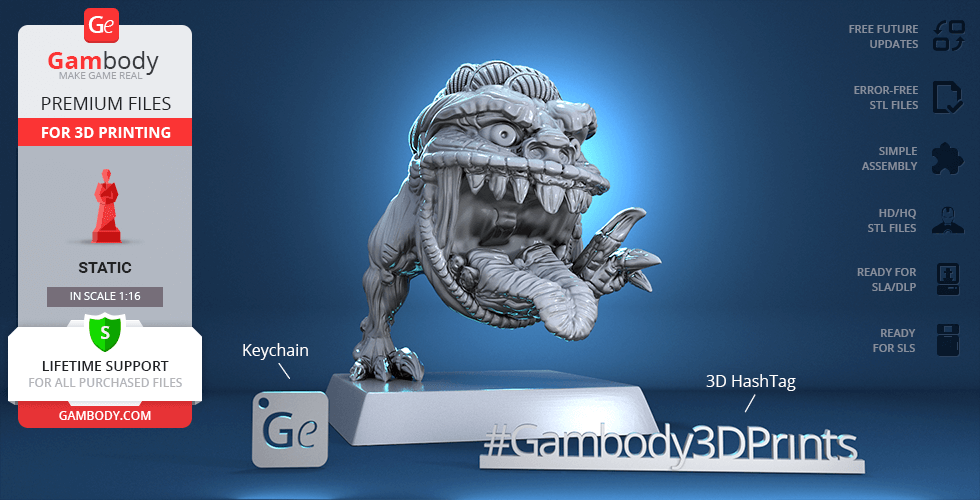
- Each miniature is placed on a platform for you to easily introduce the herd into your thematic tabletop game.
WHAT WILL YOU GET AFTER PURCHASE?
- STL files of Squiggly Beasts 3D Miniatures for 3D printing which consist of 14 parts;
- 1 version of files for the miniatures for DLP/SLA and SLS;
- High-poly detailed miniatures of Squiggly Beasts;
- Detailed settings that we provide as a recommendation for Cura ,Simplify3D and Slic3r for the best print;
- Full technical support from the Gambody Support Team.
You can get the miniatures of Squiggly Beasts for 3D Printing immediately after the purchase! Just click the green Buy button in the top-right corner of the model’s page. You can pay with PayPal or your credit card.
Watch the video review of the Squiggly Beasts 3D Printing Miniatures at Gambody YouTube channel.
Also, you may like other Orc3D Printing Figurines.
_______
FAQ:
Where can I print a model if I have no printer?
How to get started with 3D printing?
How to set up my 3D printer?
How to choose right 3D model print bed positioning?
How to paint printed figurine?
Average customer rating (2 reviews)
5
Ratings breakdown
Click a star rating to filter reviews
Overall experience
Level of detail in the model
5
Model cut quality and assembly guide
5
Clarity and accuracy of the model page
5


 This feedback is from a user who hasn't purchased this model
 Level of detail in the model
5
Model cut quality and assembly guide
5
Clarity and accuracy of the model page
5

 This feedback is from a user who hasn't purchased this model
 Level of detail in the model
5
Model cut quality and assembly guide
5
Clarity and accuracy of the model page
5
Below you'll find detailed slicing settings for Bambu Studio 2.0+, Orca Slicer 2.0+, UltiMaker Cura 5.0+, PrusaSlicer 2.0+, Slic3r 1.3+, Simplify3D 5.0+ to help you get the best results when printing this model. These settings are optimized specifically for this 3D model, but please note they may need slight adjustments depending on your printer or filament. When in doubt, refer to your printer's user manual.
To avoid printing issues and achieve the best quality, we highly recommend applying the following settings:
 Bambu Studio 2.0+
 For better quality use 0.12 mm layer height, for fast printing use 0.2 mm layer height. For pins and the Ge connectors, use 0.2 layer height.
120-150% of your Layer Height
But you can paint the seam if you want.
You have to calibrate this parameter
You have to calibrate this parameter
You have to calibrate this parameter
For pins and power elements of the structure, such as the vehicle frame, use 3 loop
Disabled for vehicles and enabled for characters
For 0,2 Layer Height
The parameters in this tab vary greatly, it all depends on the quality of your printer. For example, if you have a classic Ender3, stick to the minimum parameters, but if you have a newer printer, for example Anycubic cobra 3 v2, you can select the maximum recommended values
Settings for advanced users, change these parameters only if you have sufficient 3D printing expertise
Enable this parameter if your model requires supports
We also recommend placing and removing supports manually in some places using special button
1-2 loops for more thick support
Top Z distance = 1-1.3 layer Height. If the supports are hard to remove, try increasing this setting by 0.1-0,4 mm
Bottom Z distance = 1-1.3 layer Height. If the supports are hard to remove, try increasing this setting by 0.1-0,4 mm
You have to calibrate this parameter which one is better for your filament
Increase this parameter if the supports are hard to remove from walls
For PLA and PETG filament types
5-8 mm is optional for small prints that have bad adhesion to the build plate
You have to calibrate this parameter
Read the description on your filament roll
Read the description on your filament roll and increase this parameter for fast printers
Read the description on your filament roll and increase this parameter for fast printers
 Orca Slicer 2.0+
 For better quality use 0.12 mm layer height, for fast printing use 0.2 mm layer height. For pins and the Ge connectors, use 0.2 layer height.
120-150% of your Layer Height
But you can paint the seam if you want.
0.01-0.05 You have to calibrate this parameter
0.01-0.05 You have to calibrate this parameter
0.1-0.2 You have to calibrate this parameter
For pins and power elements of the structure, such as the vehicle frame, use 3 loop
Disabled for vehicles and ships, enabled for characters
For 0,2 Layer Height
For 0,2 Layer Height
The parameters in this tab vary greatly, it all depends on the quality of your printer. For example, if you have a classic Ender3, stick to the minimum parameters, but if you have a newer printer, for example, Anycubic Kobra 3 Or Bambulab A1, you can select the maximum recommended values.
Settings for advanced users, change these parameters only if you have sufficient 3D printing expertise
Enable this parameter if your model requires supports
We also recommend placing and removing supports manually in some places using special button
Top Z distance = 1-1.3 layer Height. If the supports are hard to remove, try increasing this setting by 0.1-0,4 mm
Bottom Z distance = 1-1.3 layer Height. If the supports are hard to remove, try increasing this setting by 0.1-0,4 mm
Increase this parameter if the supports are hard to remove from walls
For PLA and PETG filament types
5-8 mm is optional for small prints that have bad adhesion to the build plate
Read the description on your filament roll
Read the description on your filament roll and increase this parameter for fast printers
You have to calibrate this parameter
Read the description on your filament roll and increase this parameter for fast printers
Read the description on your filament roll
This field is filled in according to your printer specifications when you add it to the slicer.
You can add custom G-code here for the start and end of the print. However, be careful - this is for advanced users only!
You have to calibrate your printer using Ge retraction test models
Retraction Length: For direct-drive setups use 0.5 mm to 2.5 mm; for Bowden extruders use 5 to 7 mm
This is how fast the filament is pulled back—40-60 mm/s for direct drive and 30-50 mm/s for Bowden setups.
You have to calibrate this parameter: Reduce it until the printer starts to hit the parts with the nozzle during printing, then increase it by 0.2.
 UltiMaker Cura 5.0+
 For better quality use 0.12 mm layer height, for fast printing use 0.2 mm layer height. For pins and the Ge connectors, use 0.2 layer height.
120-150% of your Layer Height
To increase the strength of the print parts, use wall line count: 3
For pins and connectors use 50% Infill
These parameters are for standard PLA plastic. If you are using a different type of plastic, check the printing temperature recommended by the manufacturer. Also, read the description on your filament spool. For fast printers, add +30 °C to the current parameters.
The parameters in this tab vary greatly, it all depends on the quality of your printer. For example, if you have a classic Ender3, stick to the minimum parameters, but if you have a newer printer, for example Anycubic cobra 3 v3, you can select the maximum recommended values
Settings for advanced users, change these parameters only if you have sufficient 3D printing expertise.
You need to calibrate this parameter using Gambody test models. These values are average values for a Direct Drive extruder; for a Bowden extruder, the values should be increased.
You need to calibrate this parameter using Gambody test models. These values are average values for a Direct Drive extruder; for a Bowden extruder, the values should be increased.
Use this value other than 0 if your nozzle catches on the internal infill during travel moves. Try to keep this value as low as possible in height.
Use normal supports to support large, straight surfaces (most mechanical or technical parts).
You have to calibrate this parameter according to the capabilities of your printer and your filament, using a Gambody test models.
Use 1 instead of 0 if your supports are thin and tall. They will be harder to remove, but much stronger.
Top Z distance = 1-1.3 layer Height. If the supports are hard to remove, try increasing this setting by 0.1-0,4 mm
Increase this parameter if the supports are hard to remove from walls
Use tree supports to support complex objects, such as characters.
You have to calibrate this parameter according to the capabilities of your printer and your filament, using a Gambody test models.
Top Z distance = 1-1.3 layer Height. If the supports are hard to remove, try increasing this setting by 0.1-0,4 mm
Increase this parameter if the supports are hard to remove from walls
Use a skirt for all parts when printing on outdated printers.
Use a brim when printing thin but tall parts, as well as parts with a small bed adhesion area.
 PrusaSlicer 2.0+
 For better quality use 0.12 mm layer height, for fast printing use 0.2 mm layer height. For pins and the Ge connectors, use 0.2 layer height.
120-150% of your Layer Height
for 0.2 Layer Height
But you can paint the seam if you want.
(for PLA and PETG)
(5-8 mm is optional for small prints that have bad adhesion to the build plate)
Enable this parameter if your model requires supports
(45-50 degree)You have to calibrate this parameter according to the capabilities of your printer
and your filament, using a Gambody test models.
Top contact Z distance = 1-1.3 layer Height. If the supports are hard to remove, try
increasing this setting by 0.1-0,4 mm
Top contact Z distance = 1-1.3 layer Height. If the supports are hard to remove, try
increasing this setting by 0.1-0,4 mm
Increase this parameter if the supports are hard to remove from walls
The parameters in this tab vary greatly, it all depends on the quality of your printer. For example, if you have a classic Ender3, stick to the minimum parameters, but if you have a newer printer, for example Anycubic cobra 3 v3, you can select the maximum recommended values
Settings for advanced users, change these parameters only if you have sufficient 3D printing expertise. Use the minimum value for outdated printers without acceleration calibration, and the maximum value for modern printers if you need it.
These settings only work for 3D printers with multiple extruders
You can try setting all parameters in this section, except the First layer, to values between 0.75% of your nozzle diameter and 1.25% of your nozzle diameter. Adjusting them will help you work out the optimal parameters for the best quality for your print. As for the First layer, you can set it to 150% of the diameter of your nozzle for better adhesion to the build plate (for a nozzle with a diameter of 0.4 mm, the First layer extrusion width can be from 0.3 mm to 0.5 mm)
For better printing quality you have to calibrate this parameter using Gambody test model.
Check your filament manufacturer's temperature recommendations on the spool.
Cooling parameters depends on the material you use for printing.
*for PLA
 Slic3r 1.3+
 For better quality use 0.12 mm layer height, for fast printing use 0.2 mm layer height. For pins and the Ge connectors, use 0.2 layer height.
120-150% of your Layer Height
For 0.12 Layer Height
For 0.12 Layer Height
For pins and connectors use 50% Infill
Use skirt for outdated 3d printers
(5-8 mm is optional for small prints that have bad adhesion to the build plate)
Enable this parameter if your model requires supports
(45-60 degree)You have to calibrate this parameter according to the capabilities of your printer and your filament, using a Gambody test models
Contact Z distance = 1-1.3 layer Height. If the supports are hard to remove, try increasing this setting by 0.1-0,4 mm
The parameters in this tab vary greatly, it all depends on the quality of your printer. For example, if you have a classic Ender3, stick to the minimum parameters, but if you have a newer printer, for example Anycubic cobra 3 v3, you can select the maximum recommended values
Settings for advanced users, change these parameters only if you have sufficient 3D printing expertise. Use the minimum value for outdated printers without acceleration calibration, and the maximum value for modern printers if you need it.
You have to calibrate this parameter from 0.9 to 1.1 according to the capabilities of your printer and your filament, using a Gambody test models.
Check your filament manufacturer's temperature recommendations on the spool.
Cooling parameters depends on the material you use for printing.
Calibrate this value if you need to reduce or improve the adhesion between the plastic and the heat bed
Your current nozzle diameter
You need to calibrate this parameter using Gambody test models. These values are average values for a Direct Drive extruder; for a Bowden extruder, the values should be increased.
 Simplify3D 5.0+
 Your current nozzle diameter
You have to calibrate this parameter using Gambody test models.
You need to calibrate this parameter using Gambody test models. These values are average values for a Direct Drive extruder; for a Bowden extruder, the values should be increased.
For better quality use 0.12 mm layer height, for fast printing use 0.2 mm layer height. For pins and the Ge connectors, use 0.2 layer height.
For 0,2 Layer Height
For 0,2 Layer Height
To increase the strength of the print parts, use Outline Perimeters: 3
You can enable this parameter to print rounded or spherical models, as well as character models.
Use this option only if your parts are too tight. but better calibrate your printer extrusion
Use this option only if your parts are too tight. but better calibrate your printer extrusion
Use 2 and more if you want to create skirt instead brim
1-2 for skirt and 10-20 for brim
Use for wipe nozzle if you need
Use For ABS filament
For pins and connectors use 50% Infill
Top Z distance = 1-1.3 layer Height. If the supports are hard to remove, try increasing this setting by 0.1-0,4 mm
Calibrate your filament and detect optimal temperature for it
Average temperature for PLA filament
The parameters in this tab vary greatly, it all depends on the quality of your printer. For example, if you have a classic Ender3, stick to the minimum parameters, but if you have a newer printer, for example Anycubic cobra 3 v3, you can select the maximum recommended values
Settings for advanced users, change these parameters only if you have sufficient 3D printing expertise.